Hello Community,
Board view has quickly become the Smartsheet view of choice for users who prefer taking a more visual and interactive approach to task management. We’ve heard your suggestions around how to make creating, organizing, and finding data in board view even more intuitive and delightful, and we’re excited to share some highly requested enhancements based on your feedback. Please don’t hesitate to drop your feedback or questions in the comments below: your input directly informs what we build next.
Thanks for being part of the Smartsheet Community!
1. Create and manage fields: Move over, card view — creating, editing, and deleting fields can now be done directly in board view! This long-awaited update gives board view users enhanced flexibility and control over their sheets, without having to switch back to table or grid view.
To add fields to a sheet from board view, start by clicking the “Fields” icon on the toolbar, followed by “Add field.” Choose the column type you would like to add, name it, select any necessary settings, and hit “Apply.” Use the pencil icon to change the field, or the trash can icon to delete it.
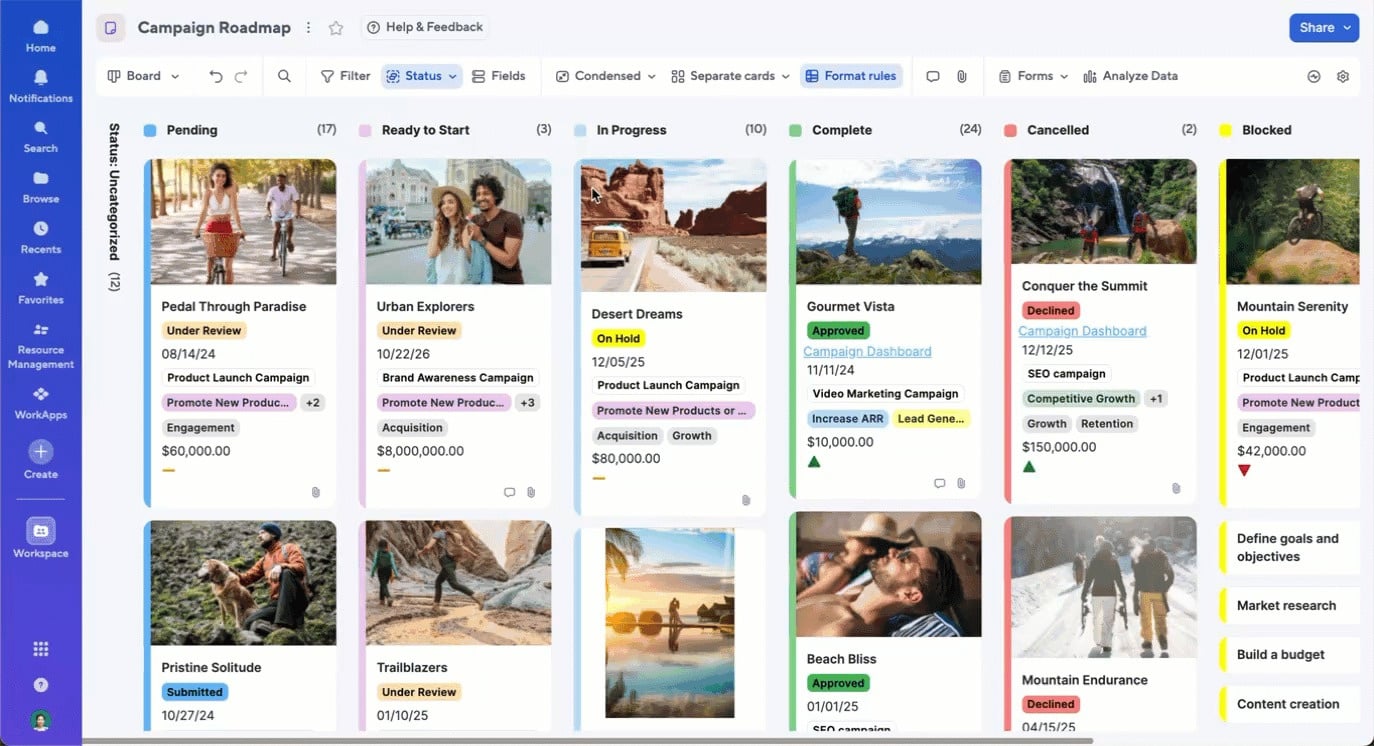
Editing fields in board view is just as easy. Dates, symbols, checkboxes, contacts, dropdowns, and text/number fields can be edited directly on the card. Simply double-click the card to open the Details panel to access and update all other field types. Any edits you make to card values are automatically saved and updated in real time for other collaborators while you edit.

2. Hierarchy improvements: If you use “nested cards mode” in board view, this one’s for you! Users can now customize and display up to eight fields on child cards, making it possible to update child card data directly in board view. Select dropdown values, check checkboxes, edit text or number fields, and more without ever leaving board view, and get greater control over your hierarchy and underlying sheet data.
3. Colored dropdown values: We previously introduced the ability to assign colors to values in dropdown columns in table view to help users visualize information quickly. Now, users can configure colored dropdown values directly from lane titles in board view too!

Note that this functionality is only available in board view when grouping by a single-select dropdown column and when the sheet does not have card (“task bar”) conditional formatting.
4. Board density configurator: Many customers and employees requested the ability to see more cards at once to make it easier to scan and find specific cards in board view. However, some users also expressed the desire to see more details on each card, while others preferred a simpler and more spacious layout.
It became clear that card density is a personal preference, so we’ve introduced new card density settings that empower users to customize their board layouts to match their work styles and needs. Simply click into the toolbar to choose from these three flexible options:
- Condensed: See more cards without sacrificing visibility of key fields by minimizing column width and white space.
- Comfortable (default): Get a balanced view of card content and spacing.
- Wide: Show more information per card by expanding the card width to see fields with longer text or detailed notes.

Whether you’re a manager who needs to see as many cards with as much context as possible, or an individual contributor looking specifically for the next card in your queue, board view works the way you do.
5. Find in board by primary column: You asked for a better way to quickly find and update specific cards, and we’ve delivered! Rather than having to rely on global search, it’s now possible to search for and locate cards by keywords within titles (AKA primary column values).
Navigate large boards, streamline updates, and stay focused on the tasks that matter most. It’s easy: Just click the Find icon on the toolbar or use keyboard shortcuts (CTRL + F or CMD + F) and choose whether to show matching cards only (default settings) or show all cards with the matching ones highlighted.

6. Conditional formatting: Conditional formatting allows you to automatically update the appearance of individual cells or even entire rows when specific criteria are met. For example, past due tasks can be instantly highlighted in red across your fiscal budget planning sheet, so they’re easier to spot and address for the entire team.
Previously available only in legacy views, creating and managing this type of conditional formatting is now possible in board view! First, set the rules for your condition. Then, define the applied formatting. Finally, pick where you want the format applied, and voila!
7. [COMING SOON] Duplicate cards: Copy cards within the same board view in just a couple clicks for fast, error-free task creation without having to start from scratch.
8. [COMING SOON] Additional hierarchy improvements: We’re on a mission to make working in board view as straightforward as possible! Users will soon be able to promote and demote child cards in “nested mode,” as well as see links between children and parent cards in “separate mode.”