This post details how to track all sheet automation notifications emails. This solution is medium complexity and will likely require you to use an AI for some simple coding. Smartsheet allows users to automatically send email notifications from sheets. There are a few significant problems with these automated emails.
- Emails come from automation@app.smartsheet.com and may get junked by the recipient.
- There is no tracking of the emails and users cannot see what emails were sent. This makes auditing impossible.
Users can create an audit trail of automated emails and have them sent from an organization email address using Outlook and PowerAutomate Flows.
What is needed
- Smartsheet sheet automation that sends an email.
- Outlook Shared Email address
- Shared Email addresses are preferred because if staff leaves, the process will still function.
- PowerAutomate Flow
Smartsheet automation configuration
- Setup your automation including the "Alert someone" component.
- Send the Alert to your Outlook Shared Email address.
- Ensure the email subject is unique and easy for a computer to identify.
- PowerAutomate will identify emails for processing based on the subject.
- Ensure the final recipient email is included in the body of the message and a way that is easy for a computer to find. In my example, the final recipient email is always after the string "Instructor email: "
- PowerAutomate will extract the destination email by looking for a string in the email body.
Example automation
Select the Contact column that contains your Outlook Shared Email address. The key areas are highlighted below.
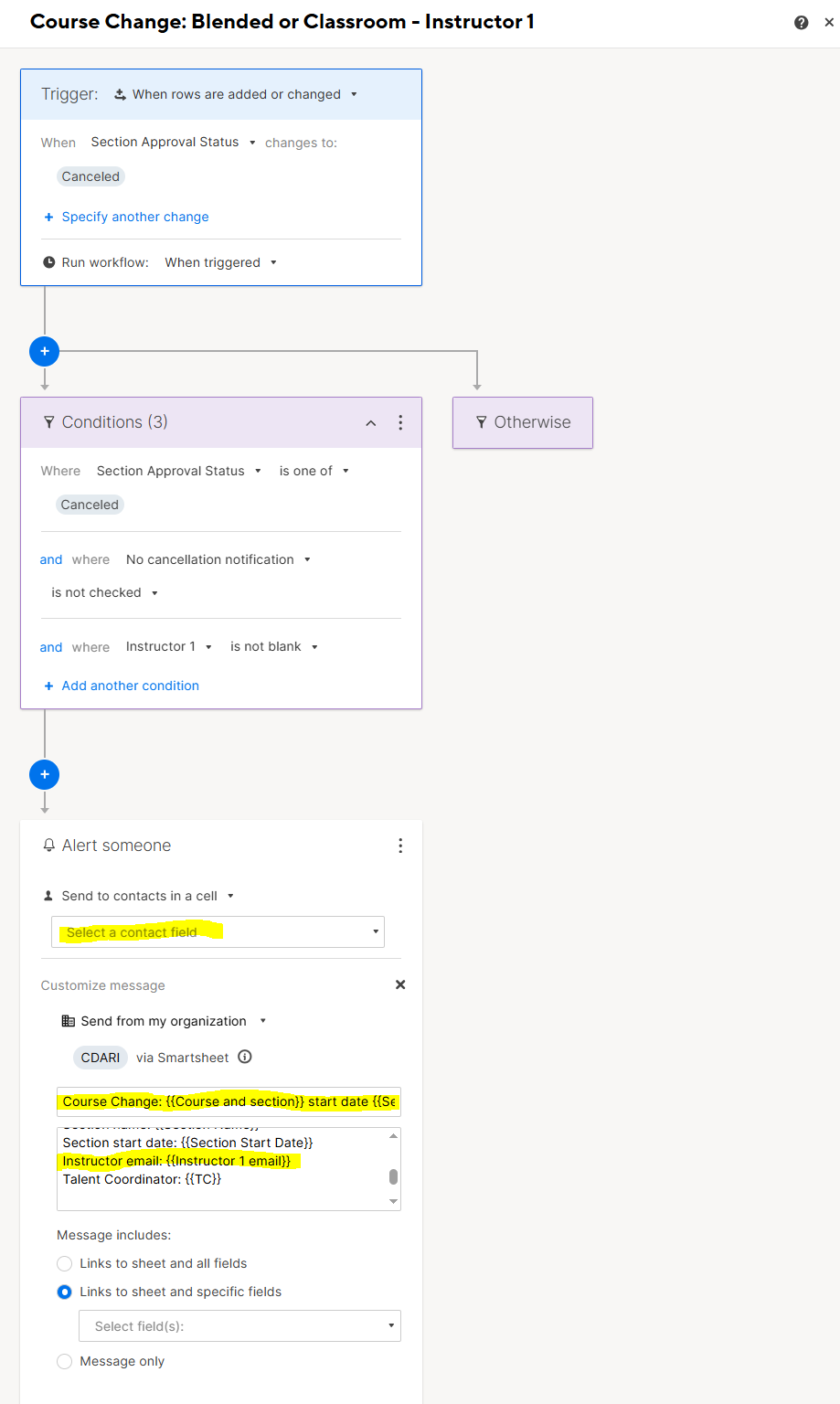
Example email subject
Section Change: {{Course and section}} start date {{Section Start Date}}
Exampled email body
Hello {{Instructor 1 first name}},
I hope you are staying well.
Please note that we have been notified that the section below has been cancelled due to low enrollment. Please accept our apologies for the inconvenience.
Course section: {{Course and section}}
Section name: {{Section Name}}
Section start date: {{Section Start Date}}
Instructor email: {{Instructor 1 email}}
Talent Coordinator: {{TC}}
Kind regards
{{TC}}
Talent Coordinator
Shared Email
This stage will move all the specific automated emails from Smartsheet to an Inbox subfolder for better management and processing by the Power Automate Flow.
- In the SharedEmail Account, create an inbox subfolder for the emails.
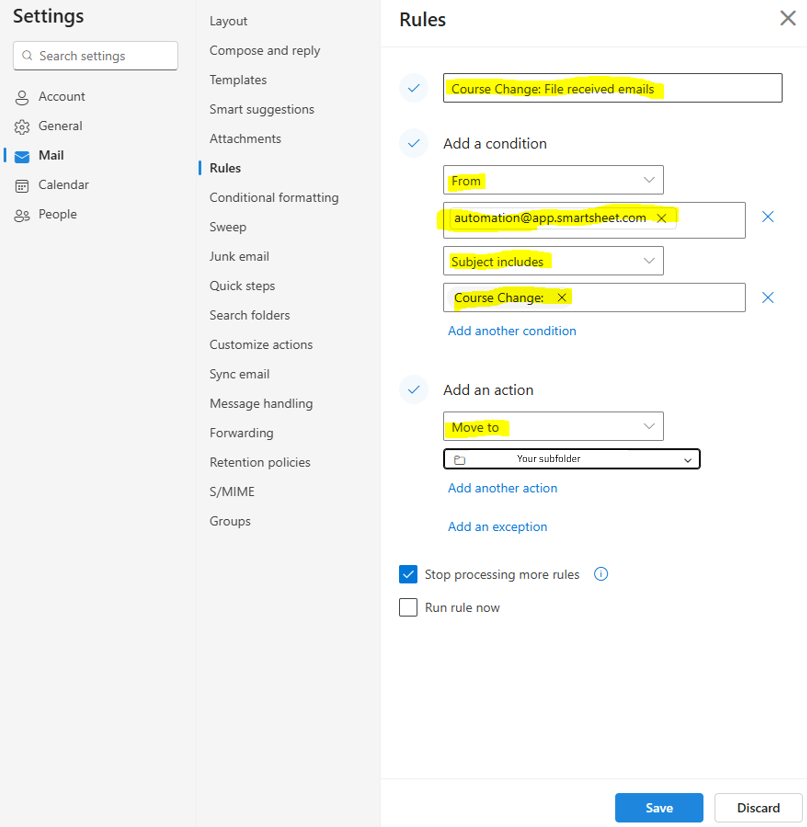
- Create Outlook Rule to put specific emails from automation@app.smartsheet.com in an Inbox subfolder.
- This part of the process requires using Outlook Web and specific navigation.
- Open Outlook Web with your email account that has access to the Shared Email Account
- Click on your icon on the top right and click "Open another mailbox" and type your Shared Email Address.
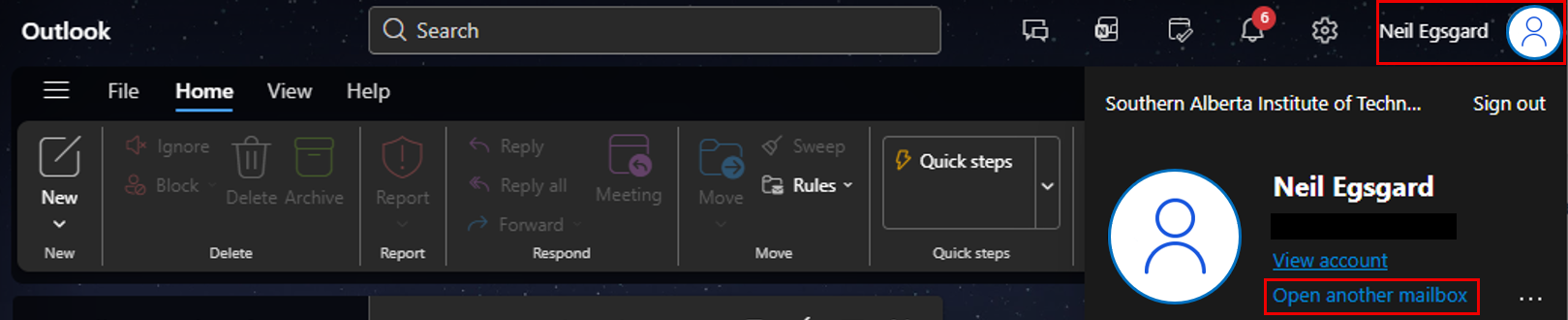
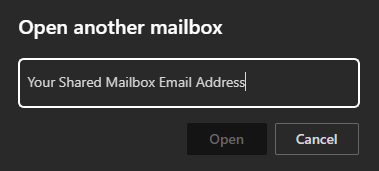
- This will open the shared mailbox where you can edit rules for that mailbox.
- Select Home > Quick Steps

- Select Mail > Rules > Add new rule
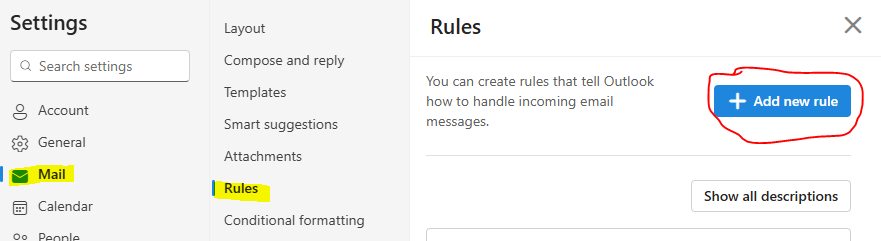
- Setup the rule
- Name
- Add a condition
- From
- automation@app.smartsheet.com
- Subject includes
- Your string
- Ex. "Course Change: "
- Stop processing more rules can be checked or unchecked based on your needs.
PowerAutomate Flow
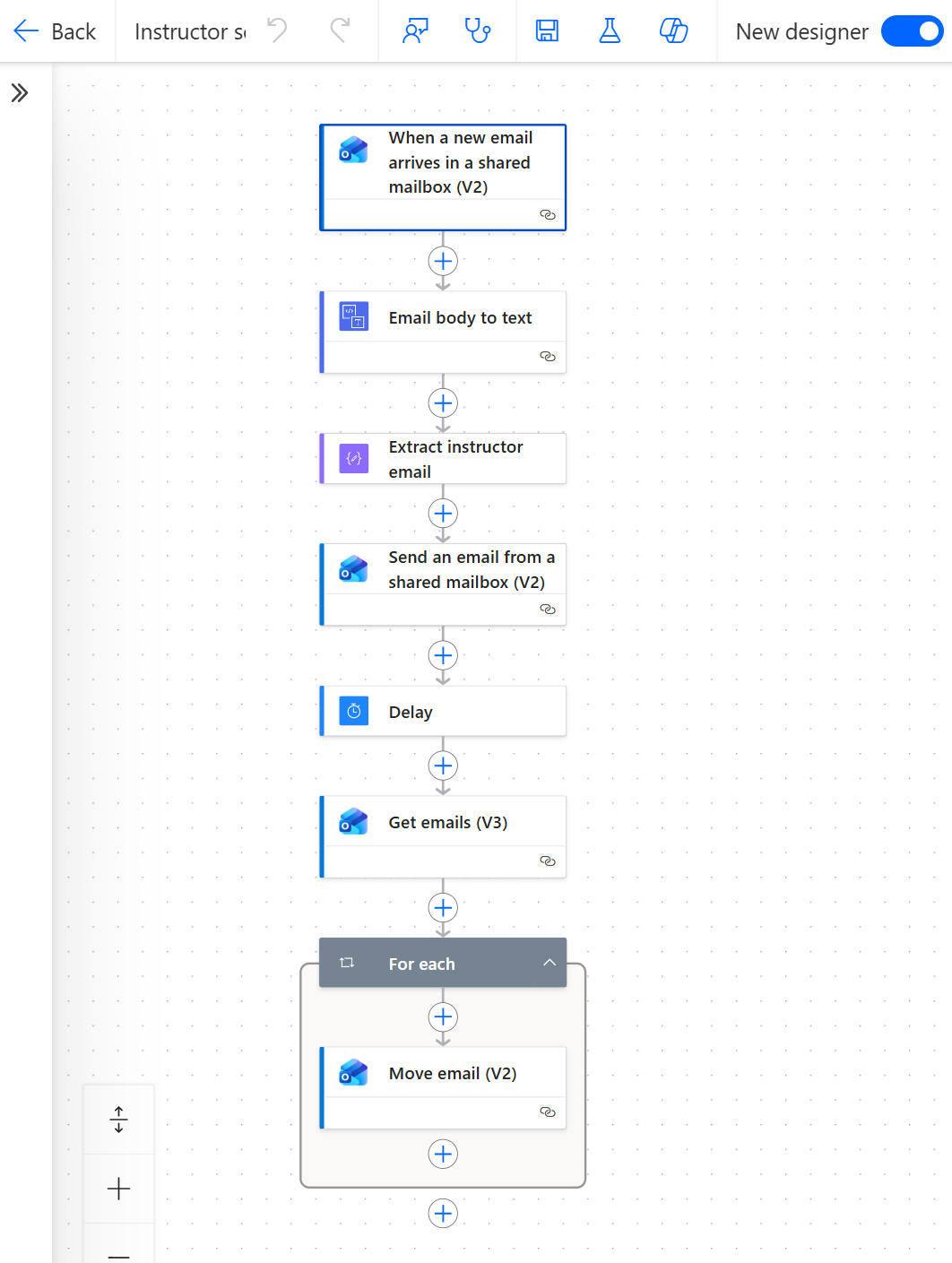
The PowerAutomate Flow account needs access to view emails and send emails and move emails in the shared email Account. The flow will:
- Check each email for
- From automation@app.smartsheet.com
- Being in a specific inbox subfolder
- Extract the recipient email from the body of the email.
- Send and email from the shared inbox
- Move the sent email to a subfolder of the Sent folder.
Example PowerAutomate Flow
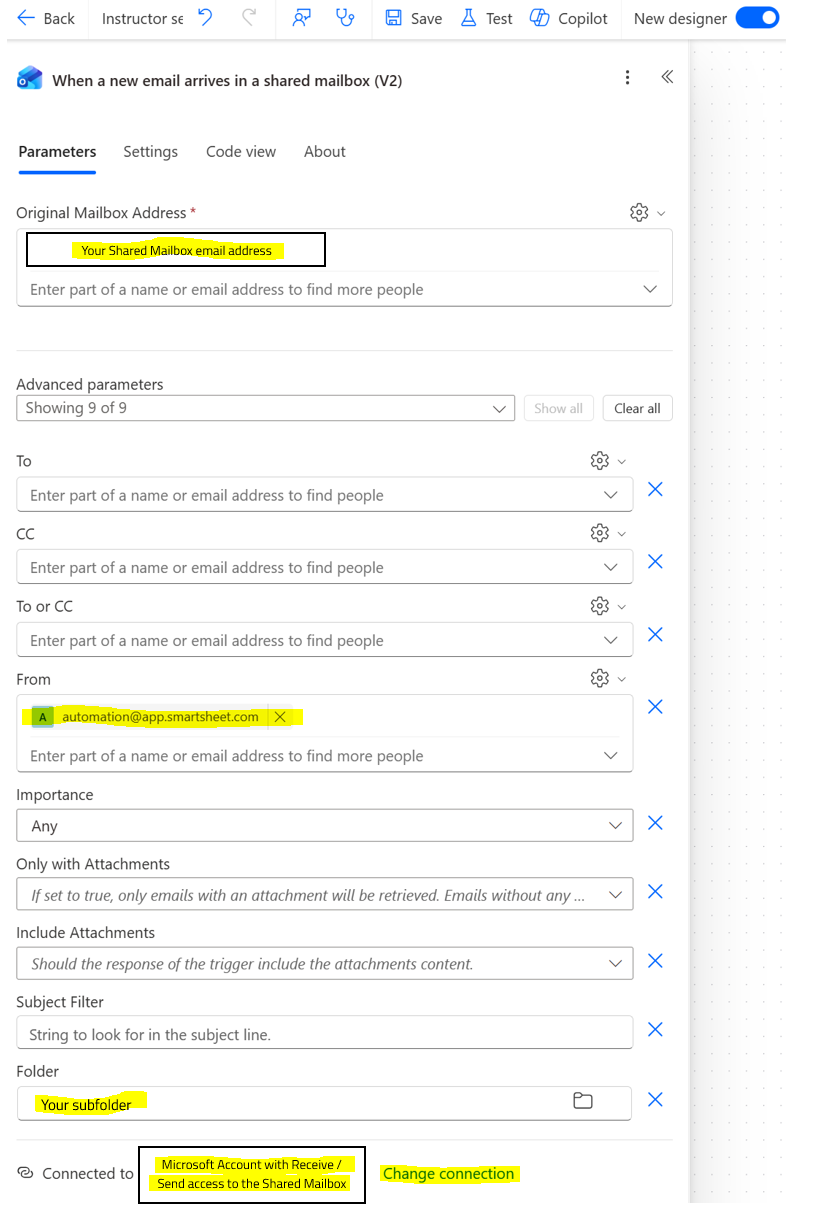
When a new email arrives in a shared mailbox (V2)
Action: Office 365 Outlook > When a new email arrives in a shared mailbox (V2)
This step is the trigger that identifies emails that need to be processed by this flow.
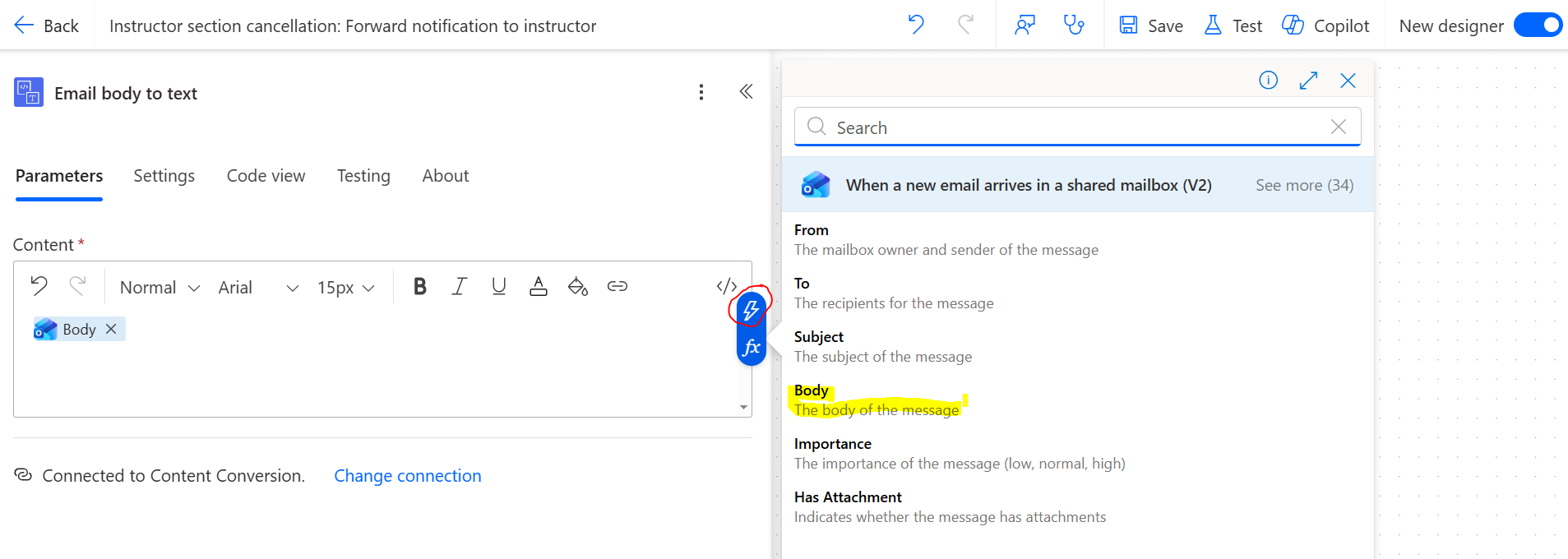
Email body to text
Action: Content Conversion > Html to text
Use the lightning bolt to enter Body variable.
Extract instructor email
Action: Data Operation > Compose
This step extracts the recipient email from the body of the email. In my case I am using the string "Instructor email: " before the email and after "talent coordinator:" so the code can find the email.
Use the Expression button to enter the code. You may need to use an AI to adjust the code to your needs.
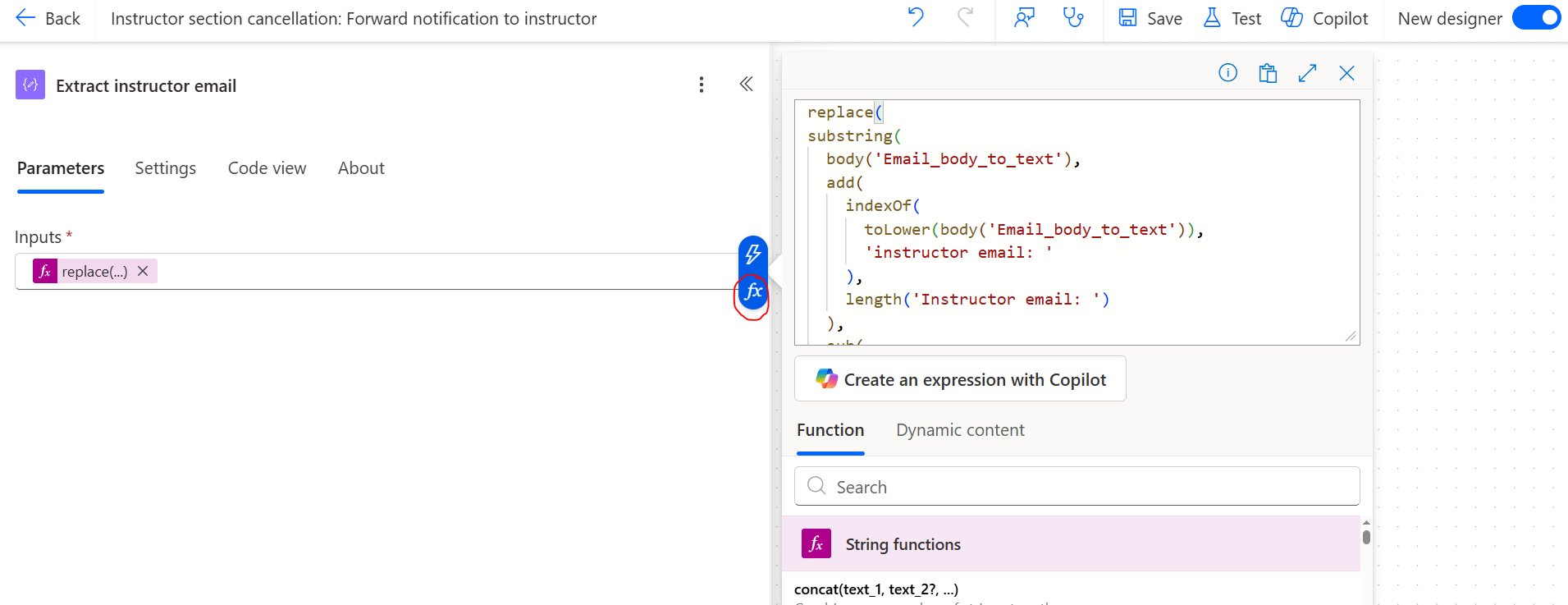
Code
replace(

substring(

  body('Email_body_to_text'),

  add(

    indexOf(

      toLower(body('Email_body_to_text')),

      'instructor email: '

    ),

    length('Instructor email: ')

  ),

  sub(

    indexOf(

      toLower(body('Email_body_to_text')),

      'talent coordinator:'

    ),

    add(

      indexOf(

        toLower(body('Email_body_to_text')),

               'instructor email: '

      ),

      length('Instructor email: ')

    )

  )

)

,decodeUriComponent('%0A'),'')
Send an email from a shared mailbox (V2)
Action: Office 365 Outlook > Send an email from a shared mailbox (V2)
This step will send the email.
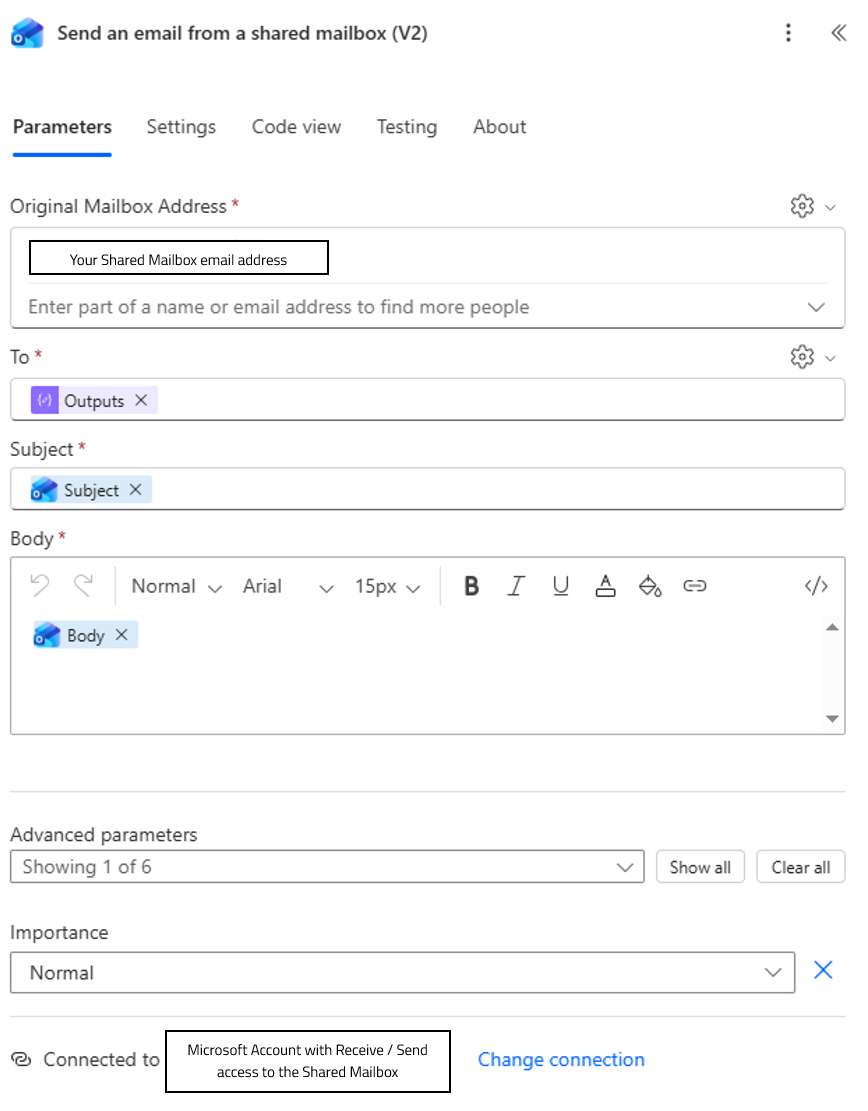
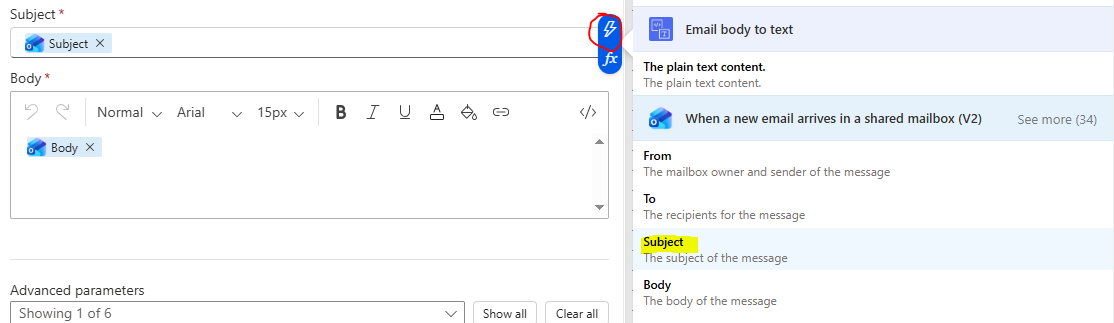
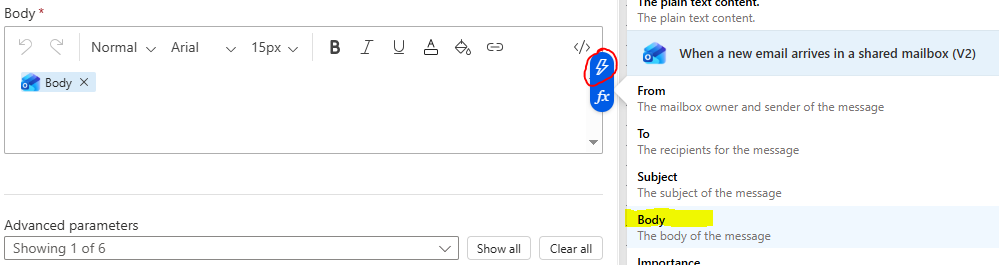
Below are screenshots showing to use the lightning bolt to get the correct variables.
To

Subject
Body
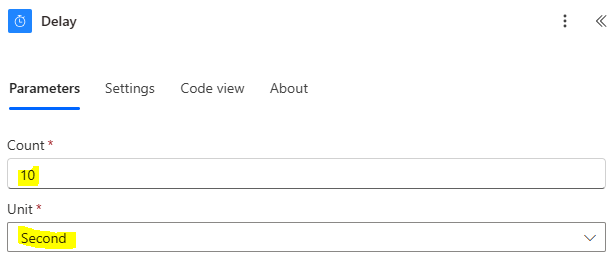
Delay
Action: Schedule > Delay
This step allows the email to finish sending before trying to move the sent email to a storage folder. If the delay is not used, the sent email is not moved because it does not exist.
Get emails (V3)
Action: Office 365 Outlook < Get emails (V3)
This step finds the email that was just sent by:
- Matching the subject
- looking in the Sent folder
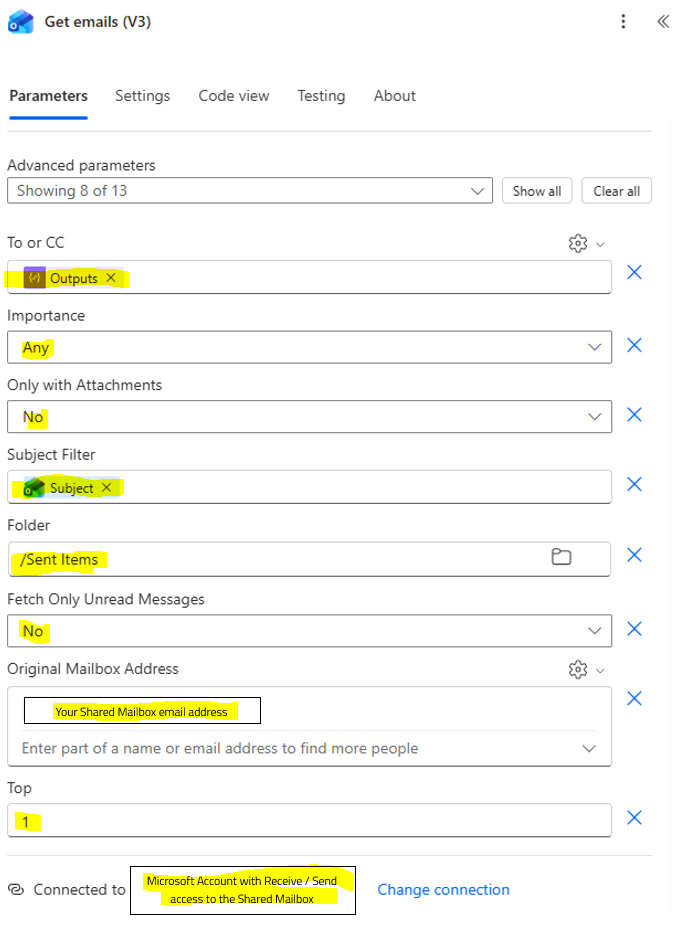
Below are screenshots showing to use the lightning bolt to get the correct variables.
To or CC

Subject Filter

For each
Action: None. This will be automatically added then you add the "Move Email (V2)" action.
This step runs the "Move Email (V2)" for every email found in the Get emails (V3) step.
Move Email (V2)
Action: Office 365 Outlook > Move Email (V2)
This step moves the sent email to a subfolder for better organizing and ease for auditting.
Add this action will automatically create the "For each" loop.
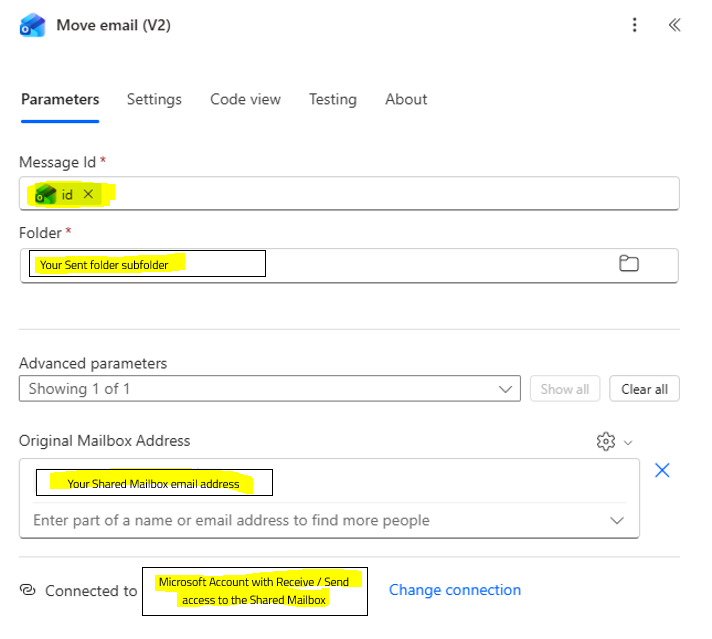
Below are screenshots showing to use the lightning bolt to get the correct variables.
Message Id

When you save and refresh the flow, the Message Id icon will change to the below.
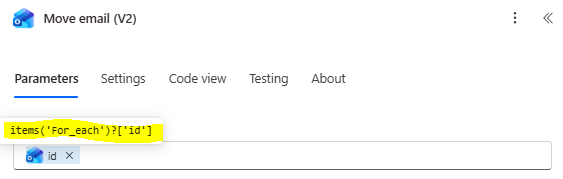
Summary of results
This setup allows you to have Smartsheet notification emails that are:
- Sent from your business email
- Provide an audit trail of automated email history
Have a good day and I hope this is useful.
Neil Egsgard
Business Solutions Architect
Southern Alberta Institute of Technology