Best Of
Re: Column Type Reverts to Dropdown List
This issue in Smartsheet—where a column keeps reverting from a Check Box type back to a Dropdown list, especially when it's formula-driven—can be caused by a few subtle factors. Here are some possibilities to investigate:
1. Formula Behavior and Column Type Conflicts
If the column contains a formula that references a checkbox column in another sheet, Smartsheet expects the data type to match. If the formula returns anything other than true/false, Smartsheet may automatically change the column type to accommodate the returned value (e.g., text or dropdown).
- Check the formula output: Ensure it only returns
trueorfalse. Even a stray space or text string like"TRUE"(in quotes) can cause issues. - Compare with working columns: Look at the formulas in the other columns that are behaving correctly. Are they structured differently?
2. External Data Sources or Integrations
Even if you don’t see any Data Shuttle or automation rules, consider:
- Connected Sheets or Reports: Is this sheet being updated by a report or another sheet via cell linking or cross-sheet formulas?
- Third-party integrations: Tools like Zapier, Power Automate, or API scripts might be modifying the column type silently.
3. Sheet or Column Template Behavior
If the sheet was created from a template or is part of a Control Center blueprint, it might be inheriting settings that override manual changes.
- Check if the sheet is part of a portfolio or program managed by Control Center.
- Look for update requests or template syncs that might be resetting the column type.
Suggested Troubleshooting Steps
- Temporarily remove the formula from the column and manually set it to Check Box. See if it stays.
- Reapply the formula after confirming the column type sticks.
- Duplicate the sheet and test changes there to isolate the issue.
- Check sheet activity log (if available) to see what’s triggering the change.
I hope this helps!
 David011
Re: Help Creating a Complex Report
HI @Hudson_Miller , I did!
I've actually just created a filter, available on all projects, that shows milestones at the top, regardless of date, with all other tasks still available underneath. This is probably the simplest solution for this team at the moment.
MWongInBeauty


Re: Sumifs total from two sheets - Errors
Hey Hudson.
You cracked it mate - thanks for that.
 Jason P
Re: Project Metadata Sheet Not Correctly Indexing the Project Intake Sheet
I found a solution from another community post. The problem is not with the formula; however, it is with the references. Hover over the Project Name cell in the Project Metadata sheet and you will see a formula (fx) appear in a semitransparent rectangle below the cell. In the rectangle, you will see the following:
Edit Reference: {Portfolio Summary Data}, {Project ID} and {Portfolio Summary Header Row}
Click on {Portfolio Summary Data} and follow these steps:
In the Project Metadata sheet, modify the formula references as follows; references should be to the Project Intake Sheet. If you get any error messages or pop-ups, you may close them to continue.
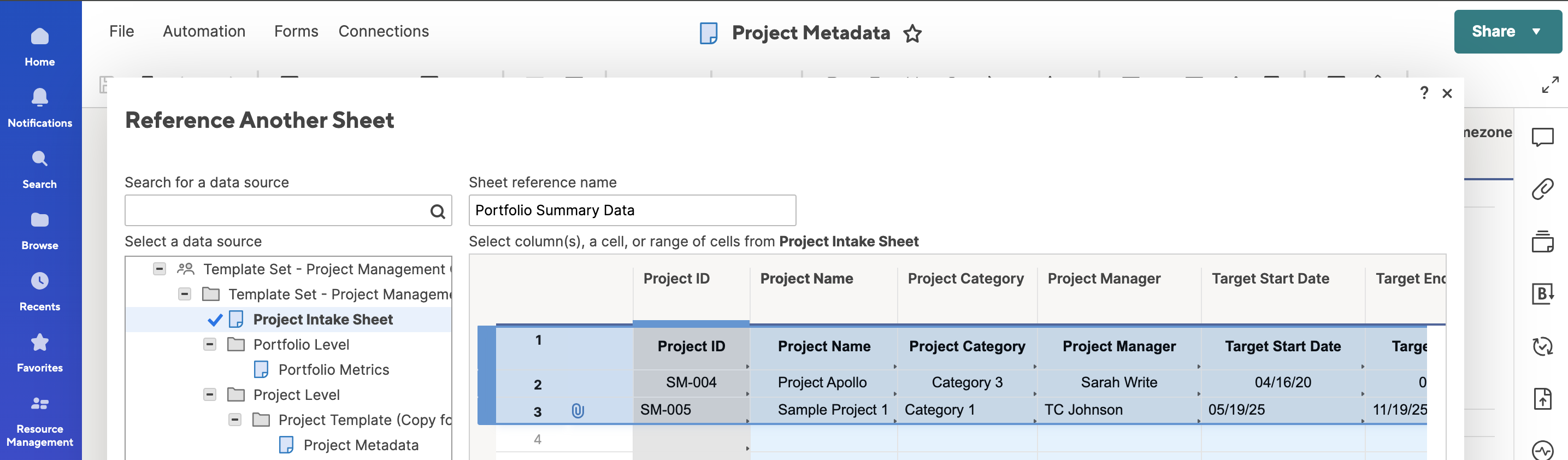
- {Portfolio Summary Data}, - SELECT THE ENTIRE SHEET as the reference. You can do this by selecting all columns.
- {Project ID}, - Select the entire Project ID column as Reference.
- {Portfolio Summary Header Row} - YOU MUST HAVE A HEADER ROW - (Row 1) - that exactly matches the column names in both sheets.
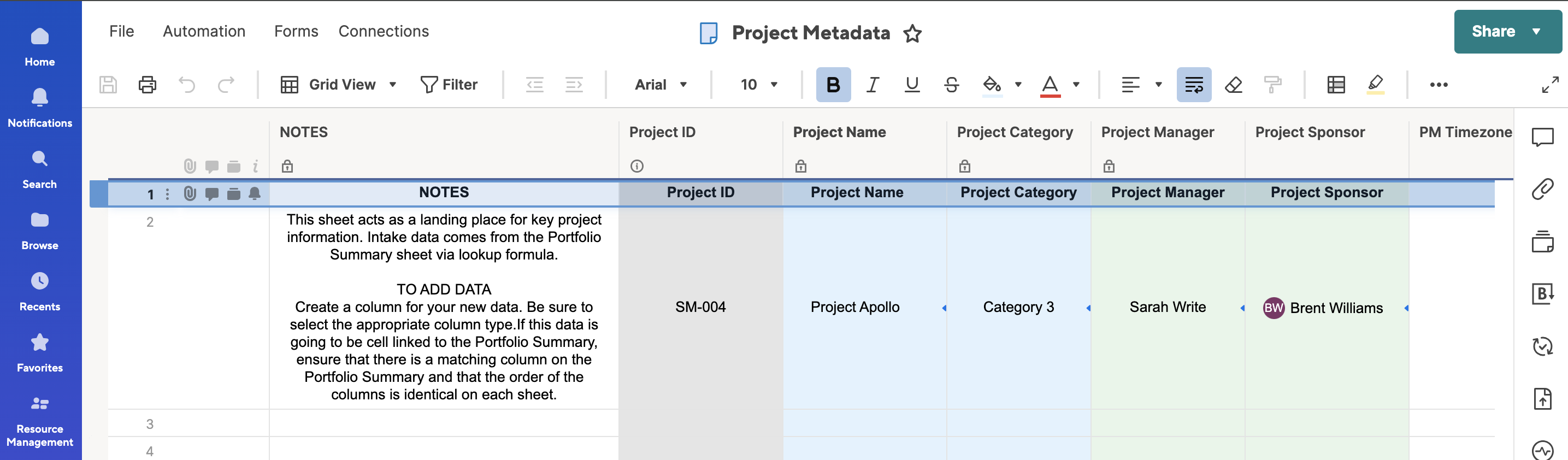
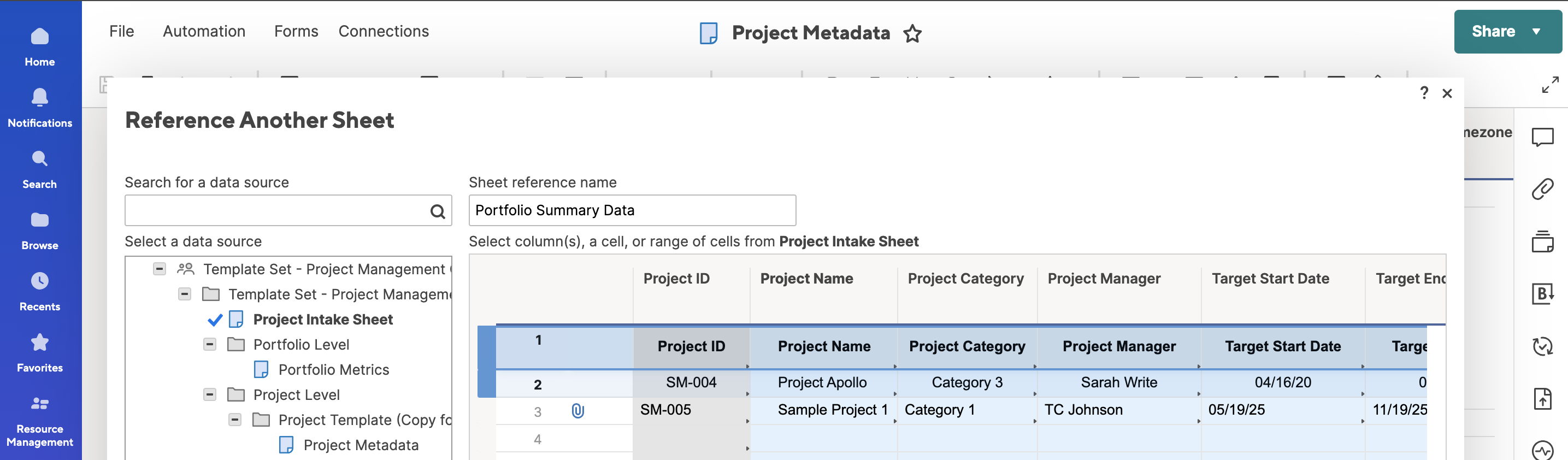
Save these updates to the Template Set so that you don't have to do it on every project that is created from the Template Set.
I hope this helps.
DL Milton
Help Article updates May 2025
Hello Community,
We’ve published the following new content:
To view the entire catalog of help articles, visit the Help and Learning Center.
Were the articles helpful?
Let us know by providing feedback for each article.
 Trelawney
Re: Help with "INDEX MATCH"
Hi @AP8331
First, I recommend using the "sheet name & column name" convention like {data (3) - TEST : actuals}, to make your formula easy to understand, later. (See the image below.)

Then, there are a couple of points I want to fix.
Your formula
=INDEX(COLLECT({{data (3) - TEST Range 5}}, {{data (3) - TEST Range 2}}, "[Property]@row", {{data (3) - TEST Range 3}}, "[Property]@row", {{data (3) - TEST Range 4}}, "[January]"), 1)
You do not have to quote like "[Property]@row".
The second condition should be [GL Combined]@row, supposing {data (3) - TEST Range 3} refers to the GL column.
Lastly, "[January]" needs to be simply "January" or "March", in my example.
I added IFERROR( , "No Match"), in case there is no matching date, to avoid errors.
=IFERROR(INDEX(COLLECT(, {data (3) - TEST : Sub Property Name}, Property@row, {data (3) - TEST : GL}, [GL Combined]@row, {data (3) - TEST : Month - Month}, "March"), 1), "No Match")


Re: Sharing reports with data without even view access to the source sheet
Instead of Smartsheet making a money grab with Dynamic View starting at $125/month (yes, you read that right a month, which is more than the ANNUAL cost of a Business Plan with 3 licenses) why can't a report be shared to give a licensed user edit access without having to share other confidential info from the source sheet by also making them an editor of the sheet? That really defeats alot of the purpose of creating a report in the first place, which is to query data from a source sheet or multiple source sheets.
What's the rationale beyond Smartsheet forcing this? As greedy as they've become with this disaster of a new subscriber model, it's not a stretch to think they want you to spend wheelbarrows full of money to accomplish what should otherwise be a simple task. As it is, without being able to share a report with an editor w/o also sharing the sheet, the data has to be managed in a totally separate sheet and then added to another sheet where it lives when it could just otherwise be updated automatically in the original source sheet. Stupid!
 ljgrissom