Best Of
Re: Mouse-over / Alt-text to Dashboard Widgets
Idea: enable "mouse over" functionality on dashboards.
For example, an explanatory field (black box) could be activated by a "mouse over" over an info field (i) (green circle). Example see screenshot

 Miranda_1
Re: Welcome to the online Smartsheet Community!
Happy to help with this, you can find the Fully Charged badge on your profile now!
 Rebeca S.
Re: Columns not available in report
Hi,
I hope you're well and safe!
There are two different types of Reports (Row and Sheet Summary), and you've selected the Sheet Summary one. Try creating a new one and ensure you choose the Row Report option.
Did that work/help?
I hope that helps!
Be safe, and have a fantastic day!
Best,
Andrée Starå | Smartsheet Expert Consultant & Partner / CEO @ WORK BOLD
✅ Did I help answer your question/solve the problem? Please support with💡 ⬆️ ❤️, and/or ✅ Answer. This will make it easier for others to find a solution or help answer! I appreciate it, thank you! 🙏
 Andrée Starå
Re: Form field blocked
Hi,
I hope you're well and safe!
Unfortunately, it's not possible at the moment, but it's an excellent idea!
Please submit this as a Product Feedback or Idea (If it hasn't been added already) when you have a moment.
Here's a possible workaround or workarounds
- 3rd-party form service
Would that work/help?
I hope that helps!
Be safe, and have a fantastic day!
Best,
Andrée Starå | Smartsheet Expert Consultant & Partner / CEO @ WORK BOLD
✅ Did I help answer your question/solve the problem? Please support with💡 ⬆️ ❤️, and/or ✅ Answer. This will make it easier for others to find a solution or help answer! I appreciate it, thank you! 🙏
Andrée Starå
Re: Vlookup/Indexmatch (retrieving date from one smartbook to generate in main sheet)
Hi @Monika_923
In Excel, you would use a formula something like this;
=INDEX('CC&Names'!B:B,MATCH('2025 OT Tracking SAMPLE'!B2,'CC&Names'!A:A,0))
Smartsheet formula is very similar to Excel, but there are a few differences.
First, when you input "=INDEX(" in a cell, you will get something like the below image asking you to set the range.
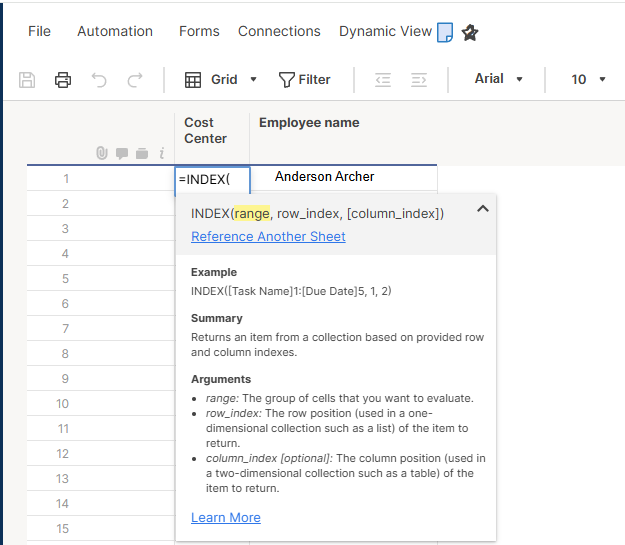
To reference another sheet, you click the Reference Another Sheet.
Then, you can search the sheet by name.
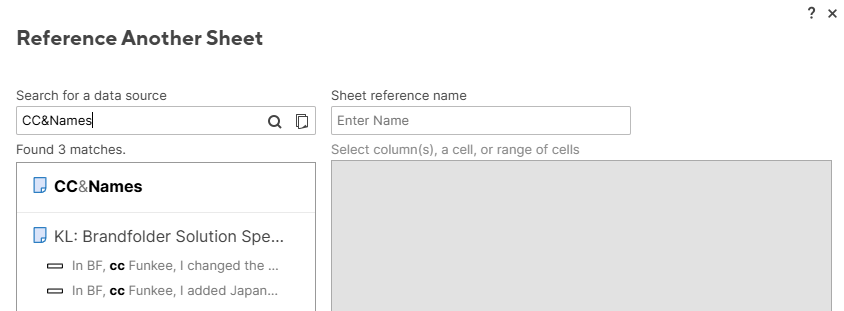
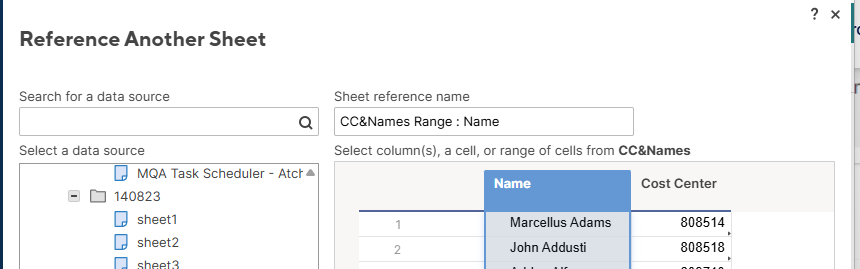
When you click the found sheet, you will see the preview of the sheet, like the image below.
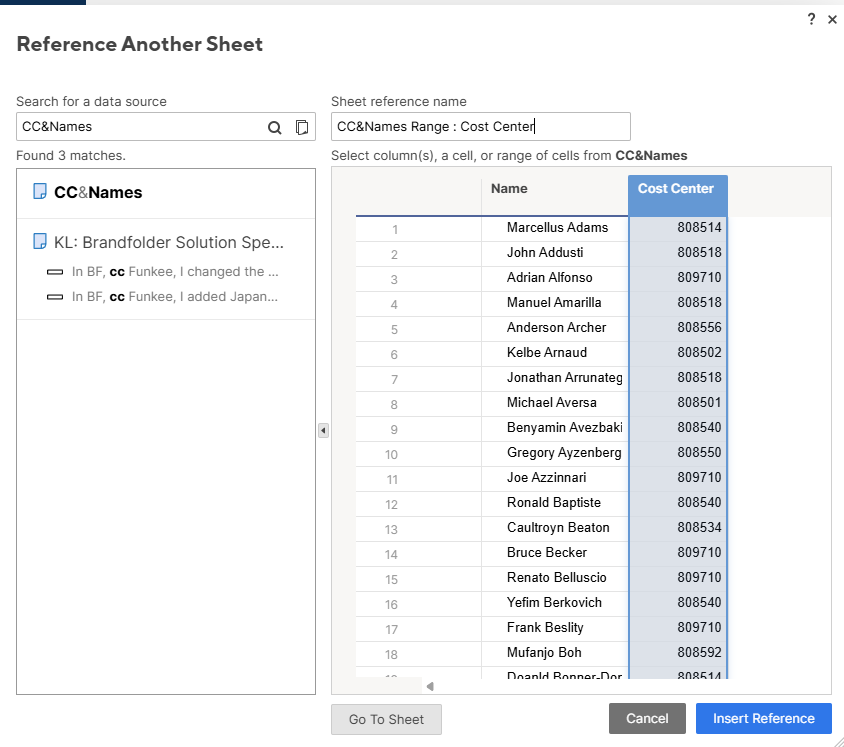
When you click the column name, Cost Center, for example, the whole column will be selected, something equivalent to Excel's B:B.
Then, set the name of the range, CC&Names Range: Cost Center or Cost Center, for example.
It is a good practice to name the range like Sheet Name: Column Name or Sheet Name - Column Name, so that you can see where the range comes from easily.
When you hit 'Insert Reference', the range will be inserted like the image below.
Note, {range name} format is how Smartsheet indicates a range in a formula.
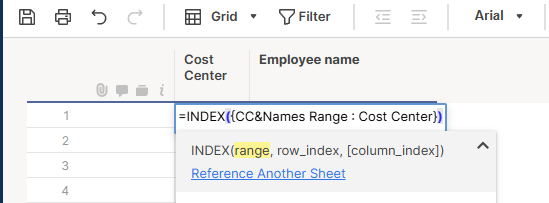
Second, like Excel, you use the MATCH function to get the row number that matches your criteria.
As shown below, Smartsheet uses column names, not like B2, and uses [Column Name]@row if you want to apply the formula to the whole column.
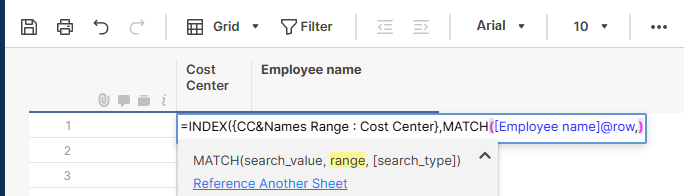
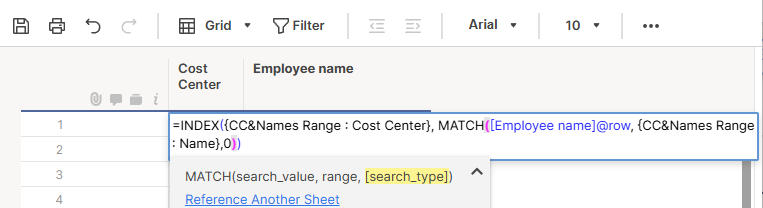
The way to reference another sheet's range is the same as explained above.
Search type is the same as Excel, 0, for an exact match, or the source sheet's data is random.
As shown below, the formula successfully got the corresponding Cost Center number.
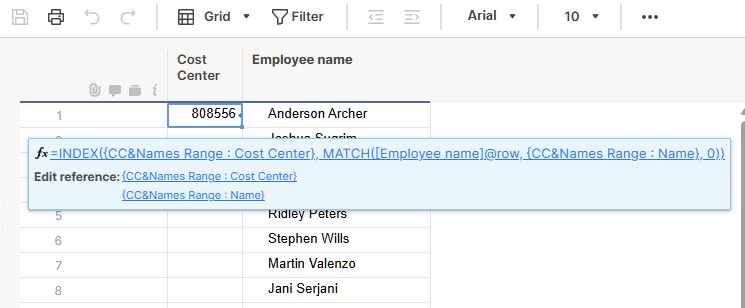
Third, to populate the formula to the whole column, you use the "Convert to Column Formula" menu.
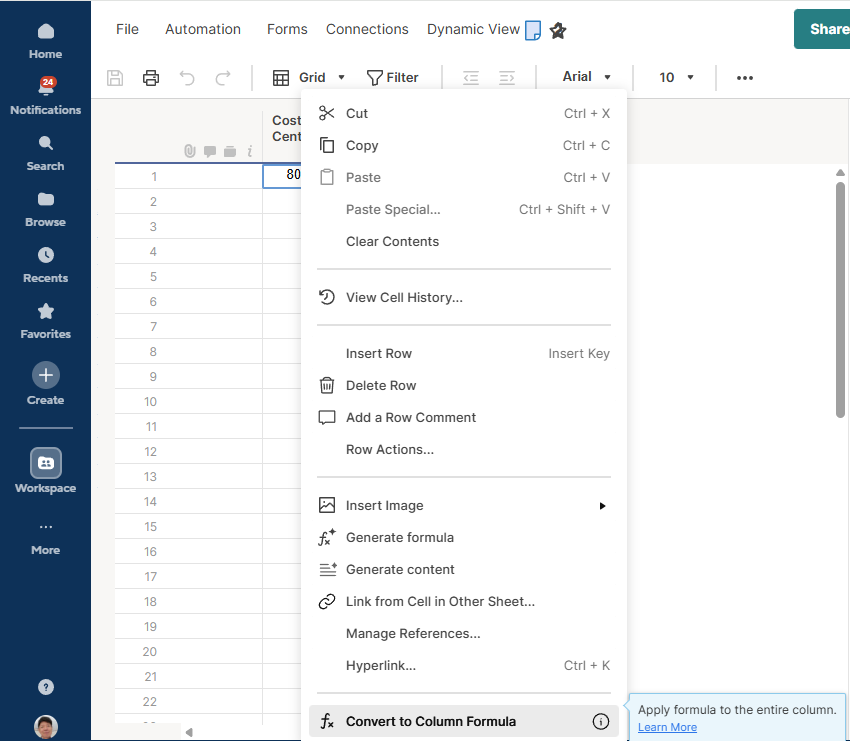
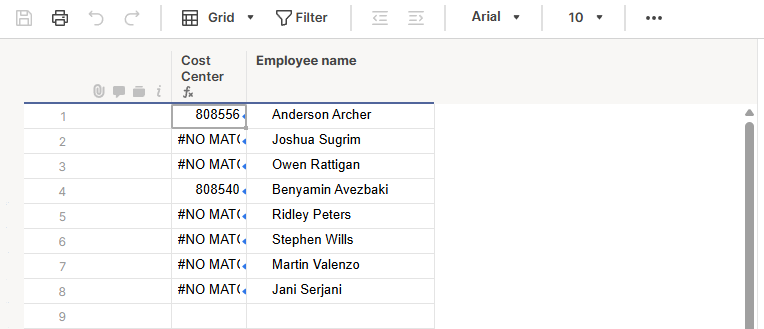
As shown below, when I apply the formula to the whole column, I get #NO MATCH errors.
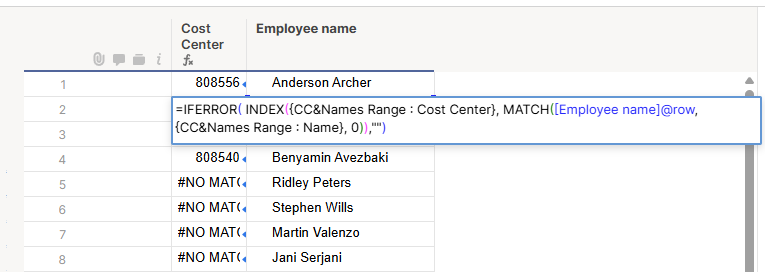
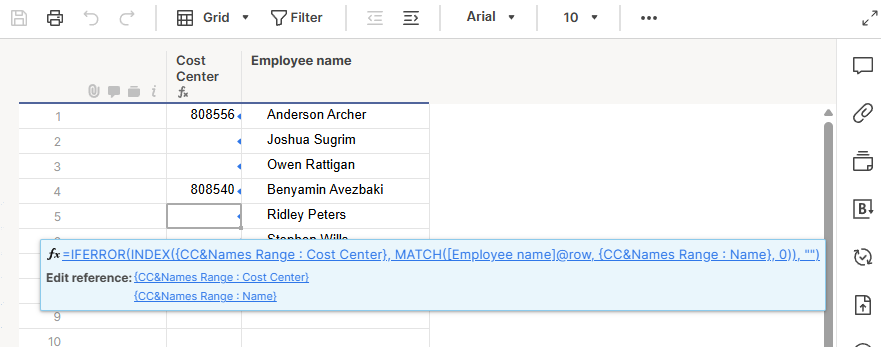
To cope with the error, you can use the IFERROR function, as shown below.
In the example, I chose"" to place the blank if there is no match, but you can put something like "N/A" if you want.

Re: Automation - Triggered Emails Not Sent in Batches
@Maria Hill, anything over 6 items will batch. You can read up on it here.
It's not as clean as we might like, but here's one example of the workaround I mentioned by renaming the buttons under the advanced settings. You could likely word things better than I did for the example and if needed add instructions to click Open Request from the email. Or another thought, you may give them all the info right in the email and instruct them to only open the request if they need to request other details. Would take some creative thought around your scenario, but the point is it will avoid being batched. Below I used {{Project ID}} to insert the… well… project ID in the message.
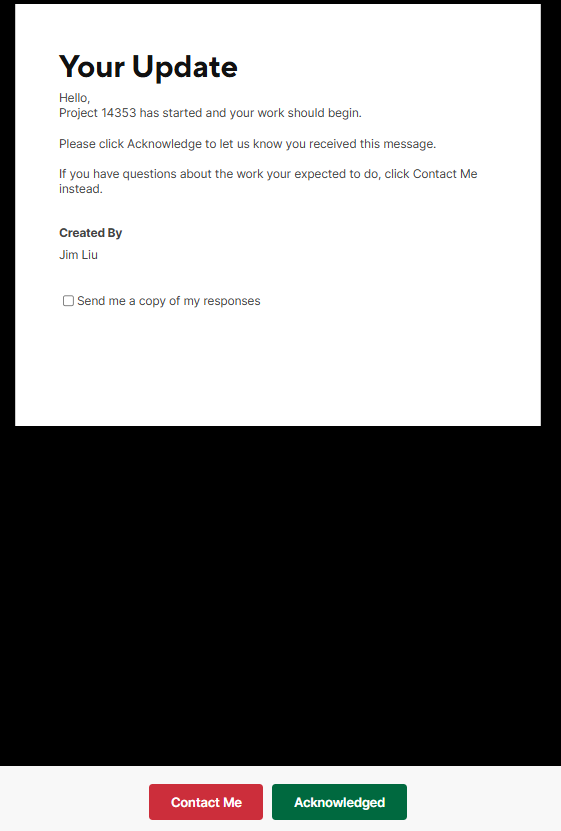
One last trick… if you use a formula in a cell then the user receiving the message cannot edit the information. Requesting an Approval will want you to link at least one cell. If you don't have anything you want them to edit, make the cell you include one that has a formula. In the above example I used the created by field.
electrichead
Re: Creating a bug burndown dashboard in Smartsheet
Hi Tom & Community,
I've built a METRICS sheet using formula's to produce daily/weekly counts of bugs created and closed, as well as calculating OPEN bug totals by week to produce the following type of graphs… Your comment is a few years old, but if you do happen to read this, i'm open to sharing how I've done this….
A.L.
 A.L.
A.L.

Re: Saving form before submitting
In Smartsheet form we don't have save option and currently only submit option is available. We should have save option also in Form as it will save lot of time for the users by minimizing the rework and then it would be more user friendly.
Dilip Gajrana