Best Of
Re: Is there anyway to automate the process of moving an attached image to a cell?
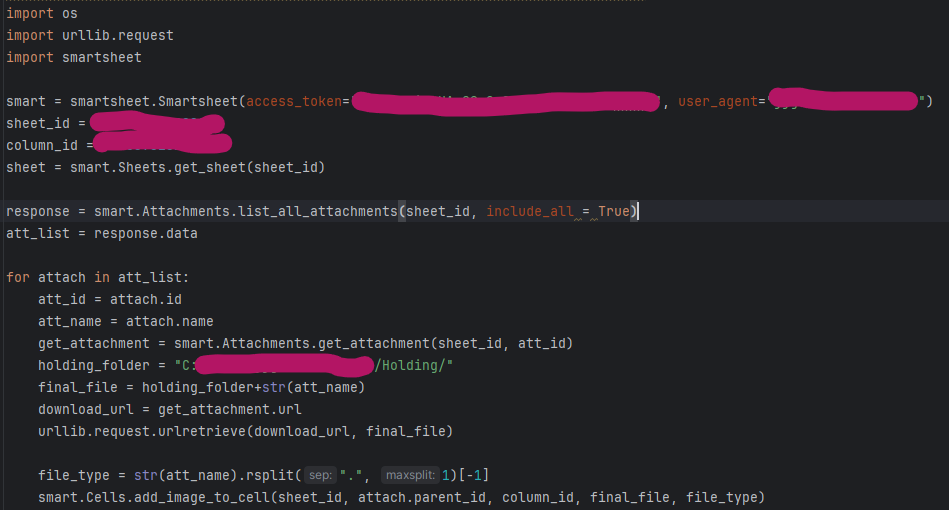
Just in case others stumble on this section, I had a similar problem and used the API to solve this problem using python. The following code gets a list of attachments and moves them to designated column on the same row as the original by downloading them and the re-uploading them.
 jjg279
Re: Allow linked cells to trigger workflows
Scenario: I have one "master" and 7 "slave" sheets, each sheet equal in design. The sheets are 600+ rows long and about 20 columns wide.
Task: On the master sheet if a user clicks the "System Task" check box, the 7 slave sheets with a linked System Task check box also get checked. This part of the process is working.
Need: Setup automation to change Status drop-down column to "Not Applicable" on the 7 slave sheets. After it did not work, contacted Support and was told due to cross-sheet formula present in System Task checkbox on the slave sheets, the automation does not work.
Attempted Work-A-Round: Created a new column in the slave sheet with this formula: =IF([System Task]@row = 1, 1, 0). When the System Task check box in the slave sheet gets checked, the new column has a 1, otherwise it defaults to 0. Setup automation to use the new column, where when column changes to a 1 it would update the status. This also did not work, and was confirmed by the support team.
Feature Request: Would like the ability to change a drop-down selection in a cell based on the status of a cell on that sheet, regardless of whether or not cross-sheet linking is involved.
Jerry in SC
Re: Introduce yourself & get to know your peers!
Hi! I'm Meagan. I live in Metro Detroit and work at Ford Motor Company as a Project Manager Associate. I've been utilizing Smartsheet since 2023 and primarily use Smartsheet to track projects in our EV division. I just realized I've never formally introduced myself in Community!!
A few fun facts about me:
- I have four cats
- I've recently gotten into quilting and am almost finished with my first quilt top, pieced by hand!
- I've attended Smartsheet ENGAGE twice (so far!) - once in Seattle and once in London 😎

 meagans
Re: Seeking help merging data from two fields - one column is locked and another is a shared column
You can use the value of Sheet A to be prefilled in the form of Sheet B, whose form URL or Link is placed in Sheet A using a technique called "URL query string." Then, you can refer to the form input value in Sheet B from Sheet A.
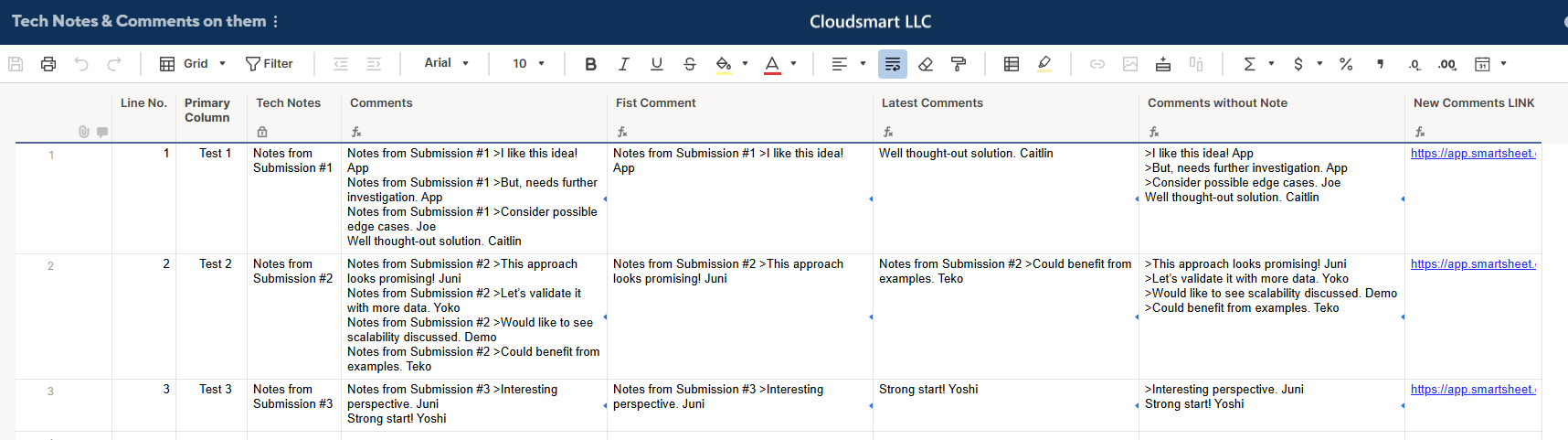
In the above sheet, if you click one of the links at the far left, you will see a form like this.
Please note that the form user can edit the New Comments' "Notes from Submission #1 >" as the row No.3's last comment shows.
So, is the [Line No.] value 1.
Therefore, the form below is for illustrative purposes, but in actual use, you should hide the Line No. field because changing the number would cause the input to go to the wrong place.
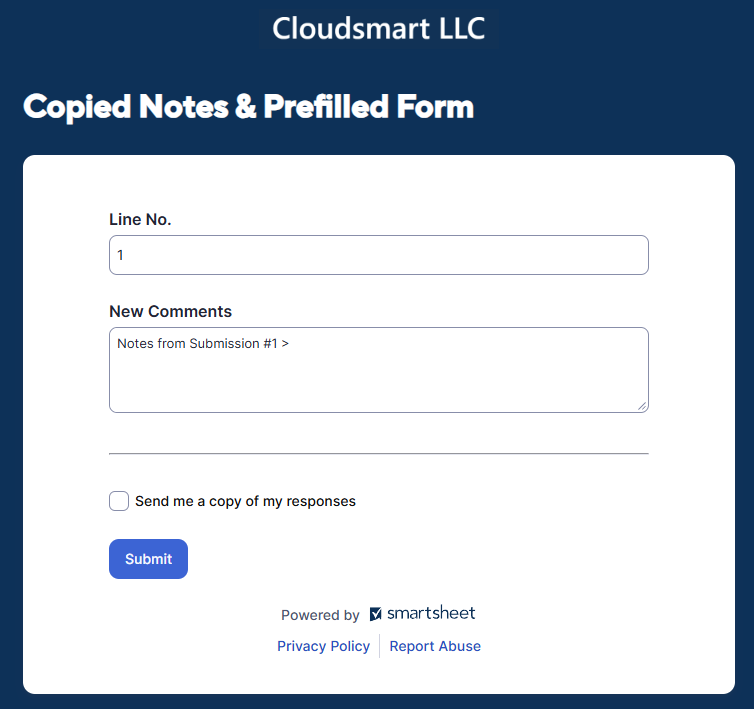
The values like 1 or 'Notes from Submission #1 >' are prepopulated by this formula;
[New Comments LINK] =[Form URL]# + SUBSTITUTE(SUBSTITUTE(SUBSTITUTE("?Line No.=" + [Line No.]@row + "&New Comments=" + [Tech Notes]@row + " > ", " ", "%20"), "#", "%23"), ">", "%3E")
The SUBSTITUTE function is used to replace special characters like space, "#", or ">" with ones that are not affected in the link. Please look at the help article at the top for details.
The form inputs the data to Sheet B;
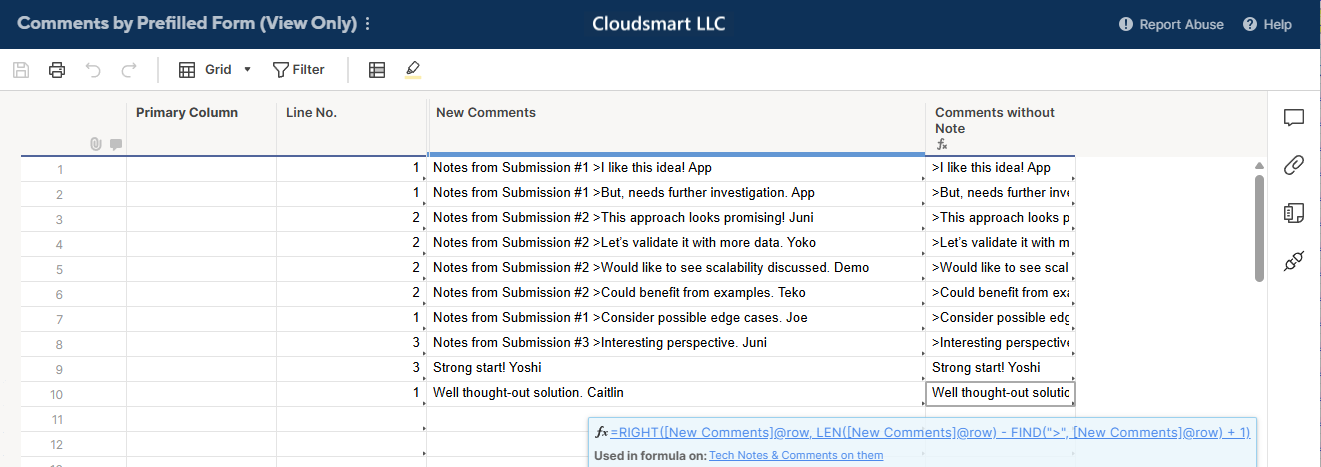
Then, you can reference them in Sheet A with formulas like these using the [Line No.] as a key.
[Comments] =JOIN(COLLECT({Comments by Prefilled Form : New Comments}, {Comments by Prefilled Form : Line No.}, [Line No.]@row ), CHAR(10))
[Fist Comment] =IFERROR(INDEX(COLLECT({Comments by Prefilled Form : New Comments}, {Comments by Prefilled Form : Line No.}, [Line No.]@row ), 1), "")
[Latest Comments] =IFERROR(INDEX(COLLECT({Comments by Prefilled Form : New Comments}, {Comments by Prefilled Form : Line No.}, [Line No.]@row ), COUNTIF({Comments by Prefilled Form : Line No.}, [Line No.]@row )), "")
[Comments without Note] =JOIN(COLLECT({Comments by Prefilled Form : Comments w/o Notes}, {Comments by Prefilled Form : Line No.}, [Line No.]@row ), CHAR(10))

Re: Seeking help merging data from two fields - one column is locked and another is a shared column
Method 1: Hide Columns
In this method, I hide all the unwanted columns and change the 'Comments without Note' column to add one Tech Note at the top, as shown in the 'One note and Comments' column.
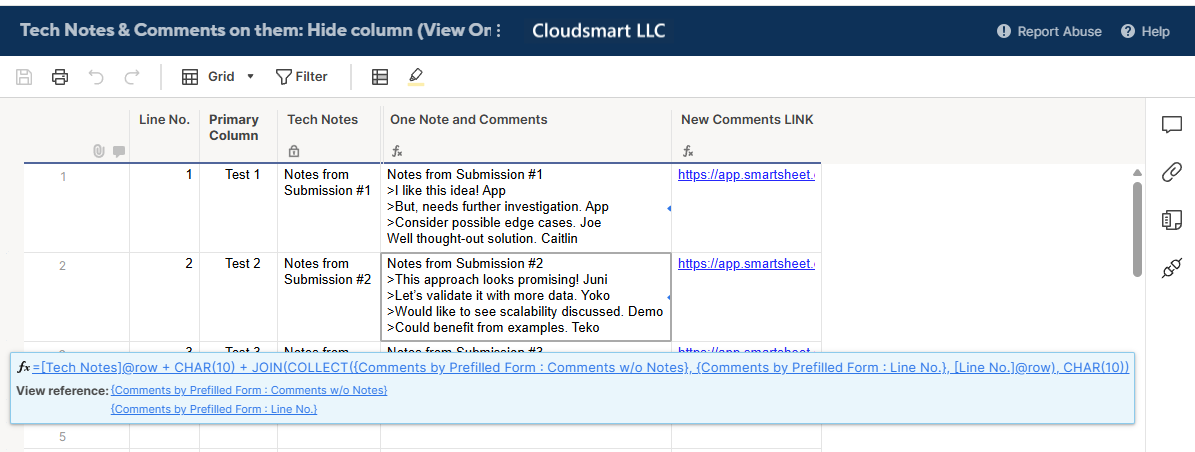
=[Tech Notes]@row + CHAR(10) + JOIN(COLLECT({Comments by Prefilled Form : Comments w/o Notes}, {Comments by Prefilled Form : Line No.}, [Line No.]@row ), CHAR(10))
This method is good if your commentator has viewer access to the sheet, and can not add comments to rows or the sheet.
Method 2: Latest Comment Special Column + Copy rows automation
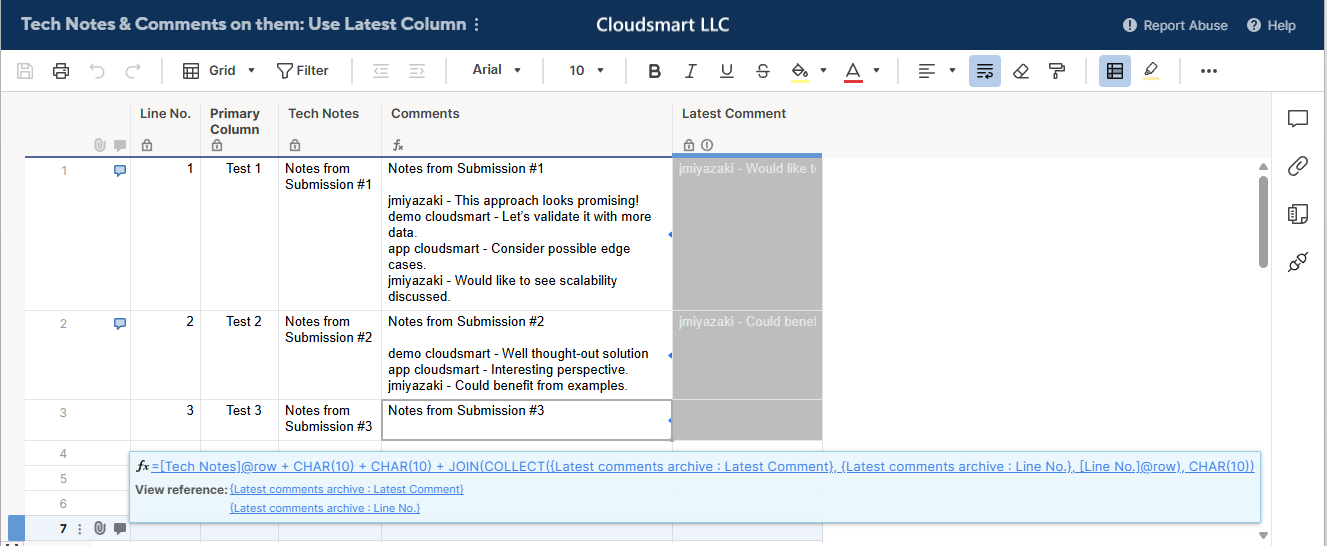
If your commentator has commenter or editor access, you can use the Latest Comment special column.
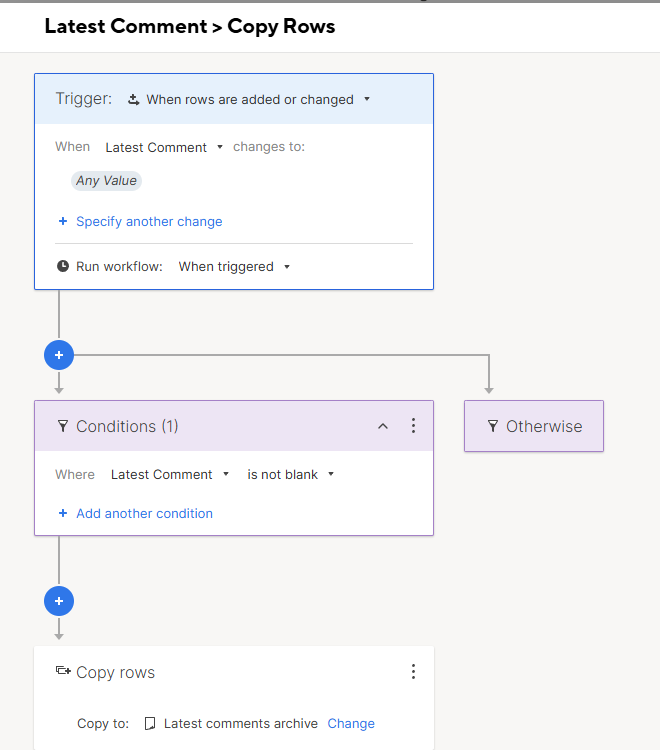
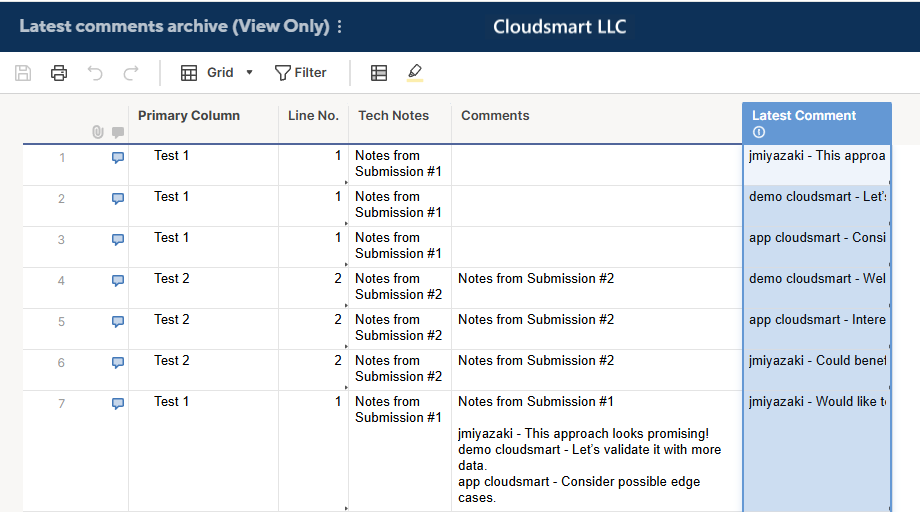
The latest row comment will automatically populate the column, and with automation, you can copy the row to another sheet. Then, using Line No. as a key, you can refer to those comments.
I have a couple of comments on this topic for your reference, if you are interested in this method.
Is there a way to collect all comments in one cell?
Moving Comments Between Sheets
Central Location for User Comments across Smartsheet
Re: Looking for help with a formula that wont allow a selection if tow other fields have requirements
@k_Hunter001 Smartsheet can't perform that type of validation in a grid view. The only view in Smartsheet that could do that type of validation would be Dynamic View.
Otherwise, you'd have to use another 3rd party form solution that can enforce that type of logic.
 Darren Mullen
Re: Formula to separate first and last name from Contact List
Hi @RiseUpPNW
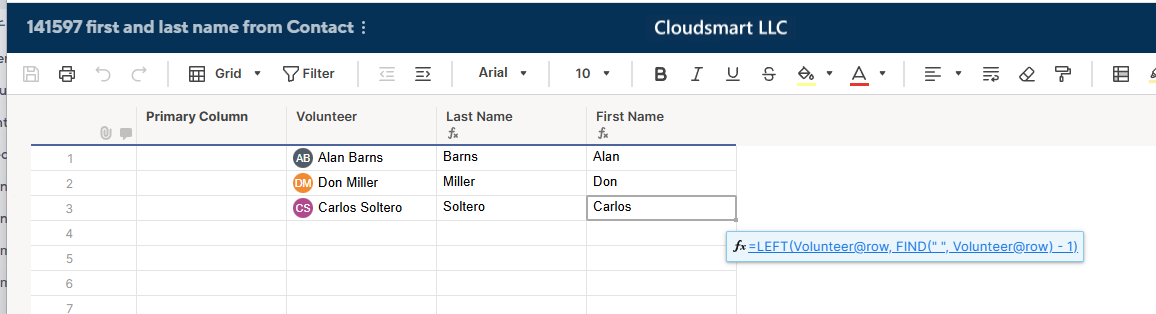
You need to change the First Name's formula to this;
=LEFT(Volunteer@row , FIND(" ", Volunteer@row ) - 1)
In English, find the space between the first name and last name. Get the string from the top up to position one before the found space position to get the first name.
Re: Referencing a specific level in a hierarchical setup
I would insert a helper column that outputs the level
=COUNT(ANCESTORS())
Then you can leverage this in whatever other formula you are using to evaluate the levels.
=COUNTIFS(………………….., Level:Level, @cell = 2)
 Paul Newcome
Re: Please to meet you
Welcome to the community I use smartsheet for a Event management company.
 Naeem Ejaz
Re: How do i use OR function within SUMIFS function?
Hey Brandon, would this do the trick?
=SUMIFS({Upcoming Jobs (High Level) Range 3}, {Upcoming Jobs (High Level) Range 1}, OR(@cell = [Job Name 1]@row , @cell = [Job Name 2]@row , @cell = [Job Name 3]@row , @cell = [Job Name 4]@row ))
jjg279