Best Of
Re: Which Keyboard Symbols are sorted FIRST in Workspace List?
Great question, @NeilKY !
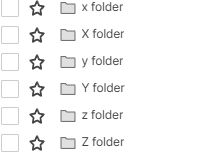
I ran a test by programmatically creating folders with various keyboard symbols followed by " folder" (e.g., ! folder, @ folder , etc.) inside a single workspace. I chose folders instead of workspaces to avoid cluttering my account with many new workspaces — but I suspect the same sorting rules apply to workspace names as well, since the UI behavior appears consistent.
Smartsheet does not sort folders by ASCII order.
Here’s the observed sort order of some common keyboard symbols in Smartsheet:

Key Observations:
- _ folder does sort first, as expected.
- Characters like -, ,, and ; appear before !, which does not follow ASCII order.
- Smartsheet likely applies a custom internal sort order for symbols, unrelated to standard character codes.
_ - , ; ! ? . ' ( ) [ ] { } @ * / \ & # ` ^ + < = > | ~ $
Tip:
If you want a folder or workspace to appear at the top of the list, try prefixes like _, -, ., or , — they reliably come first based on my test.
Hope this helps others who are fine-tuning their folder/workspace naming conventions!
Sample test code

Detailed Observations:
- Underscore
_sorts first – this is common in many systems and intentional to allow "top-sorting". - Dash
-, comma,, semicolon;come early, which is unusual (ASCII-wise,!has a lower value than,). - Paired brackets/quotes are grouped somewhat logically:
' ( ) [ ] { }
- Math symbols and separators tend to follow:
- @ * / \ & #
- Tilde
~and dollar$come last, despite$being ASCII 36 and~being 126.
Possible Explanation:
Smartsheet may be using an internal sorting mechanism that:
- Groups characters by type (e.g., punctuation, math, brackets).
- Applies a custom priority table for UI consistency.
- Might ignore ASCII/Unicode and instead flatten non-alphanumerics into a hand-tuned order.
This behavior is not documented publicly, so the only reliable method is empirical testing like the one above.
BTW, the last character is Z.

Re: Metric Widget without Summary Sheet Report?
jmyzk_cloudsmart_jp @Rebecca BdR That's great, thank you! I'll send each of you a DM to set up time.
 Rashmi Shekhar
Re: Did Shortcut Widget Loose the Ability to link Dashboards?
@Georgie Looks good to me! Thanks for the heads-up
celtics345
Re: Did Shortcut Widget Loose the Ability to link Dashboards?
Hi @Lynn U, @kowal and @celtics345,
I'm jumping in here as I've tested this and it's working on my end. This is also discussed in this related thread: Adding a dashboard link to a different dashboard, where @cg80 has suggested the feature is now working again. It therefore looks like this may have been a temporary issue which is now resolved.
Could you all take a look again and see if you're still experiencing the issue? If you are, I'd recommend submitting a support ticket so the team can investigate.
Thanks!
Georgie
 Georgie
Re: Rich Text Widget Scroll Bar Change
Hi Genevieve, thanks for the quick response in addressing this bug.
I completely echo Kyle’s point above - this has been a long-standing frustration for our team when working with Smartsheet. We're happy to provide further feedback on the user experience around issue and bug reporting if that would be helpful.
As early users of Smartsheet, we’ve been alongside the platform through many of its structural evolutions. This particular issue has become one of our main pain points, and it would be fantastic to see improvements in this area.
 B.Wats
🚨 Calling all Denver-area Smartsheet users! 🚨
We’ll be in town tomorrow for an in-person Denver User Group session—and a few spots just opened up!
📅 When: Wednesday, May 7 (1-4 pm local time)
📍 Where: Maglione Hall, University of Denver, 2201 S. Gaylord St. Denver, CO 80208
Join us for an energizing session packed with inspiration, connection, and hands-on insights. Here's what’s in store:
• Get Inspired: Hear how local users are crushing goals, streamlining workflows, and making big impact.
• Make Connections: Swap tips, share wins, and mingle with other Smartsheet champions—plus enjoy delicious catered snacks and drinks!
• Ask the Experts: Bring your questions to our workshop session with Smartsheet pros ready to dig into real solutions.
🎟️ It’s free—but spots are limited! Don’t wait—claim your seat now.
We’d love to see you there and help power your next big idea!
 Kelsey Hayden
Re: Metric Widget without Summary Sheet Report?
I would LOVE to help with the previewing, thank you so much, both of you!!!
 Rebecca BdR
Re: Adding a dashboard link to a different dashboard
It seems selecting a dashboard as a shortcut widget is an option again.
cg80
Re: Metric Widget without Summary Sheet Report?
Hi @Rebecca BdR
Suppose your sheet is like the one below, except for the City column.

To create a summary by city and status, we need a city value corresponding to the status value.
So, we add a helper column, City, and get the Parent or Grand Parent data in the Task Name column, using the following formula.
[City] =IF(ISTEXT(Status@row), INDEX(ANCESTORS([Task Name]@row), 1))
The IF pat is to show the city value if the Status is not blank, so NOT(ISBLANK(Status@row)) is also acceptable.
The ANCESTORS function gets all the parents' or ancestors' values as a range, and by specifying to get the top one by the INDEX function, we can get the city value, if that is the top of the hierarchy.
If you already have the City column and corresponding values, you can omit the formula part.
From this sheet, you can create a master report that includes all cities.

Then, from the report's Fike menu, you can use the "Save as New" menu to create copy of the report for each city.

In the newly copied or created report, change the filter to select only one city, Tulsa, for example.

You can use this report to show charts or a report in a dashboard.
In the dashboard below, I first created a semi-circle pie chart, copied the chart, and changed it to a bar chart.

You can repeat the same process for other cities.
Though not completely "formula-free way", I guess this method lets you create a dashboard with a minimum formula.
Re: countifs
Hello @Gregw . The formula looks good but it should be COUNTIFS since you have two criteria you're matching on. I've bolded the changes below.
=COUNTIFS({Sheet B Range 1}, [client name]@row, {Sheet B Range 2}, OR(@cell = "Completed - Live", @cell = "Completed - Live - Missing Documentation"))
Hope this helps!
 Victoria_Indimar