Best Of
Re: Progress Bar
You could insert a helper column with a basic formula of
=COUNTIFS([First Date Column]@row:[Last Date Column]@row, ISDATE(@cell))
Of course update column names in the formula to match what you are actually using in your sheet.
Then create a report that brings in all rows and only shows the Address column and this new helper column. Then use the report to feed your chart widget.
 Paul Newcome
Re: NEW! Modern forms submission experience with accessibility enhancements
Thank you again for raising concerns around the recent changes to the Smartsheet form experience. We recognize the disruption this may have caused, especially in tighter layouts, and we sincerely appreciate your patience and feedback as we work through it.
As part of the Modern Forms update released on June 23, we introduced several accessibility improvements. These included larger font sizes and increased spacing to enhance usability for all users, including those with vision impairments. While these changes have significantly improved overall accessibility, they have also introduced challenges in more compact layouts. This includes forms embedded in dashboards and those accessed through mobile browsers.
In these constrained environments, the increased margins and font sizes have reduced the usable space for form descriptions and fields, making the experience more difficult. After hearing feedback from multiple customers and receiving your report during our July 3 sync, we immediately escalated the issue through our support and engineering teams using case ESC 18069. Our team is actively working on a fix that will detect compact viewports and dynamically adjust spacing to better suit these scenarios. This solution is designed to retain our accessibility improvements while restoring usability in tight form layouts. We expect this update to begin rolling out early next week.
We will continue to monitor and refine these updates to ensure a consistent and accessible experience across all form use cases. Your feedback has been instrumental in shaping this work, and we welcome any additional examples or context that may help us further improve the solution.
 Cole Dryden
Re: Table view initial release is now generally available for all customers!
Good news, thanks for the reply
DSelix
Re: Table view initial release is now generally available for all customers!
On my gods this is AMAZING! It will make the data collectin part of my life so much easier and faster! Thank you! 😀
KMH Spinner
Re: How to request task updates from collaborators
Happy to help!
Yes, they would still need to log in so we know who they are, but they don't need a license. And it provides many benefits. One of the most significant benefits is that they don't need to fill out everything at once, and they can have multiple updates running simultaneously.
Unfortunately, there's no built-in way to enter the updates, but if it follows the same structure, it could be set up to work with a parser and/or an AI service.
Would that work/help?
✅ Remember! Did I help answer your question/solve the problem? Please support with💡 ⬆️ ❤️, and/or ✅ Answer. This will make it easier for others to find a solution or help answer! I appreciate it, thank you! 🙏
 Andrée Starå
Re: Formula VLOOKUP or maybe an alternative solution
You would need an INDEX/COLLECT combo for this:
=INDEX(COLLECT({Column To Pull Over}, {AJ_Number}, @cell = [PI or Account #]@row, {AJ_Name}, @cell = "Travel"), 1)
Paul Newcome
Re: July Question of the Month - Join the conversation and receive a badge
To carry on with the grief while honoring his memory by finishing and publishing his book. I’m two-thirds of the way there…
 MMcLain
Re: Formula for Metric Sheet - Dashboard Chart
Hi @ejacksonBPT,
There are 2 ways you can setup the metric sheet, but the main thing is to change the formula to =COUNTIFS to include multiple criteria and add another cross sheet reference for Project Manager.
Example 1:
Change the formula by adding in the project manager name in each formula.
=COUNTIFS({Status}, [Primary Column]@row , {Project Manager}, "Joe")
Example 2:
Instead of using the Project Manager names as column names, move everything down one row and add the names into the sheet itself, this way you can refer the project manger name inside the cell, the same war you are doing with status - this will make it easier to make changes in the future. Then use the following formula.
=COUNTIFS({Status}, $[Primary Column]@row , {Project Manager}, [Column2]$1)
Note the "$" - this will make it so you can drop the formula across or down without it changing the required cel.
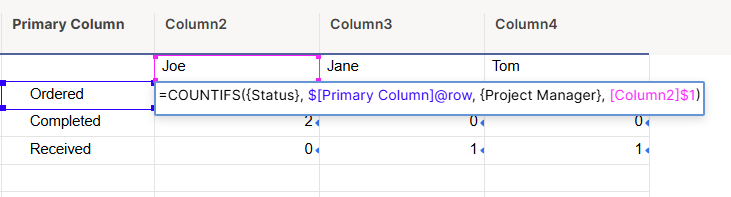
Hope this helps,
Dave
 DKazatsky2
Re: Reports based on dates
I am presuming you already have this completed date as a date field on the primary sheet. When you create your report, you would simply use the a filter based on that column. There is an option called 'In the Last' and you would specify how many days back you want.
 Matt_A
Re: Welcome to the new AI Community!
Hi Smartsheet Ai Community. I’m Gina based in the Washington DC area. I’ve been using Smartsheet for over a year and currently support a nonprofit international church. I’m excited to see AI functionality starting to emerge in Smartsheet and am looking to explore how it can enhance our business processes. I’m also interested in learning from the community—sharing tips and discovering how others are leveraging AI to better support their organizations.
 Gina T