Best Of
Re: Conditional Formating
@mahoward I believe if I'm reading this correctly the simple solution is just to reorder your rules list for your conditional formatting. The order in which they are listed under the conditional formatting menu is the order in which the rule will be applied to a column. I also think you'll have to change your logic so instead of "blacking out a column" your B rule references keeping a column "white". So you put your most limiting rule first followed by the least. In your case it would look something like:
Rule 1 - if "B" is selected, White Formatting for A and B only.
Rule 2 - if "A" is selected, black out Columns, A, B, C and D.
In this case if you only chose A, then all columns A thru E would be blacked out. But if you went back and added B, it would first apply conditional formatting to the B rows you want to preserve. See below as an example:

Please let me know if you have any questions.
-Brian
 Brian Wilson DC
Re: Parsing Multi Picklist through API
Hi @maxibenner, can you show us what your code looks like right now?
In your example screenshot, it looks like you're trying to pass in 3 values, as an array, which is correct. However, Smartsheet is interpreting the array as a string.
For example, this would be incorrect:
"objectValue": {

  "objectType": "MULTI_PICKLIST",

  "values": "["Option A", "Option C"]"

}
Whereas this would be correct:
"objectValue": {
  "objectType": "MULTI_PICKLIST",
  "values": ["Option A", "Option C"]
}
The first one has an extra set of parenthesis around the array, which is incorrect because Smartsheet will interpret the whole thing as a JSON string.
The second one is correct because Smartsheet will interpret it as a JSON string array.
Best!
 SSFeatures
Re: Counting Multi Select drop downs
=LEN([Dropdown Column]@row) - LEN(SUBSTITUTE([Dropdown Column]@row, CHAR(10), "")) + 1
 Naeem Ejaz
Re: SUMIFS error with Multiple Criteria - Invalid Operation?
SUMIFS has a different syntax. The range to sum should be the first range in that function.
=SUMIFS(EstIAJobs:EstIAJobs, JobDelDate:JobDelDate, @cell = SchDates@row, PrintTech:PrintTech, @cell = "Flexo")
 Paul Newcome
Re: Creating a Report that ONLY shows rows with Attachments
I believe @Andrée Starå it talking about setting up a workflow to trigger when an attachment is added, with the Action block of the workflow being an Approval block (see here).
Then go to the Advanced Options:

And in the Advanced Options you can customize the message that this workflow provides automatically in a column whenever an attachment is added:
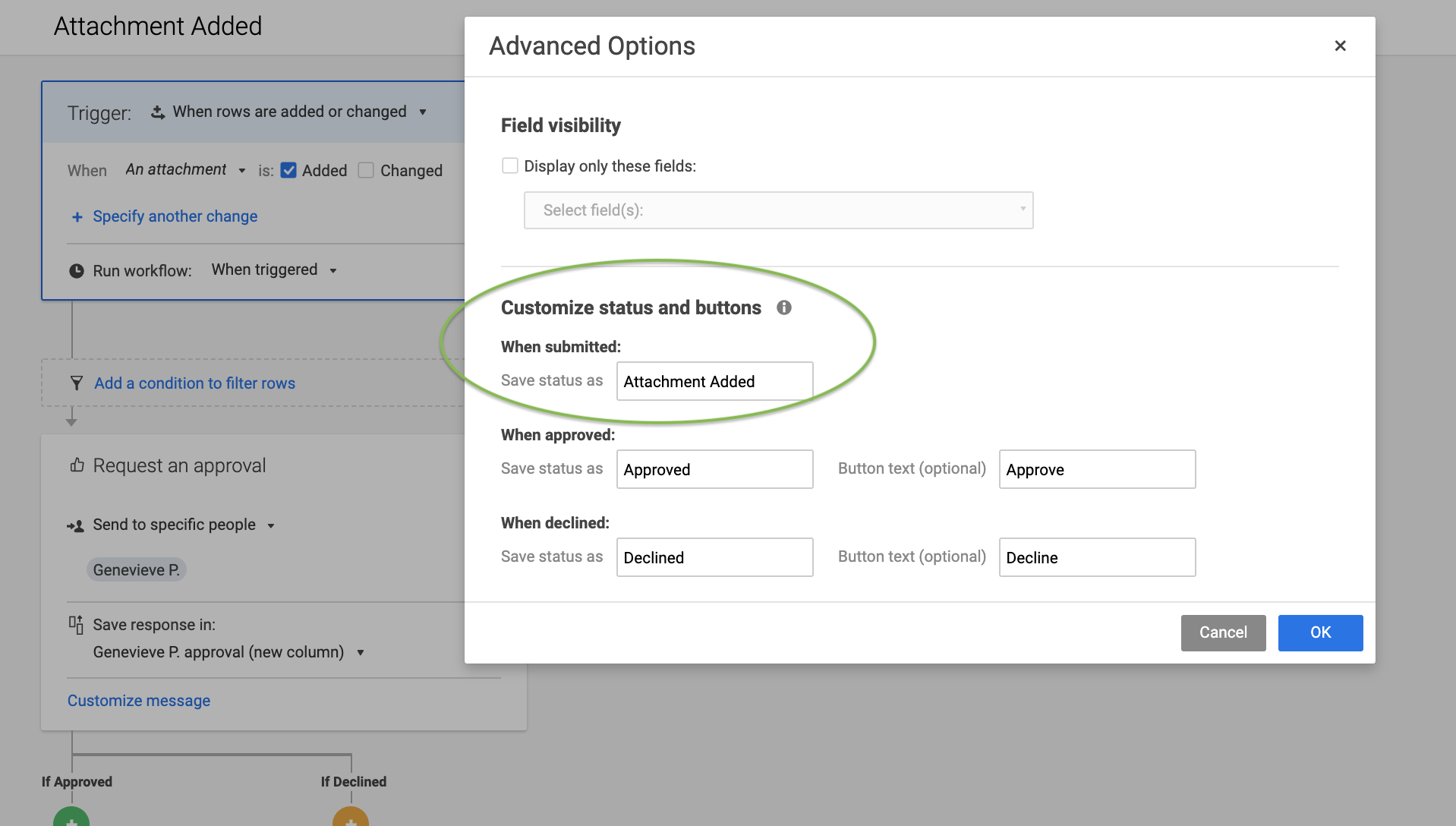
Let me know if this makes sense or if you'd like further clarification!
Cheers,
Genevieve
 Genevieve P.
Re: May Question of the Month - Join the conversation and receive a badge
I get to play everyday on a computer :)
 Joe Goetschel
Re: Having problems figuring out how to get a view like this.
What Nathan said! 😉
✅ Remember! Did I help answer your question/solve the problem? Please support with💡 ⬆️ ❤️, and/or ✅ Answer. This will make it easier for others to find a solution or help answer! I appreciate it, thank you! 🙏
 Andrée Starå
Re: How to extract email address from a contact list the use the value in an adjacent column
Hi @Tommi, this feature request is exactly what you're looking for!
Best!
SSFeatures
Re: Interactive Dashboard without Dynamic View?
Hi @melimob
Using the URL query string technique, you can allow viewers of a Smartsheet (or a dashboard with a published sheet in view-only mode) to update specific fields without requiring editor access to the main sheet.
Solution Setup
1. Creating an Update Link in the View-Only Dashboard
- In the demo dashboard, a sheet viewer can click on the UpdateURL link in the view-only published sheet (1st sheet).
- This link dynamically pre-fills a Smartsheet form with the relevant Row ID, allowing the user to update the User Code.
2. Using a Pre-Populated Form for Data Entry
- The UpdateURL link includes a query string that passes the RowID to a hidden field in the form.
- The user can then enter a new User Code, which gets submitted to a separate Form Sheet (2nd sheet).
- This allows updates without direct access to the main sheet.

3. Syncing the Updated User Code Back to the Main Sheet
- The 1st sheet retrieves the latest User Code from the Form Sheet using the following formula:
[User Code] =JOIN(COLLECT({Form Sheet : User Code}, {Form Sheet : RowID}, RowID@row, {Form Sheet : Latest}, true))
This formula ensures that the latest User Code associated with the RowID is pulled into the main sheet.
4. Retrieving Metadata from the Lookup Table
- The metadata fields are dynamically populated from a 3rd lookup table based on the User Code:
[Metadata 1] =JOIN(COLLECT({Metadata Look Up Table : Metadata 1}, {Metadata Look Up Table : User Code}, [User Code]@row))
[Metadata 2] =JOIN(COLLECT({Metadata Look Up Table : Metadata 2}, {Metadata Look Up Table : User Code}, [User Code]@row))
[Metadata 3] =JOIN(COLLECT({Metadata Look Up Table : Metadata 3}, {Metadata Look Up Table : User Code}, [User Code]@row))
[UpdateURL] =FormURL# + "?RowID=" + RowID@row
5. Ensuring Only the Latest Entry is Used
- The Form Sheet includes a Latest Check column to track the most recent entry using this formula:
=MAX(COLLECT(Row:Row, RowID:RowID, RowID@row)) = Row@row
Benefits of This Approach
No Editor Access Needed – Users can update data from a view-only sheet.
Secure & Controlled Updates – Only specific fields can be modified.
Dynamic Metadata Retrieval – Automatically fetches relevant metadata.
Scalable & Reusable – Can be applied to multiple workflows.
This method enables interactive dashboard functionality without requiring Dynamic View or direct sheet access.
If you need further assistance, feel free to reach out, and I’d be happy to help.
Have a great day! 😀

Re: Function for "current user" to use in formula?
Using a helper column, such as Breadcrumbs, is a standard practice in this case.
=JOIN(ANCESTORS([Task Name]@row), "> ")

Then, use the column in the report.
