Best Of
Re: Seeking help merging data from two fields - one column is locked and another is a shared column
You can use the value of Sheet A to be prefilled in the form of Sheet B, whose form URL or Link is placed in Sheet A using a technique called "URL query string." Then, you can refer to the form input value in Sheet B from Sheet A.
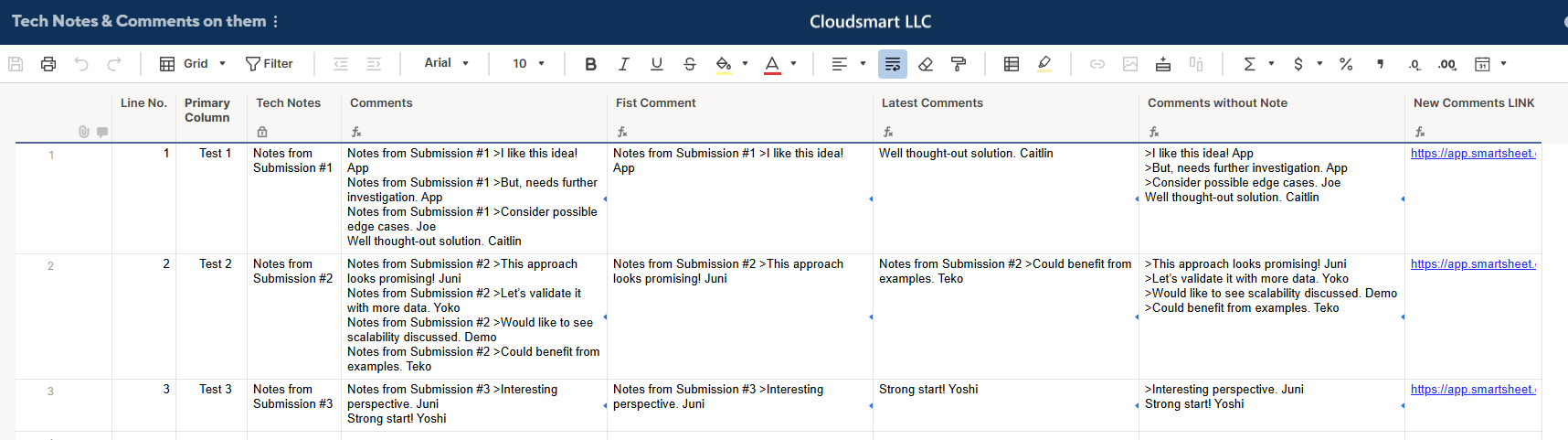
In the above sheet, if you click one of the links at the far left, you will see a form like this.
Please note that the form user can edit the New Comments' "Notes from Submission #1 >" as the row No.3's last comment shows.
So, is the [Line No.] value 1.
Therefore, the form below is for illustrative purposes, but in actual use, you should hide the Line No. field because changing the number would cause the input to go to the wrong place.
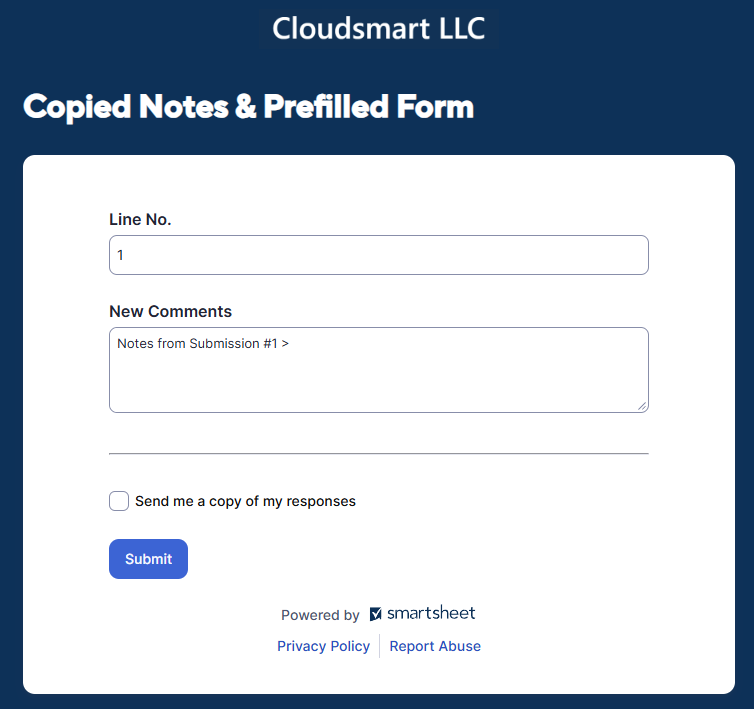
The values like 1 or 'Notes from Submission #1 >' are prepopulated by this formula;
[New Comments LINK] =[Form URL]# + SUBSTITUTE(SUBSTITUTE(SUBSTITUTE("?Line No.=" + [Line No.]@row + "&New Comments=" + [Tech Notes]@row + " > ", " ", "%20"), "#", "%23"), ">", "%3E")
The SUBSTITUTE function is used to replace special characters like space, "#", or ">" with ones that are not affected in the link. Please look at the help article at the top for details.
The form inputs the data to Sheet B;
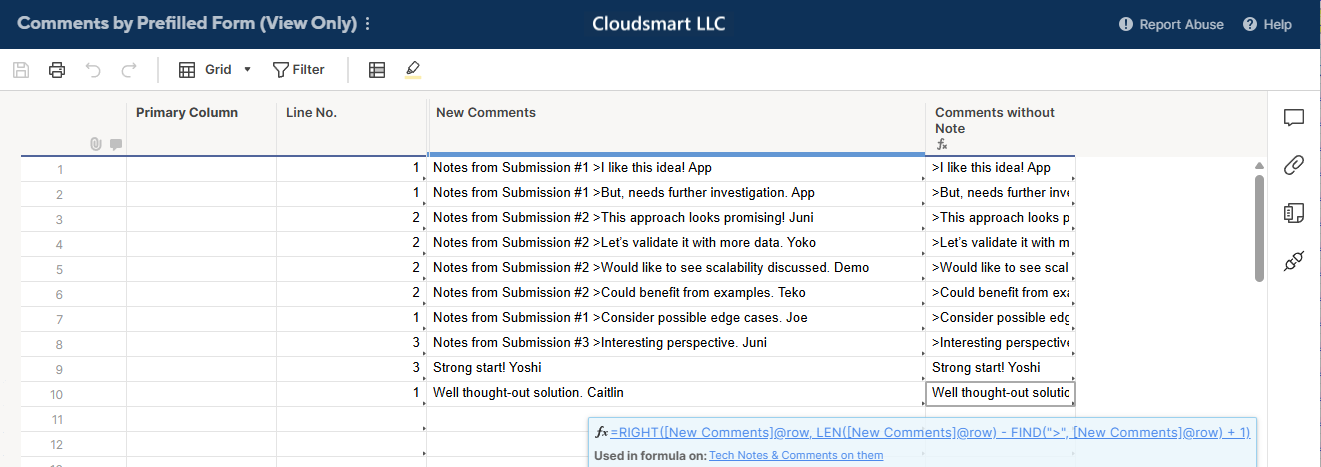
Then, you can reference them in Sheet A with formulas like these using the [Line No.] as a key.
[Comments] =JOIN(COLLECT({Comments by Prefilled Form : New Comments}, {Comments by Prefilled Form : Line No.}, [Line No.]@row ), CHAR(10))
[Fist Comment] =IFERROR(INDEX(COLLECT({Comments by Prefilled Form : New Comments}, {Comments by Prefilled Form : Line No.}, [Line No.]@row ), 1), "")
[Latest Comments] =IFERROR(INDEX(COLLECT({Comments by Prefilled Form : New Comments}, {Comments by Prefilled Form : Line No.}, [Line No.]@row ), COUNTIF({Comments by Prefilled Form : Line No.}, [Line No.]@row )), "")
[Comments without Note] =JOIN(COLLECT({Comments by Prefilled Form : Comments w/o Notes}, {Comments by Prefilled Form : Line No.}, [Line No.]@row ), CHAR(10))

Re: Seeking help merging data from two fields - one column is locked and another is a shared column
Method 1: Hide Columns
In this method, I hide all the unwanted columns and change the 'Comments without Note' column to add one Tech Note at the top, as shown in the 'One note and Comments' column.
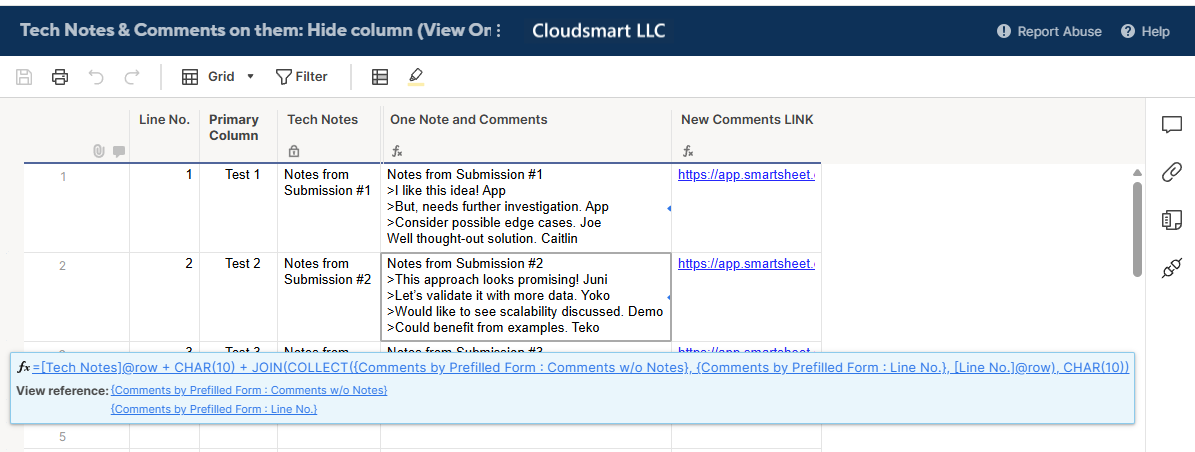
=[Tech Notes]@row + CHAR(10) + JOIN(COLLECT({Comments by Prefilled Form : Comments w/o Notes}, {Comments by Prefilled Form : Line No.}, [Line No.]@row ), CHAR(10))
This method is good if your commentator has viewer access to the sheet, and can not add comments to rows or the sheet.
Method 2: Latest Comment Special Column + Copy rows automation
If your commentator has commenter or editor access, you can use the Latest Comment special column.
The latest row comment will automatically populate the column, and with automation, you can copy the row to another sheet. Then, using Line No. as a key, you can refer to those comments.
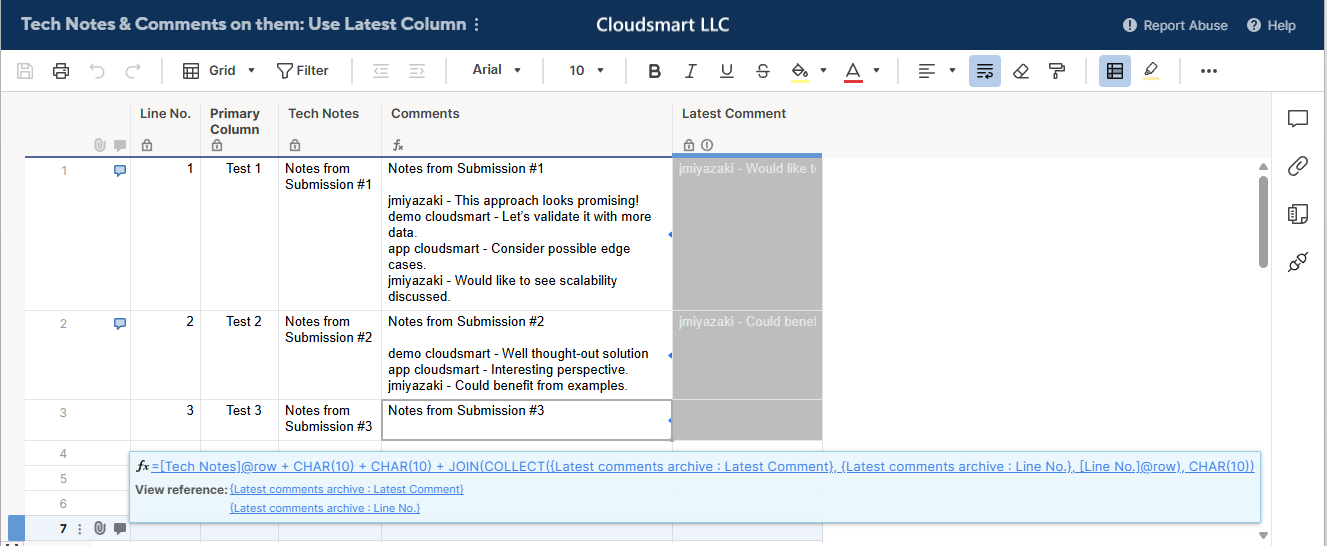
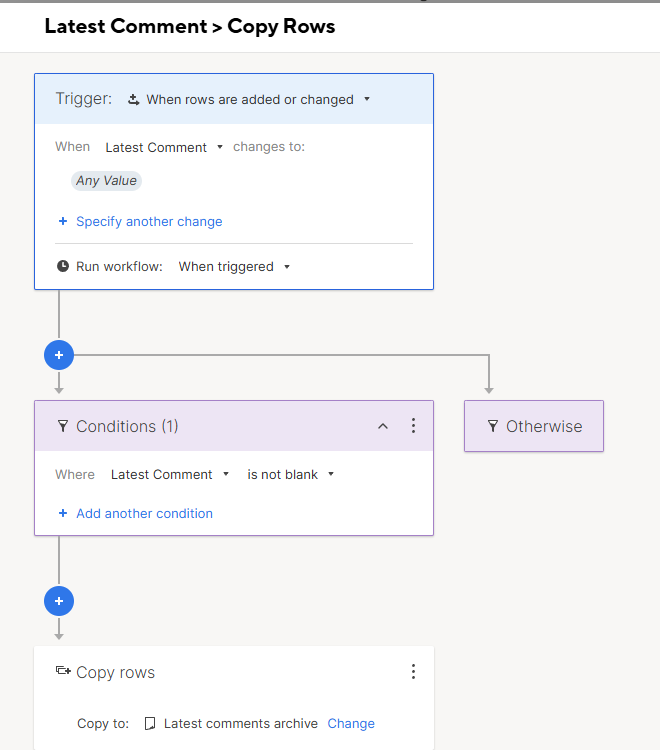
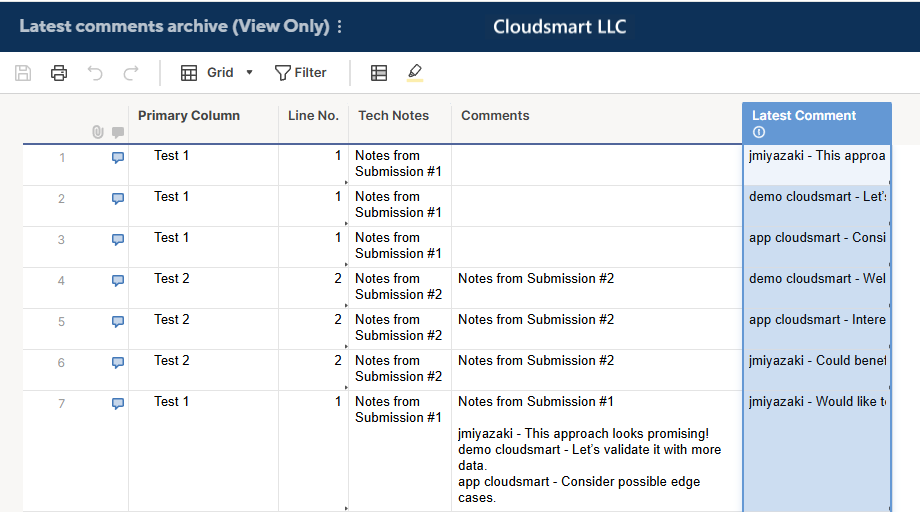
I have a couple of comments on this topic for your reference, if you are interested in this method.
Is there a way to collect all comments in one cell?
Moving Comments Between Sheets
Central Location for User Comments across Smartsheet
Re: Looking for help with a formula that wont allow a selection if tow other fields have requirements
@k_Hunter001 Smartsheet can't perform that type of validation in a grid view. The only view in Smartsheet that could do that type of validation would be Dynamic View.
Otherwise, you'd have to use another 3rd party form solution that can enforce that type of logic.
 Darren Mullen
Re: Formula to separate first and last name from Contact List
Hi @RiseUpPNW
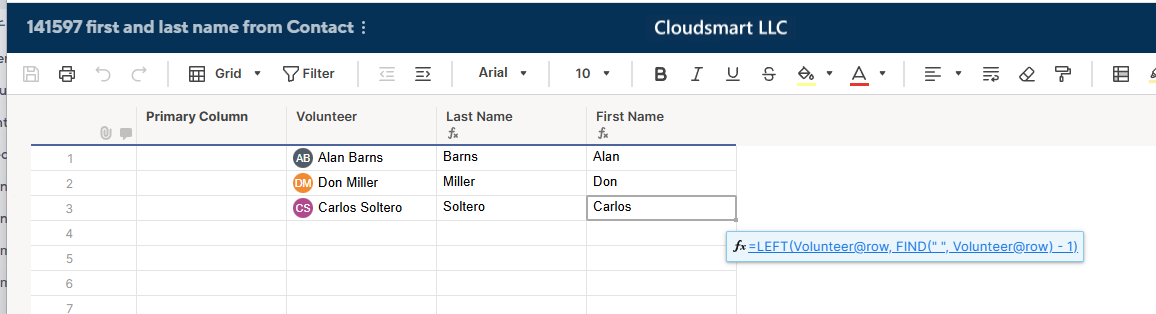
You need to change the First Name's formula to this;
=LEFT(Volunteer@row , FIND(" ", Volunteer@row ) - 1)
In English, find the space between the first name and last name. Get the string from the top up to position one before the found space position to get the first name.
Re: Referencing a specific level in a hierarchical setup
I would insert a helper column that outputs the level
=COUNT(ANCESTORS())
Then you can leverage this in whatever other formula you are using to evaluate the levels.
=COUNTIFS(………………….., Level:Level, @cell = 2)
 Paul Newcome
Re: Please to meet you
Welcome to the community I use smartsheet for a Event management company.
 Naeem Ejaz
Re: How do i use OR function within SUMIFS function?
Hey Brandon, would this do the trick?
=SUMIFS({Upcoming Jobs (High Level) Range 3}, {Upcoming Jobs (High Level) Range 1}, OR(@cell = [Job Name 1]@row , @cell = [Job Name 2]@row , @cell = [Job Name 3]@row , @cell = [Job Name 4]@row ))
 jjg279
Re: NEW! Timeline view widget in dashboards
@Paula Grahame — Thanks for sharing your feedback! We're tracking a similar request from other customers, the ability to restrict the date range for the displayed timeline on a dashboard. Stay tuned!
Zita
Re: 承認者の名前取得方法について
Webhookのところが面倒なので、定期実行にすれば少し楽になると思ます。
Cell Historyはなくなるものでないので、想定されている利用ケースは、後から承認者を確認するといった監査などの目的でないかと推察されれ、一日に一回、実行する、といった形にすればよいかと思います。
必要であればお手伝いしますので、私のプロフィールにあるメールアドれるにご連絡ください。
Re: Portfolio Level Week-to-Week Changes
Hi @Nikki G ,
We ran into this same challenge and I built a solution that works well across multiple programs. Here's how we approached it:
- Snapshot Sheet Method – I created a weekly snapshot sheet that logs key portfolio metrics (like % Complete, At-Risk Projects, Delays, etc.) every Friday using a helper workflow and a simple "snapshot row" per project.
- Automation – Smartsheet automation copies data into the snapshot sheet at a set time weekly, so it’s hands-off once built.
- Portfolio Rollup Dashboard – We pull the data into a dashboard showing week-over-week changes using chart widgets and summary reports for visual tracking.
Bonus: If you're using Control Center, you can template this process and apply it portfolio-wide easily.
HockinsonJohn