Best Of
Re: I need Help - Trying to do a VLOOKUP Partial Match
@Paul Newcome I am getting an incorrect argument set error. If I'm understanding it right, the first data reference is the column I'm pulling from which is the column that 'cars test' is in. The second data point is the column in my raw data spreadsheet, then contains is referencing the exact row that says 'cars test'.

 JPSmartSheet
Re: Possible to automate numbers per row type?
I think you might be able to leverage an Auto-Number column (which would be hidden) that would work with a formula column to produce your result.
So, for example, you have an Auto-Number column, and it just consecutively numbers every row, regardless of transaction type, using whatever set-up you prefer. But, that column stays hidden. (It's shown in the screen cap below for reference, but it does not need to be visible.)
You create a PO Request column using a checklist column type and insert the following column-level formula:
=IF(OR([Payment Type]@row = "Payment Type A", [Payment Type]@row = "Payment Type B", [Payment Type]@row = "Payment Type C"), 1, 0)
("Payment Type A," "Payment Type B," and "Payment Type C" are just placeholders for the payment types that you DO want to produce a PO number - you may have more or less than 3 types - edit as needed.)
Then, in your PO Number column (which WILL be visible), create the following column-level formula:
=IF([PO Request]@row = 1, [Auto Number]@row, "n/a")
(NOTE: you can also just leave the rows that don't need a PO Number blank by replacing "n/a" with "" in your formula.)

Note that the one disadvantage here is that your PO Numbers will have gaps because some will not be used.
Hope this is helpful! Please feel free to tag me in a follow-up post if not, and I'm glad to help. ☺️
 Danielle Arteaga
Re: IF formula to check the box column
So glad to hear it worked for you!
Yes, as long as the cells don't have "Accepted" as the only word, you can have other columns between your ranges as well.
 Genevieve P.
Re: Filter Help
It appears that you're attempting to house a table within the sheet (different columns for different groups of rows). I do not believe that you will be able to accomplish that. If you adjust your data to not have "stacked" tables within the sheet, you will be able to filter using @Jeremy C 's instructions.
 adp_cl
Re: why when I remove a person at a sheet level is their permissions removed from the workspace level?
It sounds like you were an Admin of the Workspace and your colleague was the Owner, is that correct?
An Admin can make themselves the workspace owner by removing the current workspace owner. This is the only way to change ownership of a workspace. (See Transfer Ownership of a Workspace).
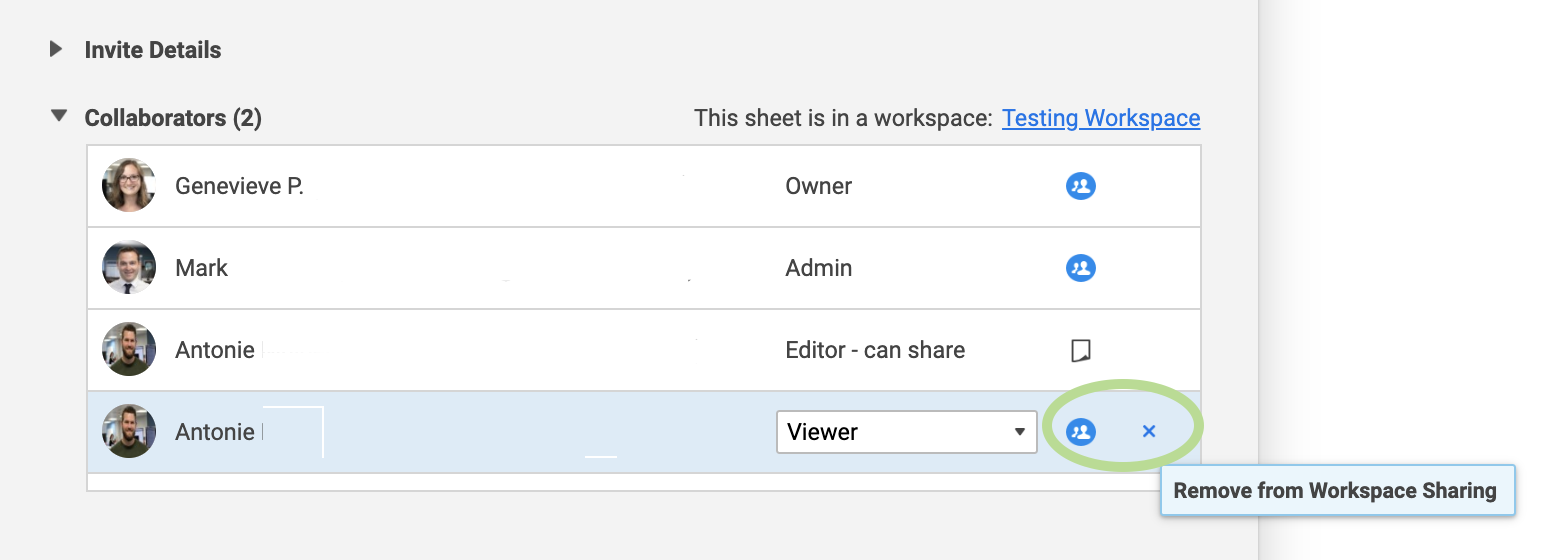
When you're looking at a user shared to a sheet, if the sheet is in a workspace and the sharing window is showing you their workspace sharing permissions, you'll see a different icon next to their name:

In this instance, Mark is shared to the Workspace level as Admin (indicated by the blue Workspace icon). On the other hand, Antonie is shared just to the Sheet.
When you hover over the "x" that appears next to their name, a helper box will pop up letting you know if you'll be removing that person from the Workspace or just the sheet.
Keep in mind that you can share one person at both the workspace level and at a sheet level. For example, maybe I wanted to give Antonie Viewer permissions of the entire workspace, but on this one specific sheet I want him to have Editor permissions. In this case I would share him twice, and he would appear in the Sharing window twice.
Let me know if I can help clarify anything further!
Cheers,
Genevieve
Genevieve P.
Re: Using INDEX/COLLECT to return multiple values
Hey @RaffyM
The number order in your helper column won't matter, as long as you have 1 - 600 (or however many) listed as unique numbers in that column.
If you'd prefer to keep your sheet sorted with 1 - 600 in your Number Helper in order, then what you would do is create a Row Report off of this sheet:
- The Row Report would use this second sheet with the formulas as the Source.
- You would then filter by if the Rank is less than 21.
- Once you have the filtered rows in your Report, you can then sort the Report by the Rank column.
Sheets don't currently auto-sort, but the Report will! Here's a webinar on building a report: SmartStart: Reporting
Happy Friday to you as well 🙂
Genevieve P.
Re: Character Limit on Emailed Notifications
Hi A.J,
It seems your email body exceeds 2000 character limit. This leads to "message truncated due to length" warning.
Try to create a helper column "Count" in your sheet to count the characters of all field you want to add in the workflow. Then in the workflow, you will check the condition : If Count < 2000 then send all fields, else send fields in 2 seperate emails.
Hope this works for you.
 Gia Thinh
Re: Aderant integrations
Since Smartsheet doesn't have a direct integration with Aderant, you could potentially use a third party application (similar to Zapier) or the Smartsheet API.
You may want to reach out to Aderant Support regarding what's required for integration from their side.
Cheers,
Genevieve
Genevieve P.
Re: Help with Formula to Capture Dates for Full 12 Months
Make 3 helper columns that simplify your formula:
- Start Year: =YEAR([Start Date]@row)
- Start Month =MONTH([Start Date]@row)
- Start Day =DAY([Start Date]@row)
then your formula for each of the months is the below, replacing the bolded numbers with the corresponding month (e.g. April would be 4)
=DATE(IF([Start Month]@row > 1, [Start Year]@row + 1, [Start Year]@row), 1, [Start Day]@row)
Leibel S
Re: Celebrating the Community with Smartsheet Swag!
Hello all, that link that was shared to the merch store earlier in this thread is internal and for Smartsheet employees only. Sorry for the confusion, though we of course think of our members as part of the SMAR fam! Good news is that we have plenty of swag plans coming on Community, including this one for Seekers, Contributors and Counselors. Get your forms in, and more to come. 💙
 Alison C.