Best Of
Re: Smartsheet - Down to the Basics Cheat Sheet
Hello! So glad you like it! Feel free to share with anyone you feel may benefit. :)
 mcullen
Re: Automate Update request gives access to view entire sheet
Hi @Gemma P,
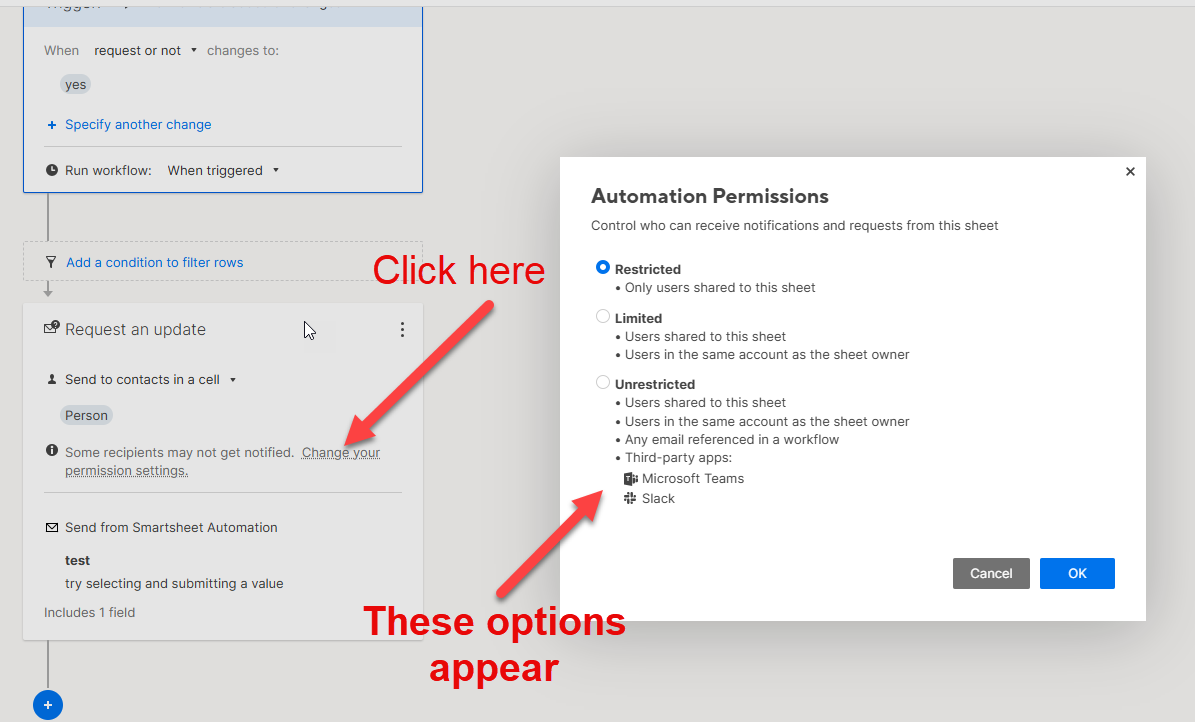
Your user does not need viewer permissions for that automation to be setup. You just need to adjust the permissions for the automation. Your selection should be either "Limited" because it includes users in the same account as the sheet owner, or "Unrestricted" because it includes any user shared to the sheet.
However, the link to the sheet will always appear on the email. If they don't have access to the sheet, they won't be able to view it. They can click to request access, but you don't have to grant it.
All the best,
-Ray
 Ray Lindstrom
Re: Community Corner Newsletter [August 2025]
Happy August birthday @Georgie! 🌈☀️ 🎈

Re: Safari and iOS Load Issues with Published Portals - Not Currently Listed as Outage
Thanks, are you able to get an update on this, see if it's something that's still being investigated and want the plans/timeline are for it to be fixed.
 B.Wats
Re: Work around for Data mesh or Data shuffle if not available in my current account using Business Plan
Excellent!
You're more than welcome!
✅ Remember! Did I help answer your questions or solve the problem? Please support with💡 ⬆️ ❤️, and/or ✅ Answer. It will make it easier for others to find a solution or help answer. I appreciate it, thank you! 🙏
 Andrée Starå
Re: Increase Bridge Run Log Entry Limit / Update Error Prompt
Hi all, another update here!
Bridge's run log size limit has increased again, this time to 35MB.
Cheers,
Genevieve
 Genevieve P.
Re: Feed line from one sheet into another multiple times, assigning a different task to each new line
Hi @MYaussi
I think your copy rows automation is a good idea and will work, but here is a different approach.
Helper Numbers Column Approach
The demo solution below multiplies a single row into multiple rows in another sheet, using a helper column, [#], that starts from 1, and increments by 1, like 1,2,3,...,100.
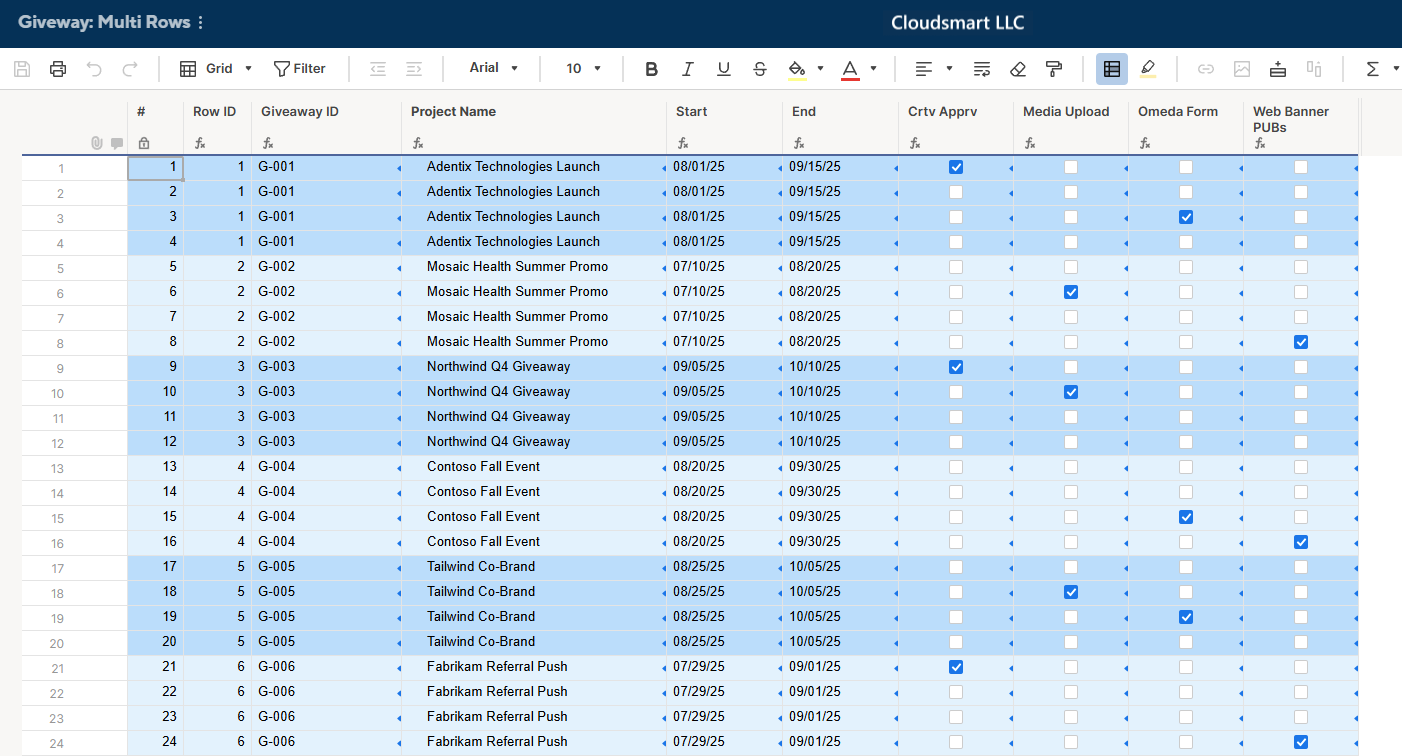
In this demo example, since we have up to 4 tasks for each giveaway project, we get the corresponding Row ID by the following formula.
[Row ID] =INT(([#]@row + 3) / 4)
Using the Row ID, we can get the Giveaway ID, Project Name, Start, and End by the following formula, using VLOOKUP or INDEX MATCH.
[Giveaway ID] =IFERROR(VLOOKUP([Row ID]@row , {Giveaway : RowID to Web Banner Pubs}, 2), "")


[Project Name] =IFERROR(VLOOKUP([Row ID]@row , {Giveaway : RowID to Web Banner Pubs}, 3), "")

[Start] =IFERROR(VLOOKUP([Row ID]@row , {Giveaway : RowID to Web Banner Pubs}, 4), "")

[End] =IFERROR(VLOOKUP([Row ID]@row , {Giveaway : RowID to Web Banner Pubs}, 5), "")
As for the [Crtv Apprv], etc, we show them only in the corresponding row using the following formula.
[Crtv Apprv] =
  IF(MOD([#]@row , 4) = 1,
    IFERROR(VLOOKUP([Row ID]@row , {Giveaway : RowID to Web Banner Pubs}, 6), ""))


[Media Upload] =
  IF(MOD([#]@row , 4) = 2,
    IFERROR(VLOOKUP([Row ID]@row , {Giveaway : RowID to Web Banner Pubs}, 7), ""))


[Omeda Form] =
  IF(MOD([#]@row , 4) = 3,
    IFERROR(VLOOKUP([Row ID]@row , {Giveaway : RowID to Web Banner Pubs}, 8), ""))


[Web Banner PUBs] =
  IF(MOD([#]@row , 4) = 0,
    IFERROR(VLOOKUP([Row ID]@row , {Giveaway : RowID to Web Banner Pubs}, 9), ""))
Lastly, I have the [Format] checkbox column, hidden, for formatting purposes with the following formula;
[Format] =MOD([Row ID]@row , 2)
Sample Giveaway Sheet
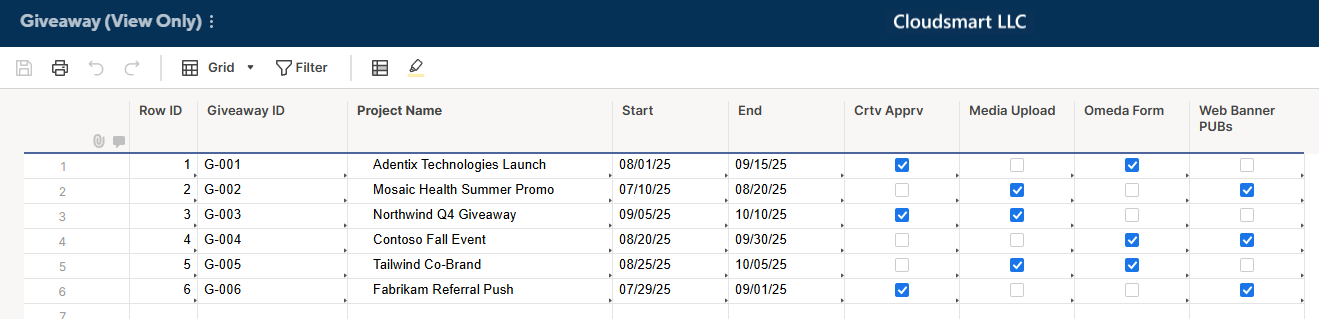
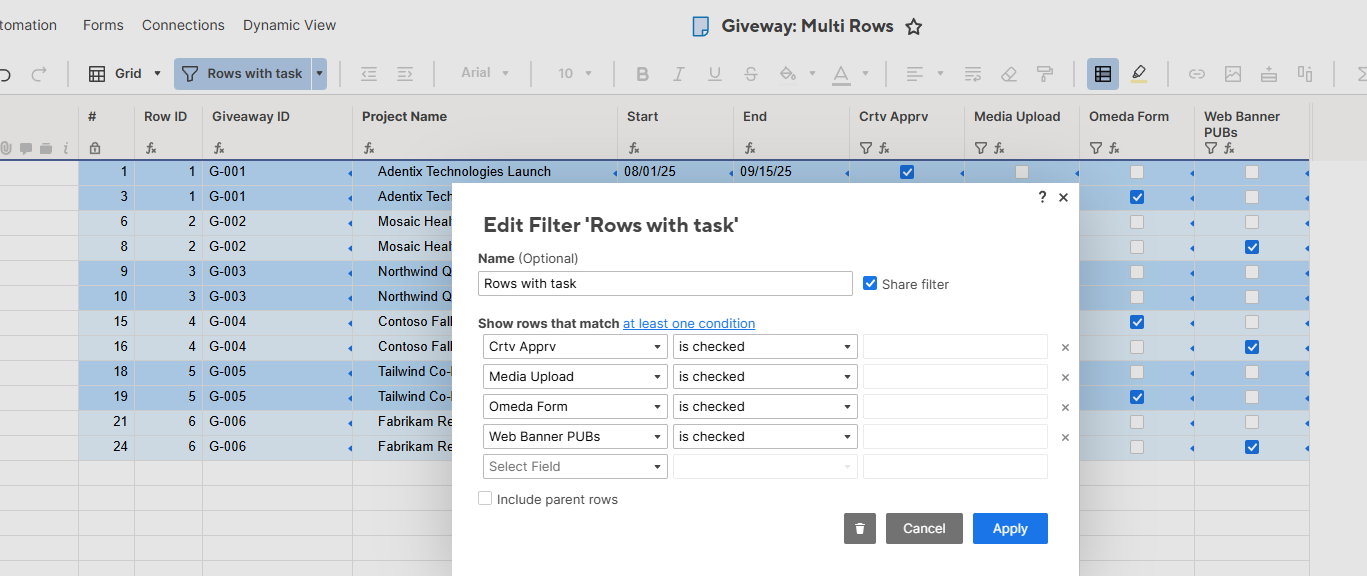
To show only rows with a task, you can use a filter.
Copy Rows Automation Approach
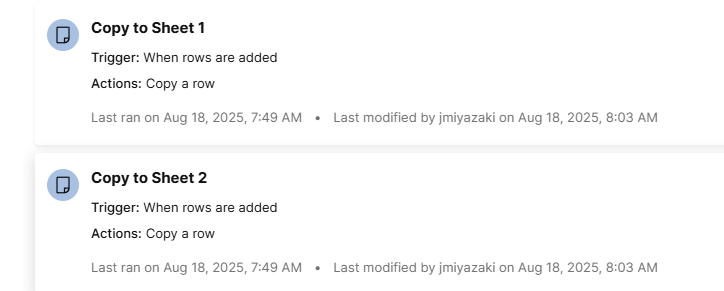
Regarding your idea of using copy rows, to just duplicate rows, you can create automations like these;
- When a new row is added
- Copy to Sheet 1
- Copy to Sheet 2
- Copy to Sheet 3
- Copy to Sheet 4
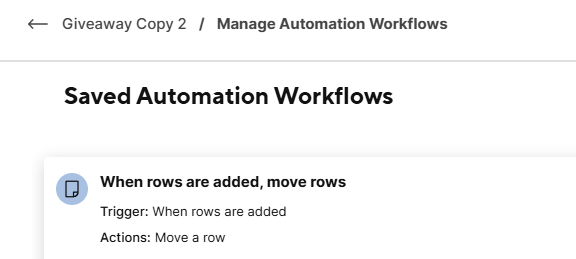
- At each Copy to Sheet #, when a new row is added
- Move to Sheet ALL
Copy rows automation at the Giveaway sheet
Move Rows automation at each sheet
Then, you will get, at the destination, ALL sheet, something like this;
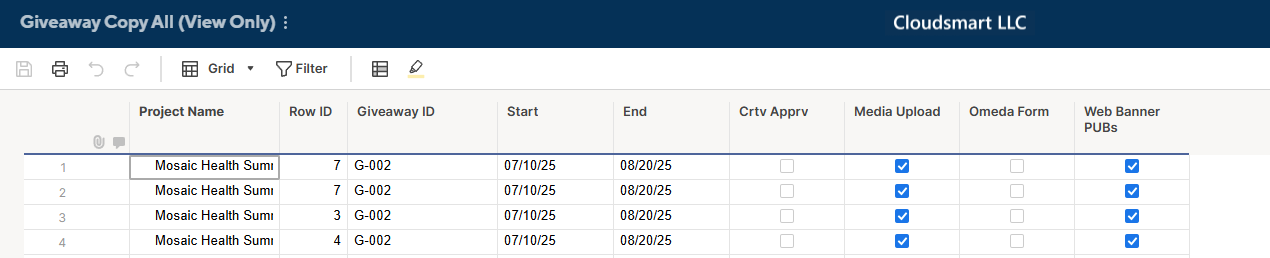
The difficulty with this approach is that we get the identical rows. So, for the alert automation, these multiple rows will not help.
To avoid this, you can add a helper column, like [Task #], with a column formula like this.
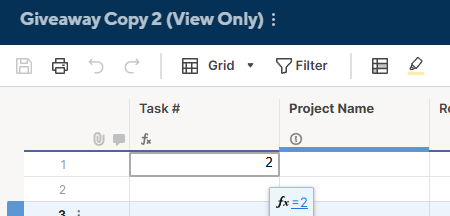
Note, you need to change the Task # formula for each sheet.
- Copy to Sheet 1: =1
- Copy to Sheet 2: =2
- Copy to Sheet 3: =3
- Copy to Sheet 4: =4
With that, the destination, All sheet, will get Task # like the image below.

Then, you can use the Task # to determine which row should alert which task or checkbox. For example, in the first row above, as Task # is two and the second checkbox is checked, we send an alert based on this row regarding Media Upload.

Re: Adding options to drop down menu
Hello @joannlynn,
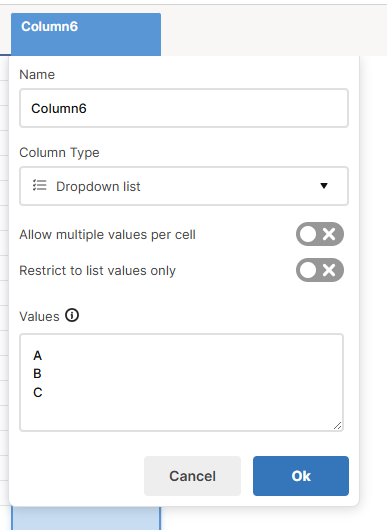
You must be a Sheet Owner Admin. if you are, then double-click the column header and you will see the option to add to the list.
All the best,
-Ray
Ray Lindstrom

Re: New Here
Hello JoAnn!
I'm Marcela, Smartsheet Community Specialist. I help moderate the forum, and I'm based in Costa Rica. Nice meeting you!!
Welcome to the Smartsheet Community. I'm glad to have you here, and I hope you get the best out of its collaborative environment! You might as well take a look and say hi to other awesome Community members who have introduced themselves in this thread.
Cheers!
 Marcela