Best Of

Re: Dashboard - can reduce Rich Text Widget
Hi there,
This bug has been resolved by the dashboard team. Thank you for sharing your feedback and let me know if you're still encountering this issue.
Thanks,
Barak
 Barak Schriger
Re: Current User Dashboard Help
Hi @Dana234
To create a dashboard that contains only the current user's information, you add a report to the dashboard that is filtered by the current user.
You need to share both the base sheet and the report with your staff to display the user's information.
In the image below, Juni Miyazaki is accessing the dashboard. So, his "To-Do 4" is displayed.
(Link to the published dashboard. You will see an image similar to the one at the bottom, as you do not have access to the sheet and report.

In the dashboard's Report Widget setting, set the View Mode to "Their own perspective".

Published User's View


Re: Dashboard Rich Text Widget Excessive Vertical Scroll Bar
YAY! It's fixed. My OCD thanks you very much!

Re: Dashboard Rich Text Widget Excessive Vertical Scroll Bar
Hi there,
This bug has been resolved by the dashboard team. Thank you for sharing your feedback and let me know if you're still encountering this issue.
Thanks,
Barak
Barak Schriger
Re: Sort Card View to have High Priority on the top
Hi @kowal!
Card View doesn’t currently support sorting cards in a lane by priority or flag. That said, there’s already a product idea for this feature here:
👉 Quick Sort Card View (Sheets and Reports)
Feel free to add your vote and comment to support it!
Cheers,
Isaac.
 Isaac A.
Re: Two Sheets in One Report using same column
It sounds like you want to be able to change the date in Sheet 2's column formula, and specifically to do it inside a report. It sounds like you could create on your sheet 2 a "Manual Override" column, and then call that "A" (so it matches the Sheet 1 column name). And then somewhere on your Sheet 2, you can add your Index/Match to pull the date over, but add a clause to consider the manual override data:
=IF(ISBLANK([Manual Override]@row, INDEX/MATCH FORMULA TO PULL YOUR DATE, [Manual Override]@row)
That will make it possible for your date columns on both sheets to be manual entry. What other reports, automations, etc. you may have produced on that existing column "A" on Sheet 2 might need some retooling though.
Good luck!
 Kerry St. Thomas
Re: Is there a way to create 2 Reports from one Sheet with different formatting?
Hi @BTO84
You're right that in Smartsheet, Calendar View coloring is set at the sheet level, not at the report level. Because of that, if you need two different color schemes (Division for managers vs Approval Status for payroll), here's a clean method:
First, it's important to know:
- Calendar View colors are based on the Primary Column.
- A sheet can only have one Primary Column, which means you can't change the Calendar display title between two different reports if they are both built from the same sheet.
- Also, Copy Row automation only moves the row once — it doesn't keep the two sheets synced if the original changes later.
Because of this, the best solution is to create a second sheet and link the data between them using cross-sheet formulas, not just copying rows.
Here’s the step-by-step:
In your Original Sheet:
- Add a System Column (Auto-Number type) called "Row ID".
- This automatically gives every row a unique ID automatically.

Create a second sheet for Payroll:
- Copy the sheet structure (Save as New) to keep the same columns.
- In the second sheet, use cross-sheet formulas to pull live data from the original sheet into the necessary columns, matching by the Row ID.
- Set the Primary Column differently if needed (for example, use "Name - PTO Used" as the title in the second sheet).

Now you can apply separate Calendar View setups:
- In the Original Sheet, apply conditional formatting based on the Division for the Manager Calendar.
- In the Payroll Sheet, apply conditional formatting based on the Approval Status for the Payroll Calendar.
Finally, build two reports:
Manager PTO Calendar Report (based on the Original Sheet): Title is "Name - Division", colored by Division.
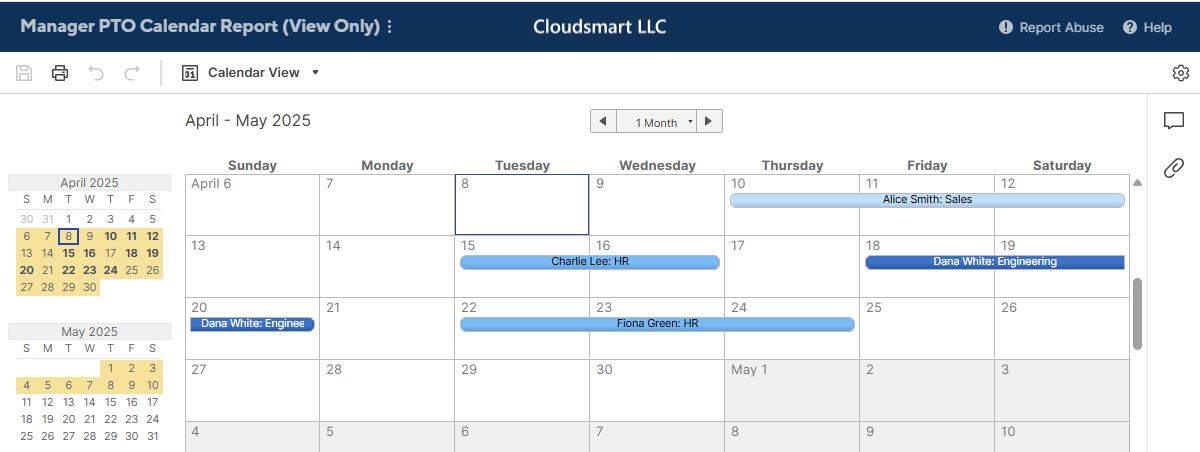
Payroll PTO Calendar Report (based on the Payroll Sheet): Title is "Name - PTO Used", colored by Approval Status.

This way, each Calendar View is independent, the formatting fits the audience, and any updates to the original data automatically flow through to the second sheet using cross-sheet formulas — without having to manually recopy rows or set up complicated automations.
Formulas
[Name - Divistion] =IFERROR(INDEX({sample_time_off_requests_original Name-Divison}, [Row ID]@row), "")

[Start Date] =IFERROR(INDEX({sample_time_off_requests_original : Start Date}, [Row ID]@row), "")

[End Date] =IFERROR(INDEX({sample_time_off_requests_original : End Date}, [Row ID]@row), "")

[PTO Used (# of hours)] =IFERROR(INDEX({sample_time_off_requests_original : PTO Used}, [Row ID]@row), "")

[Approved?] =IFERROR(INDEX({sample_time_off_requests_original : Approved?}, [Row ID]@row), "")
Re: Rename labels when using custom colours
You can use a separate sheet with formulas containing cross sheet references.
Put the desired labels in one column and in the next column a COUNTIFS to count how many are for that color.

 Paul Newcome
