Best Of
Re: Proofs - Evaluation Mode Watermark
Hi all,
Thanks for letting us know this issue had returned. This was investigated and resolved by approximately 3pm PST yesterday (31st March). More information on the incident can be found here.
Thanks,
Georgie
 Georgie
Re: Meet Alan Miller, our March Member Spotlight! 🎉
Congrats @Alan Miller 11! You have been such a light and being on a similar path to you recently has felt like having a new friend! I hope to come to ENGAGE this year too and meet up! Really our whole class of Community Champions should - such awesome people.
I love the Contaigous Leadership - I will use that phrase from now on 😊
 Akblevins
Re: Speedometer Chart: Core Product
Wow - this is fancy and I love it!
Thanks @Paul Newcome for sharing your knowledge with us all.
All the best!
 Sandra Guzman
Re: Error when Exporting to Google Sheets
Hi @francisca.bacho - based on my initial search, here is some information regarding the error code type.
Did you actually have the correct add-on?
Here is some additional information that outlines steps for installing the add-on.
All the best!
Sandra
Based on Smartsheet's API documentation, error code 58 indicates that a system column type is not supported for a specific operation, or there is a conflict in how a system column is being used.
Detailed Breakdown
Code:58Meaning:Column type {0} is not supported for system column type {1}.- Smartsheet
Typical Causes and Solutions
Modifying System Columns via API:You may be trying to change the data type of an "Auto-Number" or "Created By" column to a standard text/number column, which is not permitted.Solution:Ensure API calls do not attempt to change the definition of system-managed columns.
Incorrect API Payload:The API request is likely trying to set a type that conflicts with the systemColumnType already defined in the sheet.Solution:Review the column definitions in your API call.
Note: In the context of Smartsheet user-facing formula errors, a common similar error is #PERMISSION or #INVALID DATA TYPE, but error code 58 is specifically a technical API error.
Sandra Guzman
Re: Prevent Duplicate Copy Row
You can set a second action after a copy/move row action in an automation. If you include a helper column called (for example) "Copied", you can make the second action a change cell automation and change the cell to read "Copied" then include a condition in the automation to only run on rows where this helper column is blank.
 Paul Newcome
Speedometer Chart: Core Product
I've noticed a few people asking for Speedometer Charts in Smartsheet, so I figured I would go ahead and publish this solution that I developed. It was some years ago, so there may be better ways and / or more efficient formulas, but this should at least help get everyone started…
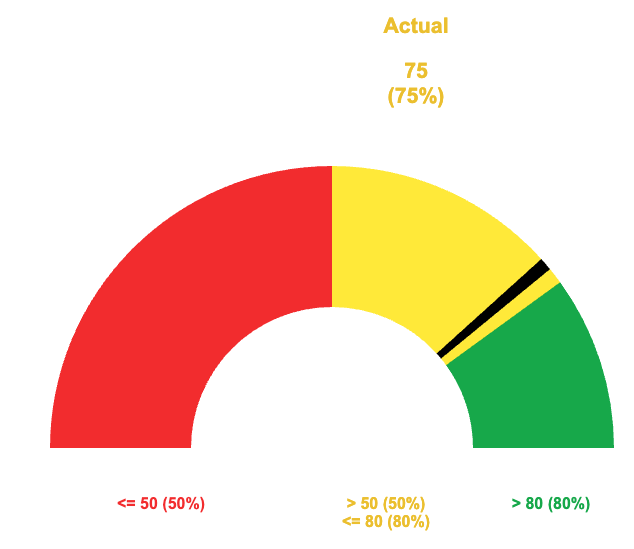
A few notes to kick things off…
This solution has been built so that the percentages for each of the three colors is variable.
The indicator width is also variable.
Because we had to get a bit creative, we have to use our own legend and series labels. Since we have to build our own, I figured it wouldn't hurt to get creative with these as well. We can use a section in the underlying sheet with some formulas and conditional formatting to make them more flexible.
Singe the image above is static, I wanted to include that the indicator does move back and forth within the various colored sections to help visualize where within that section you really are.
This allows you to see if you are (for example) towards the lower end of yellow and in danger of going into the red or if you are in the higher end of yellow and almost into the green as opposed to just "yellow".
Basics:
There are three assets in total. A dashboard to display the chart and a sheet to format the data for the chart. These two are the focus of this thread.
The third asset will be your underlying data, but we aren't going to dive into that as there are too many different ways to collect your source data.
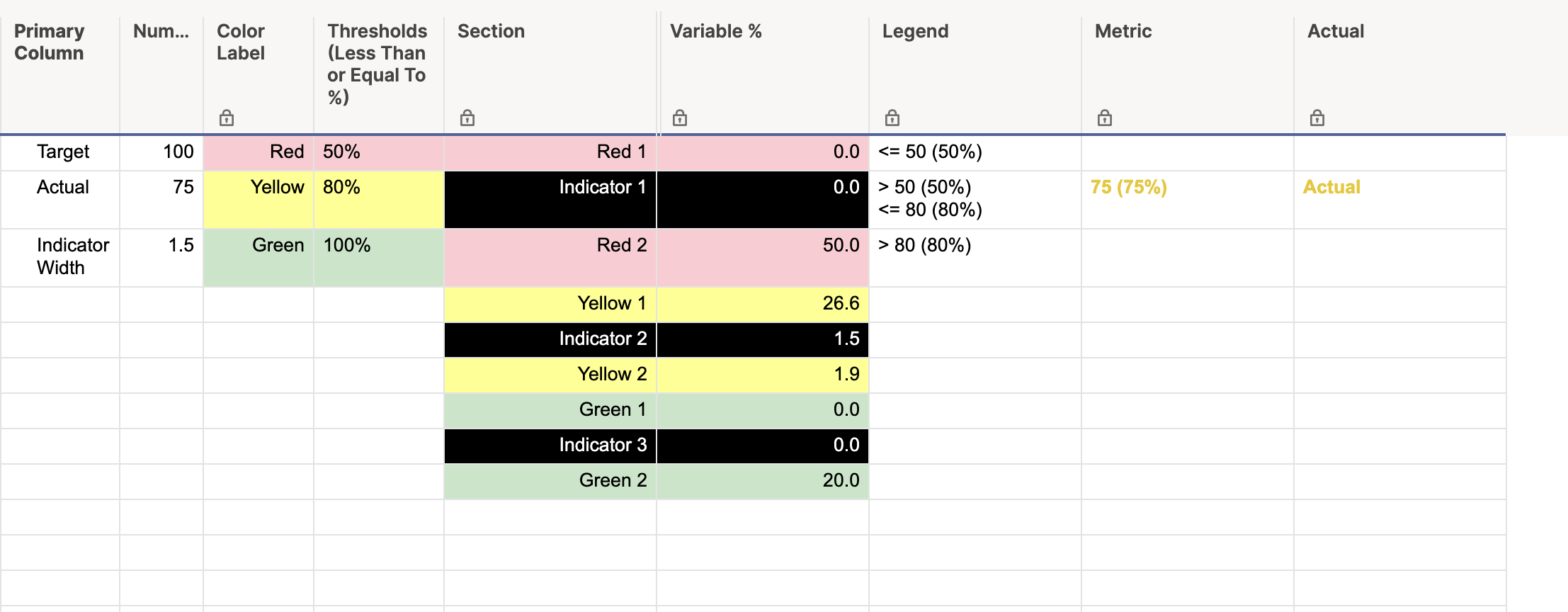
Below will be the details as well as screenshots for both the formatting sheet and the dashboard.
Formatting Sheet:
[Primary Column]:
NOTE: All rows in this column are manually entered.
Row 1: "Target"
Row 2: "Actual"
Row 3: "Indicator Width"
[Numbers]:
Row 1: Enter your target number. This number should be equivalent to your "100%" goal.
Row 2: This could be a cell link, a formula with a cross sheet reference, or even manually entered. This is going to be your "Actual" that is represented by the indicator in the chart.
Row 3: This is a manually entered number that indicates how wide you want the indicator in your chart. Lower numbers produce a thinner indicator, and larger numbers produce a thicker indicator. In the snippet above, the indicator width is 1.5.
[Color Label]:
NOTE: All rows in this column are manually entered.
Row 1: "Red" manually entered.
Row 2: "Yellow" manually entered.
Row 3: "Green" manually entered.
[Thresholds (Less Than or Equal To %)]:
NOTE: This column is formatted to show percentages.
Row 1: This will be the maximum percentage that would be considered "Red". For example, if you enter 50%, anything from 0% to 50% will have the indicator somewhere in the red section.
Row 2: This will be the maximum percentage that would be considered "Yellow". Using the example for Row 1, if you enter 80% here, anything above 50% but below 80% will have the indicator somewhere in the yellow section.
Row 3: 100% manually entered.
[Section]:
NOTE: All rows in this column are manually entered.
Row 1: "Red 1"
Row 2: "Indicator 1"
Row 3: "Red 2"
Row 4: "Yellow 1"
Row 5: "Indicator 2"
Row 6: "Yellow 2"
Row 7: "Green 1"
Row 8: "Indicator 3"
Row 9: "Green 2"
[Variable %]:
NOTE: All rows in this column are individual formulas.
Row 1:
=IF(Numbers2 > Numbers@row * [Thresholds (Less Than or Equal To %)]1, 0, (Numbers1 * [Thresholds (Less Than or Equal To %)]1) - ((Numbers1 * [Thresholds (Less Than or Equal To %)]1) - Numbers2) - Numbers3) + 0.00001
Row 2:
=IF(Numbers2 <= Numbers1 * [Thresholds (Less Than or Equal To %)]1, Numbers1 * (Numbers3 / 100), 0) + 0.00001
Row 3:
=IF(Numbers2 > Numbers1 * [Thresholds (Less Than or Equal To %)]1, Numbers1 * [Thresholds (Less Than or Equal To %)]1, (Numbers1 * [Thresholds (Less Than or Equal To %)]1) - Numbers2) + 0.00001
Row 4:
=IF(AND(Numbers2 < Numbers1 * [Thresholds (Less Than or Equal To %)]2, Numbers2 > Numbers1 * [Thresholds (Less Than or Equal To %)]1), (Numbers2 / (Numbers1 * [Thresholds (Less Than or Equal To %)]2)) * (Numbers1 * ([Thresholds (Less Than or Equal To %)]2 - [Thresholds (Less Than or Equal To %)]1)) - Numbers3, 0) + 0.00001
Row 5:
=IF(AND(Numbers2 <= Numbers1 * [Thresholds (Less Than or Equal To %)]2, Numbers2 > Numbers1 * [Thresholds (Less Than or Equal To %)]1), Numbers1 * (Numbers3 / 100), 0) + 0.00001
Row 6:
=IF(AND(Numbers2 < Numbers1 * [Thresholds (Less Than or Equal To %)]2, Numbers2 > Numbers1 * [Thresholds (Less Than or Equal To %)]1), (Numbers1 * ([Thresholds (Less Than or Equal To %)]2 - [Thresholds (Less Than or Equal To %)]1)) - ((Numbers2 / (Numbers1 * [Thresholds (Less Than or Equal To %)]2)) * (Numbers1 * ([Thresholds (Less Than or Equal To %)]2 - [Thresholds (Less Than or Equal To %)]1))), Numbers1 * ([Thresholds (Less Than or Equal To %)]2 - [Thresholds (Less Than or Equal To %)]1)) + 0.00001
Row 7:
=IF(Numbers2 > Numbers1 * [Thresholds (Less Than or Equal To %)]2, MIN((Numbers1 * ([Thresholds (Less Than or Equal To %)]3 - [Thresholds (Less Than or Equal To %)]2)) - (Numbers1 - Numbers2), Numbers1) - Numbers3, 0) + 0.00001
Row 8:
=IF(Numbers2 > Numbers1 * [Thresholds (Less Than or Equal To %)]2, Numbers1 * (Numbers3 / 100), 0) + 0.00001
Row 9:
=IF(Numbers2 >= Numbers1, 0, IF(Numbers2 > Numbers1 * [Thresholds (Less Than or Equal To %)]2, (Numbers1 * ([Thresholds (Less Than or Equal To %)]3 - [Thresholds (Less Than or Equal To %)]2)) - ((Numbers1 * ([Thresholds (Less Than or Equal To %)]3 - [Thresholds (Less Than or Equal To %)]2)) - (Numbers1 - Numbers2)), Numbers1 - (Numbers1 * [Thresholds (Less Than or Equal To %)]2))) + 0.00001
[Legend]:
NOTE: All rows in this column are individual formulas.
Row 1:
="<= " + ROUND((Numbers1 * [Thresholds (Less Than or Equal To %)]@row)) + " (" + ROUND([Thresholds (Less Than or Equal To %)]@row * 100) + "%)"
Row 2:
="> " + ROUND(Numbers1 * [Thresholds (Less Than or Equal To %)]1) + " (" + ROUND([Thresholds (Less Than or Equal To %)]1 * 100) + "%)" + CHAR(10) + "<= " + ROUND((Numbers1 * [Thresholds (Less Than or Equal To %)]2)) + " (" + ROUND([Thresholds (Less Than or Equal To %)]@row * 100) + "%)"
Row 3:
="> " + ROUND((Numbers1 * [Thresholds (Less Than or Equal To %)]2)) + " (" + ROUND([Thresholds (Less Than or Equal To %)]2 * 100) + "%)"
[Metric]:
NOTE: All rows in this column are individual formulas.
Row 1:
=IF(Numbers2 <= Numbers1 * [Thresholds (Less Than or Equal To %)]1, Numbers2 + " (" + ROUND(Numbers2 / Numbers1, 2) * 100 + "%)", 0)
Row 2:
=IF(AND(Numbers2 > Numbers1 * [Thresholds (Less Than or Equal To %)]1, Numbers2 <= Numbers1 * [Thresholds (Less Than or Equal To %)]2), Numbers2 + " (" + ROUND(Numbers2 / Numbers1, 2) * 100 + "%)", 0)
Row 3:
=IF(Numbers2 > Numbers1 * [Thresholds (Less Than or Equal To %)]2, Numbers2 + " (" + ROUND(Numbers2 / Numbers1, 2) * 100 + "%)", 0)
[Actual]:
NOTE: All rows in this column are manually entered.
Row 1, Row 2, and Row 3 all have the word "Actual" anually entered.
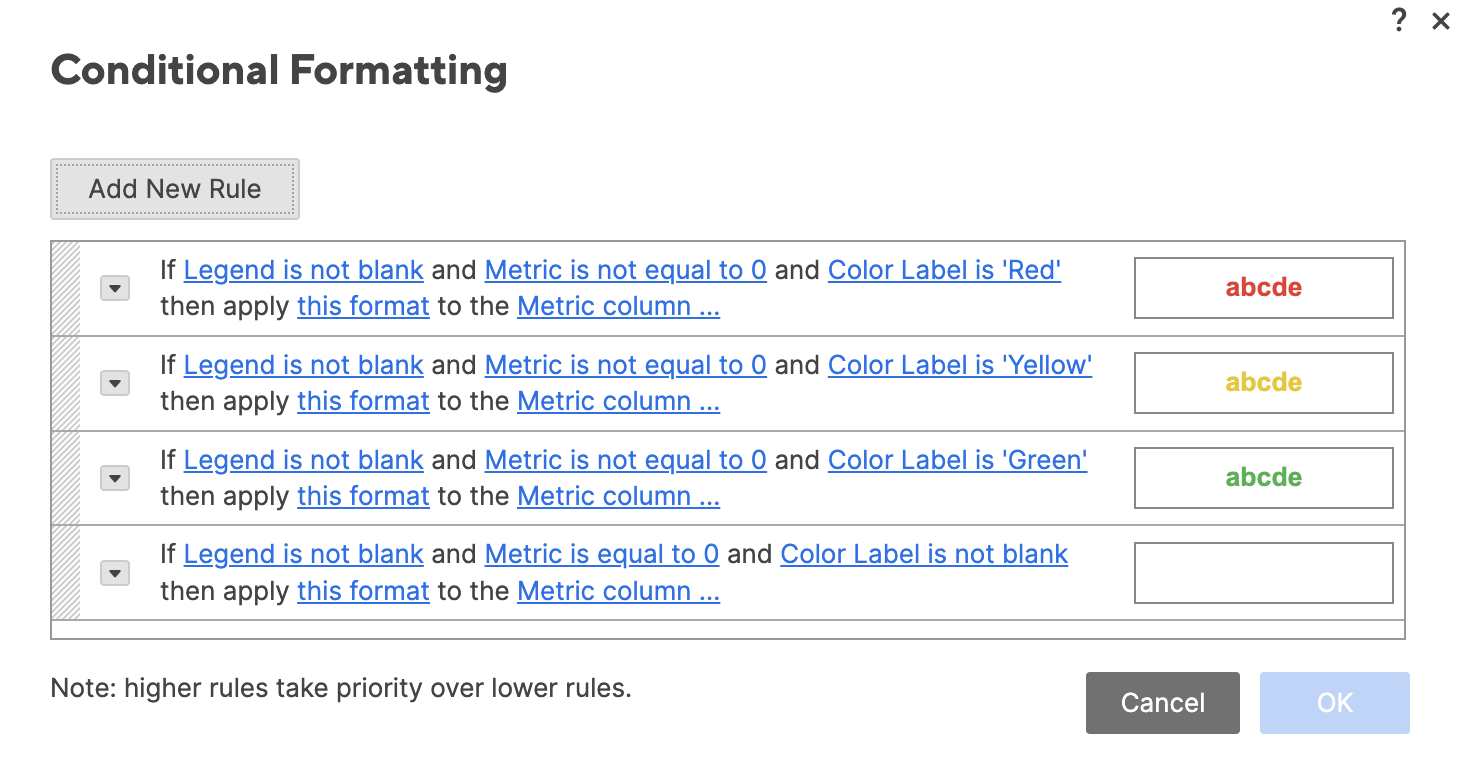
Conditional Formatting:
NOTE: I wasn't able to show it in the screenshot, but each rule is applied to the [Metric] and [Actual] columns.
Screenshot of the formatting sheet:
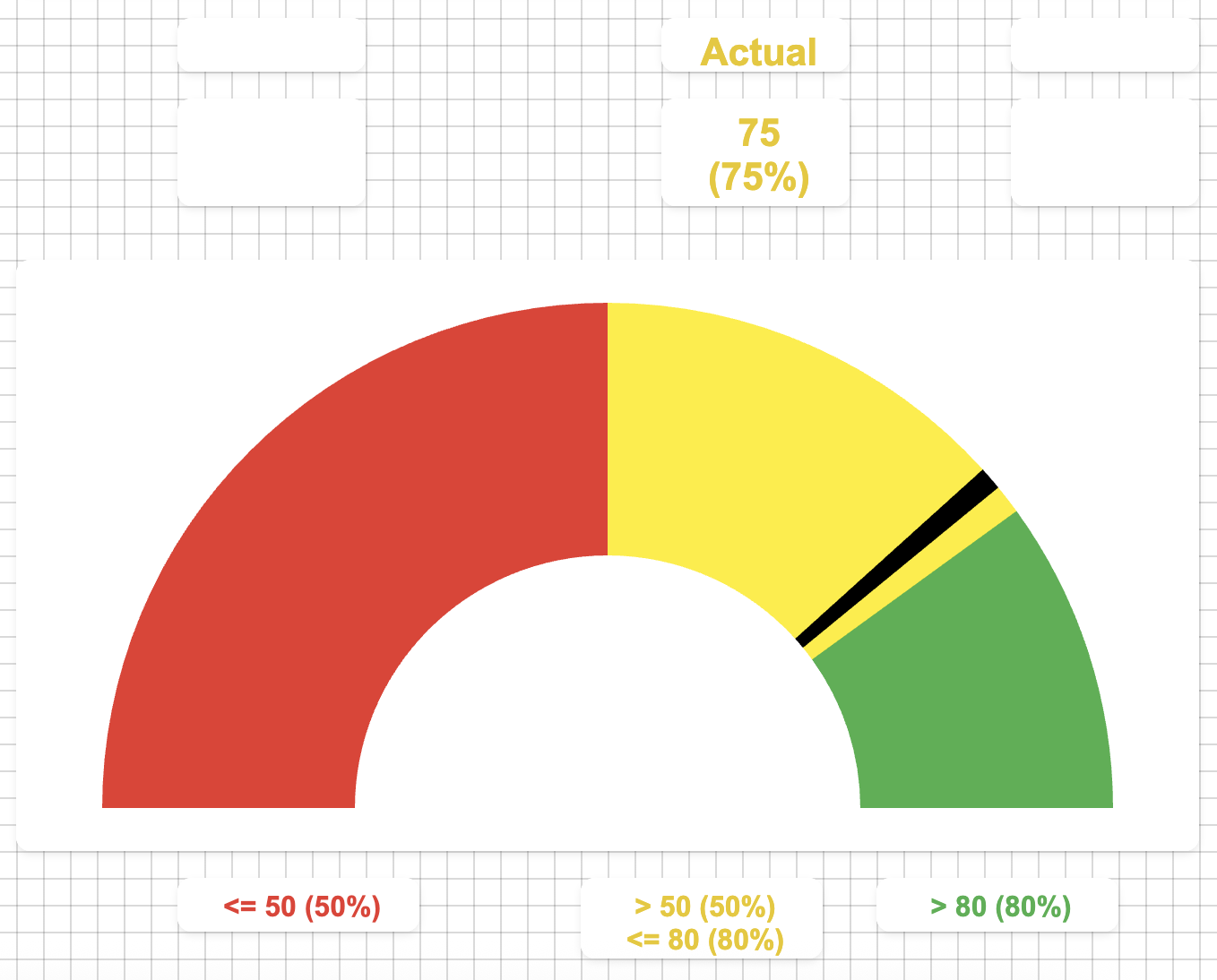
Dashboard:
You can use your own judgement for the sizes of each widget, but the general idea here is that we use individual metrics widgets to display the actuals and the "legend", and we use a half-donut chart for the "speedometer" portion.
You can see in the below screenshot how each of the widgets are laid out. I have the "Actuals" going across the top relatively in line with each of their colored sections, and the legend is metrics widgets across the bottom also in line with each of the colored sections.
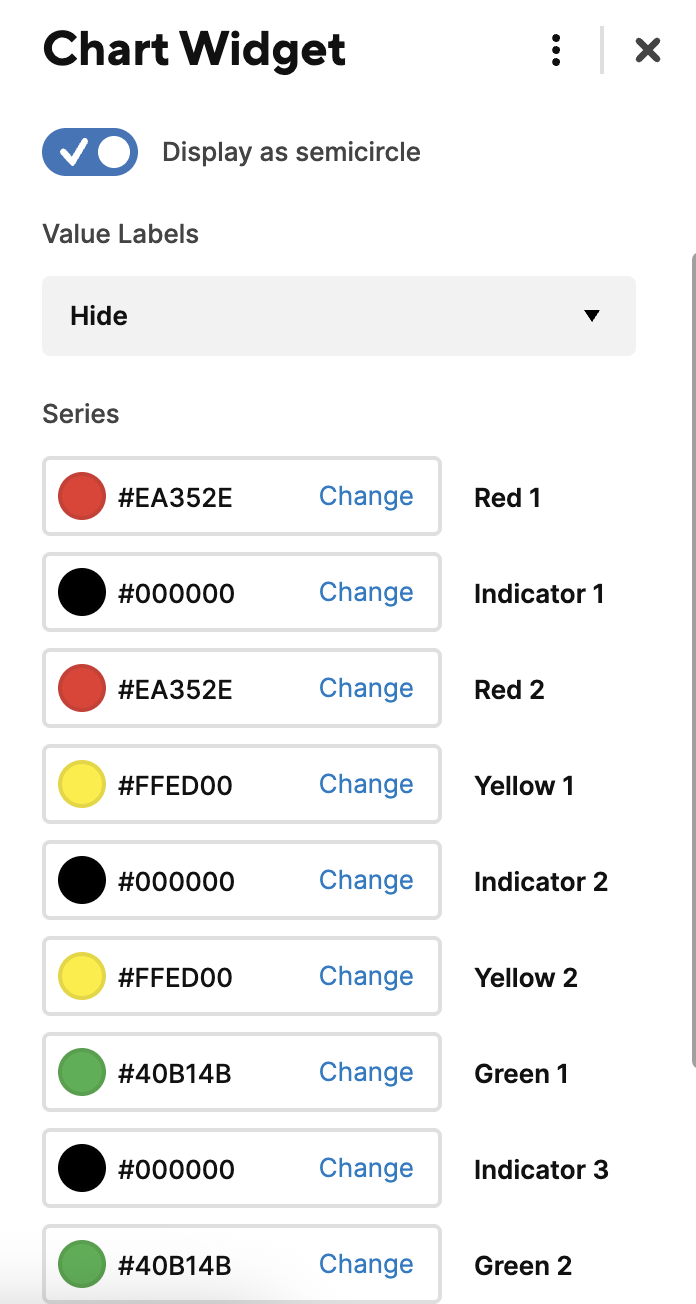
The "star of the show" here though is the speedometer chart. When we select the data for this, we select rows 1 through 9 of both the [Section] column and the [Variable %] column. I will provide a separate snippet of the chart series to show what colors were selected for the above.
Widget Layout:
Series:
 Paul Newcome
Re: Remove Zoom Setting Banner
Would love an option to disable this extremely distracting banner, and/or make this banner temporary.
Actually, would be nice if this could apply to all banner messages as well, and/or if full support for lower zoom levels could be implemented - what is the point of allowing such zoom levels if you are not going to fully support it in the first place?
I have multiple sheets opened at any given time, and need to often refresh them, and the banners reappear every single time this is done - this, and subsequently removing the banner by pressing the "x" button, gets annoying really fast.
I need to be able to see as many rows and columns as possible, and that takes precedence over any possible issues a smaller zoom level could cause - not that I have seen any over years of using zoom level at 70% or under.
 ChrisAM
Re: Remove Zoom Setting Banner
I would LOVE that. It finally got to the point where I wanted to see if I could remove it. Came across this thread.
Any update on this?
AT.MCKINNEY
Re: Icon / Image Library in Dashboards
@NeilKY @Melissa Bosi - When things are too good to be true, i make copies that very min (or download) just in case my instincts were right, and once again they were.
If you want me to send you a link to download a zip file to those icons from that library, and many others icons/symbols/clipart/images i use throughout my sheets/dashboards that you can access to download.
If your interested, send me a request for the link to the icons folder to my personal email since my government email will most likely block them 😒
——> beckersbeachlife@outlook.com
 Julie Becker
Re: [UPDATED] Community Reward Program 🏆
@Genevieve P. That's definitely much classier. I say we go with that one. 🤣
Paul Newcome