Best Of
Re: Making a new sheet after the most recent update
You are helpful. The change, not so much. Thank you anyway.
 Bill Raymond
Re: using NOT
sss @michellelkirkland A couple issues with the formula that jump out.
You have the Tracker Range 3 right after the Tracker Range 2, that is not the correct syntax. You need to use the criterion for each range right after the range.
Also for the not function you would just say:
not(@cell = "closed")
 Darren Mullen
Re: OFFSET() function
I did a quick search to see if there was another feature request for the offset function, and I was surprised to find that there wasn't.
I think this is a great idea!
 SSFeatures
Re: New Membership versus License Model
Another fail by Smartsheet. I work for a small non-profit and our budget is tight. I just realized that this change tripled my licensed user number. This is underhanded and dirty. To remove these licenses it now requires 30-day notice and you can only do it at this website:
Horrible customer service and while the product is a good product, between this and the inability to save in the Sheets folder, it seems to be moving toward an unusable product. Now I will have to monitor the tune-up member list on a weekly basis or get caught spending more money than budgeted. So basically now everyone without a licenses has to be a viewer unlike before they could be an editor. Ridiculous and disappointing.
PLD
Re: New Membership versus License Model
@Barry Bowles which alternatives have you looked at? Has anyone reach out to Blackstone and Vista Equity partners directly to let them know the risk of losing multiple customers loyalty, this also is a risk of Smartsheet's reputation. If you have or know someone who reached out to them, did you get a reply?
Matt Kirby
Re: New Membership versus License Model
I'm very disappointed about this pending change. I chose Smartsheet as our portfolio management software because anyone in our organization could collaborate without needing a license. If this is the future of Smartsheet, we will reconsider other options.
Scott Carper
Bolding Text in Automation
I would love to be able to create bolded text in automated messages. Currently there doesn't seem to be the ability to do so.
LFeliciano
Re: Email Error
Hi @mimi_McCPetco8, does it always complain about the same row ID, or does the number change? I'm wondering if it's only one email that's causing the problem, or if there are multiple emails that Smartsheet doesn't like.
If you have a lot of rows, it can be difficult to manually go through each one to check the row ID.
If you're comfortable running code in your browser's Developer Tools console, you can paste in this code and it will tell you which row corresponds to '4112981658832772', so that you don't have to manually go through each one by hand.
rowId = 4112981658832772


grid = formObjectHandler.getFormObjectByConstructor(JscMegaGrid)

rowNumber = grid.gridRowSet.findIndex((row) => row.pvt_gridRowMaskedID === rowId)


console.log(`The rowNumber is ${rowNumber}`)
Hope this helps!
SSFeatures
Pause Workflow until Update / Approval Request is completed
It would be extremely helpful if during a workflow, when you have an Update / Approval Request, you had the option to have the workflow not go to the next step until either request was completed.
Eitan
HOW TO: Duplicate / Copy a Group
Smartsheet Support Documentation does not have a way to duplicate, copy, or export a group in admin.smartsheet.com/manage/groups
There is, however, a workaround that doesn't appear to be posted anywhere so I'm sharing it here:
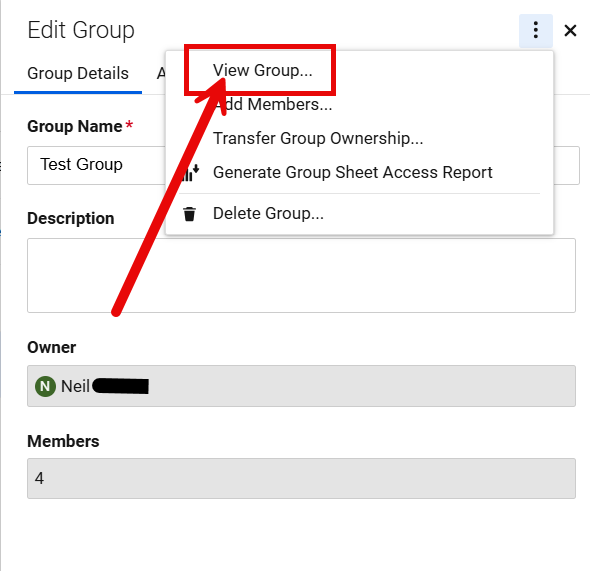
- Open the group in the group list at admin.smartsheet.com/manage/groups
- Select "View Group"
- Select the members in the group by using the mouse to drag and highlight each of the names, from the left of the first name to the end of the last email address.
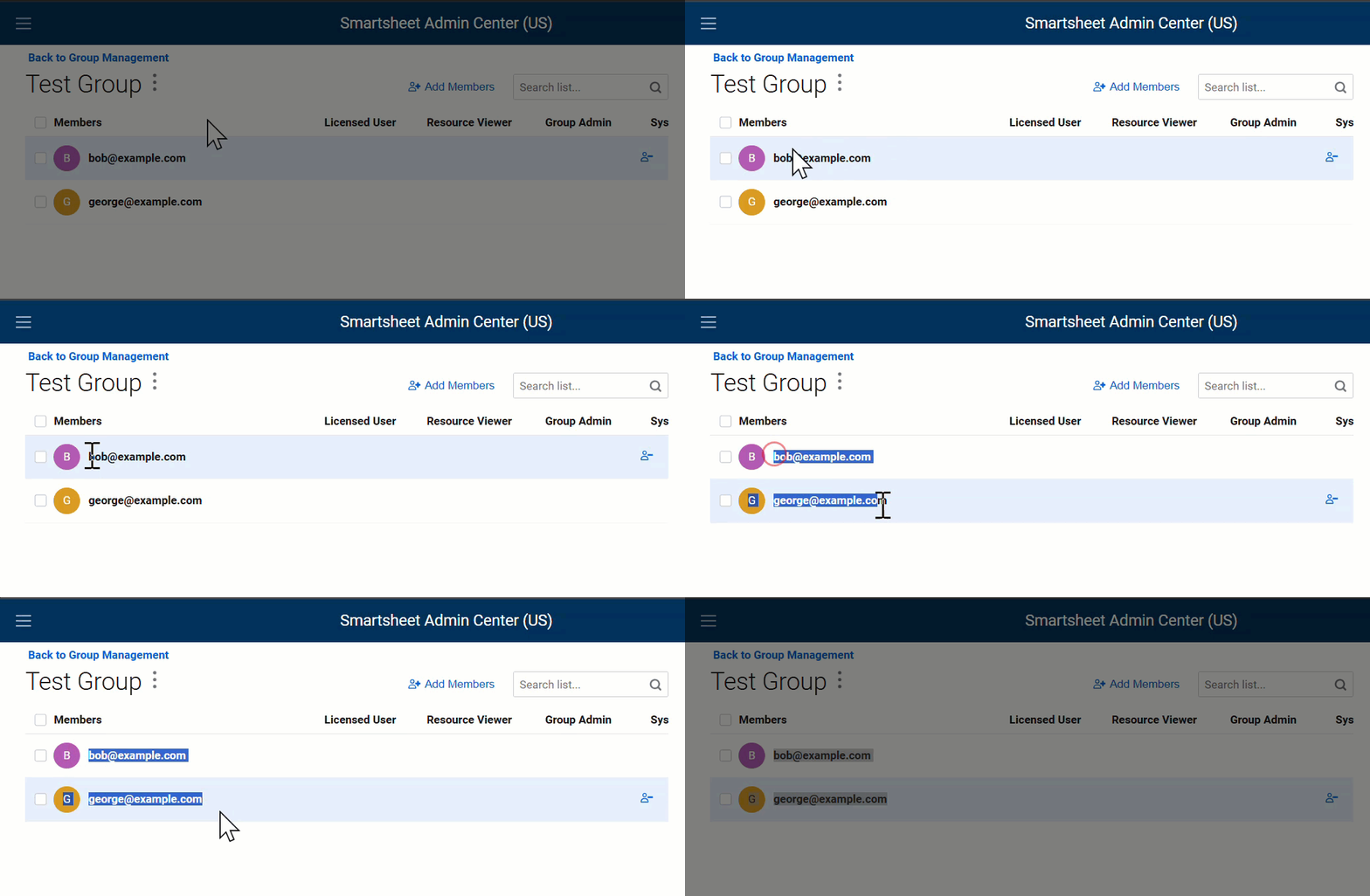
- Press CTRL+C to copy
- Open a Text Editor and paste the results. What is pasted is NOT ready to be copied back into Smartsheet yet.
- Open your favorite LLM AI and upload the file to it. Instruct the AI to "Extract all emails in this file and save it to a new file"
- Download the file that AI created for you.
- Open the file AI created for you
- Select the FIRST 1000 contacts (or less) and press CTRL+C
- Open the group you want the names added to.
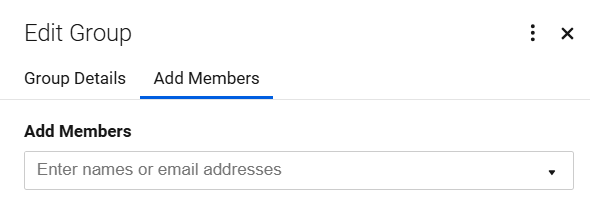
- Select "Add Members"
- In the box where it says "Enter names or email addresses", press CTRL+V to paste all the names you copied from the file. The names will be added.
- Press Save. (bottom of screen)
- If you have more than 1000 to add, repeat steps 9-13.
- DONE!
I hope this helps someone!
 NeilKY