Best Of
HOW TO: Duplicate / Copy a Group
Smartsheet Support Documentation does not have a way to duplicate, copy, or export a group in admin.smartsheet.com/manage/groups
There is, however, a workaround that doesn't appear to be posted anywhere so I'm sharing it here:
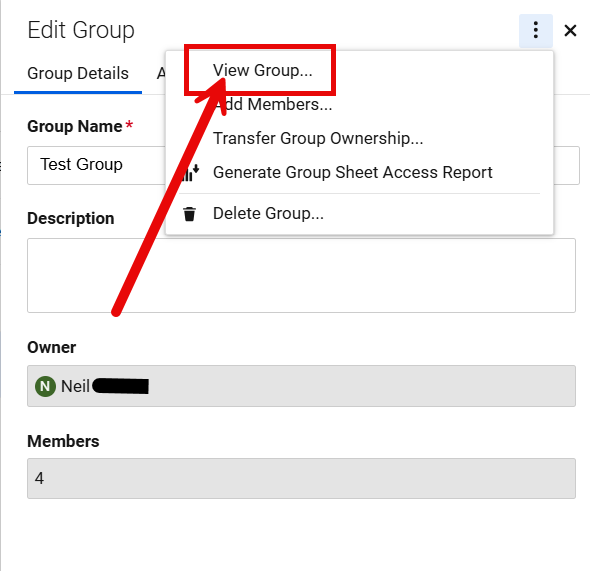
- Open the group in the group list at admin.smartsheet.com/manage/groups
- Select "View Group"
- Select the members in the group by using the mouse to drag and highlight each of the names, from the left of the first name to the end of the last email address.
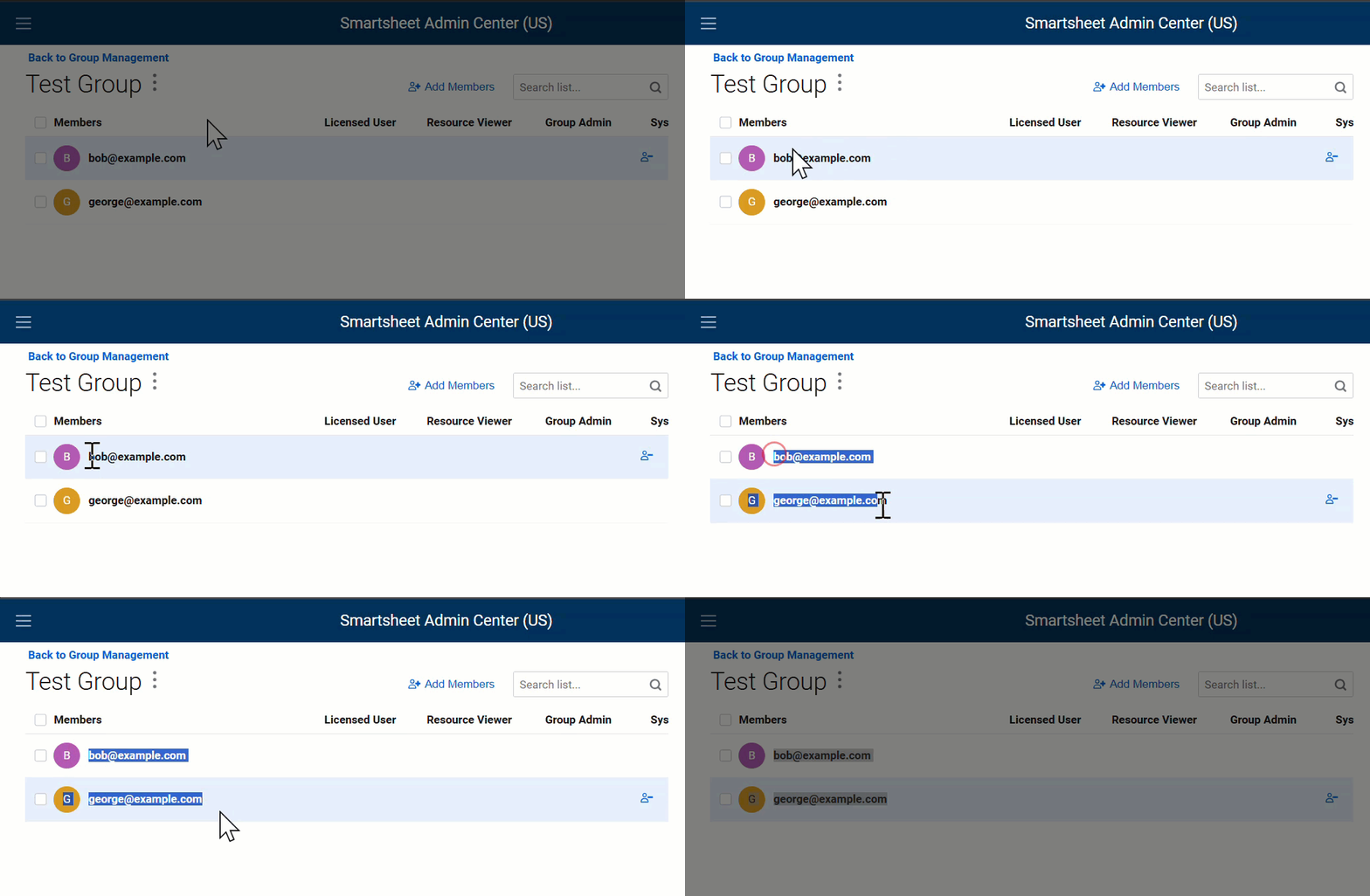
- Press CTRL+C to copy
- Open a Text Editor and paste the results. What is pasted is NOT ready to be copied back into Smartsheet yet.
- Open your favorite LLM AI and upload the file to it. Instruct the AI to "Extract all emails in this file and save it to a new file"
- Download the file that AI created for you.
- Open the file AI created for you
- Select the FIRST 1000 contacts (or less) and press CTRL+C
- Open the group you want the names added to.
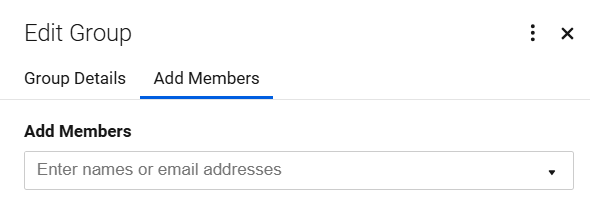
- Select "Add Members"
- In the box where it says "Enter names or email addresses", press CTRL+V to paste all the names you copied from the file. The names will be added.
- Press Save. (bottom of screen)
- If you have more than 1000 to add, repeat steps 9-13.
- DONE!
I hope this helps someone!
 NeilKY
Edit Default Messages for time-based alerts
Would be great if we could edit the default message that Smartsheet sends for time-based alerts when 6+ rows are triggered. I like that it groups requests into one email, but I want to update what the email message says. The text reads "please update my online sheet" which reads a little funny because we're sending these messages from the organization so would like a bit more formal wording on this.
 glong
glong
Easy visibility on subscription renewal date
I had a very challenging time determining when my renewal date was for current licenses and would like to suggest that it be added to the Plan & Billing Info section.
john.lamirande
Generate project(sheet) list for each user where he/she is assigned as Editor access at Sheet Level
We have assigned Individual User Edit access to Sheet level. Now Business wants each of the person could see the list sheets for each He/She assigned as editor when login to Smartsheet as Home/Landing Page. Please help
SWAPNIKSAHA
Re: Generate Documents - Using Forms
@EvanFireLifeSafety Sure, you can have multiple PDF templates associated with a sheet. You can then either choose to generate manually and choose the template you want, or have automations trigger that will generate a PDF and choose the template you want based on conditional paths in the automated workflow.
 Darren Mullen
Re: Trouble with COUNTIFS Formula
Hi @kkinman, try this formula:
=COUNTIFS(Column:Column, <> "", Date:Date, @cell >= TODAY(-90))
This uses one range "Column:Column" and checks if it is NOT EQUAL TO "" (which is the empty text).
Then it checks a range of dates and checks if the value is within the most recent 90 days.
I hope this helps!
 SSFeatures
How saved filters work
I'm requesting that the parameters of a saved filter not be updated when I use that saved filter, add some more filters to dive into the data more, update some data fields, then click save. Intuitively to me that "save" should have just stored the data updates and shouldn't have updated the parameters of the saved filter. After creating a filter, it seems intuitive to me that the only way to update its parameters is to click the filter dropdown, hover over the saved filter, and edit it (pencil icon).
If I'm using the system wrong or if there's a better way, I'm of course open to hear about that.
Paul Tibbits
Provide ability to select position of new Profile Data added via Global Update
There currently isn't a way to select the position for new Profile Data in the Control Center when adding the data using Global Update. Right now it adds it to the bottom row of the Summary section. This doesn't always make sense for the sheet.
SRMAdmin
Re: Open Discussion: Formula to Populate Multiple Contacts in a Single Cell?
After adding your vote to make it part of the core product, please feel free to check out this thread if you have access to either of the premium add-ons Data Mesh or Data Shuttle:
 Paul Newcome
Add Workspace ID / Name to Sharing Report
The Workspace Sharing reports currently generate with the default names of "Workspace Sharing Permissions" and "Workspace Sheet Access" for every workspace. The reports themselves do not contain the name or ID of the workspace either. As a result, if you generate the report for more than one workspace, you cannot distinguish between the files except by comparing the contents of the workspaces themselves. This somewhat defeats the purpose of having a report, since the goal is to have a record where you don't have to go look yourself.
In our specific case, we are trying to use the reports as a part of routine audit to show that sharing aligns with what was formally approved. It would greatly help if the report had some traceability to the reported workspace.
Would it be possible to have the Workspace Name (and/or ID) be included as a header line or a column within the report? It would also be helpful if the Workspace Name (or ID) was included in the filename, distinguishing between them before opening the file.
_Ernest_