Best Of
Re: Adding an image to a sheet cell in Mobile View (on mobile app) seems to have stopped working
I’m seeing the same behavior.
I’ve tested reinstalling the app and clearing cache, but the issue still persists. Uploading images works fine in Grid View, but not in Mobile View, even though the icon is still available.
This looks like a regression specific to Mobile View rather than a permission or file issue. Likely something broke in a recent app update.
For now, switching to Grid View seems to be the only reliable workaround until this is fixed
 Gia Thinh
Re: Updates to the Left Navigation, now generally available!
I was so glad to log in and discover this feature was rolled back. I was not a fan. It was harder to find things, it took more clicks to get there, and I just didn't find any benefit from it.
 S.Stone
Re: Populate cell with current date and time
You can look at the individual checkbox cell's history, but that doesn't really lend itself to scalability. Automations only record a DATE, which obviously won't work for your use case. The workaround I've used in the one case I had to record time is simliar to described here - it isn't pretty, but it works. I'd be delighted if anyone else can offer something that's a bit more elegant than this trashfire. 😀
1. The sheet on which this checkbox appears will need to have some kind of a unique identifier for each row. If you already have something you can use (like an order number or an employee ID or something that shouldn't be repeated on the sheet EVER), great. If not, add an Autonumber column.
2. Create a COPY ROW automation that is triggered when your box is checked. Copy that row to a new sheet whose entire purpose is to create this timestamp. On that NEW sheet, be certain a Created Date column exists. (If it already does on your main sheet, you'll need to test and possibly play with column names and/or types - you're trying to capture when the row is created on the NEW sheet and not the original sheet.)
3. On the NEW sheet, split the date and time of the Created column into separate cells with Text/Number type - use formulas like =LEFT(Created@row, FIND(" ",Created@row)-1) to accomplish this. Only column type Text/Number will retain the timestamp, so you're converting the data type by doing this split.
4. You'll then be able to look up that new "timestamp" cell using your unique identifier from #1 to pull the time over. You can use the TIME formula to do whatever calculations you need to.
 Kerry St. Thomas
Re: Hidden Form Fields No Longer Writing to Sheet
@Lori Ryan It was a back-end bug that was fixed early this morning. Are you still experiencing it with new submissions?
 Paul Newcome
Archiving Final PDF documents outside of Smartsheet through a script in Python
📄 Automating PDF Downloads from Smartsheet Reports
Hi everyone,
I manage hundreds of documents generated across multiple sheets in Smartsheet. To keep things organized, I use reports to consolidate them — but I often get asked to ensure these documents are also backed up in SharePoint for redundancy.
Unfortunately, Smartsheet doesn’t currently offer a built-in way to selectively download only final PDFs from reports or sheets. If you try to download attachments from a row, you’ll get everything — images, intermediate files, and other miscellaneous items — not just the final deliverable.
In my case, each row might contain multiple files, but the one I care about is the final PDF generated via Document Builder. What I really needed was a way to filter attachments by file type (e.g., PDF) and download just those.
Since there’s no off-the-shelf solution for this, I built one.
🛠️ What I Built
I created a Python script that:
- Connects to a Smartsheet Report
- Identifies the source sheets and rows
- Filters attachments by file type (PDF only)
- Downloads them into a local folder
- Logs the process (including skipped rows and errors)
It’s been working great for me, and I thought I’d share it in case it helps others.
🚀 How to Use It
- Install Python (if you haven’t already)
- Replace the following in the script:
ACCESS_TOKEN→ your Smartsheet API tokenREPORT_ID→ your Smartsheet Report ID
- Run the script — it will download all PDFs from the report into a folder and generate a log file.
💡 Feature Suggestion for Smartsheet
It would be amazing if Smartsheet added a native feature to:
- Filter attachments by file type (e.g., PDF, DOCX, PNG)
- Download selected types directly from reports or sheets
Until then, feel free to use or adapt this script for your own workflows.
Let me know if you have questions or improvements — happy to collaborate!
****************************SCRIPT BELOW***************************************************
import smartsheet
import requests
import os
import time
from collections import defaultdict
ACCESS_TOKEN = 'YOUR API TOKEN'
REPORT_ID = 'YOUR REPORT ID'
DOWNLOAD_FOLDER = 'pdf_attachments'
LOG_FILE = 'download_log.txt'
os.makedirs(DOWNLOAD_FOLDER, exist_ok=True)
smartsheet_client = smartsheet.Smartsheet(ACCESS_TOKEN)
total_rows = 0
rows_with_attachments = 0
pdf_found = 0
pdf_downloaded = 0
skipped_rows = []
filename_counter = defaultdict(int)
def download_with_retry(url, file_path, attachment_name, log):
global pdf_downloaded
retries = 0
while retries < 2:
response = requests.get(url)
if response.status_code == 200:
with open(file_path, 'wb') as f:
f.write(response.content)
log.write(f"[Downloaded] {attachment_name}\n")
print(f"[Downloaded] {attachment_name}")
pdf_downloaded += 1
break
elif response.status_code == 429:
retry_after = int(response.headers.get('Retry-After', 5))
log.write(f"[Rate Limit] Retrying after {retry_after} seconds...\n")
print(f"[Rate Limit] Retrying after {retry_after} seconds...")
time.sleep(retry_after)
elif response.status_code == 502:
log.write(f"[502 Error] Bad Gateway while downloading {attachment_name}. Retrying in 10 seconds...\n")
print(f"[502 Error] Bad Gateway while downloading {attachment_name}. Retrying in 10 seconds...")
time.sleep(10)
retries += 1
else:
log.write(f"[Error] Failed to download: {attachment_name} (HTTP {response.status_code})\n")
print(f"[Error] Failed to download: {attachment_name} (HTTP {response.status_code})")
break
with open(LOG_FILE, 'w', encoding='utf-8') as log:
log.write("PDF Download Log\n================\n")
report = smartsheet_client.Reports.get_report(REPORT_ID)


for row in report.rows:

    total_rows += 1

    sheet_id = row.sheet_id

    row_id = row.id

    log.write(f"\nProcessing row {row_id} from sheet {sheet_id}\n")

    print(f"Processing row {row_id} from sheet {sheet_id}")


    try:

        attachments = smartsheet_client.Attachments.list_row_attachments(sheet_id, row_id).data

    except smartsheet.exceptions.ApiError as e:

        status_code = getattr(e.response, 'status_code', None)

        if status_code == 429:

            retry_after = int(e.response.headers.get('Retry-After', 5))

            log.write(f"[Rate Limit] Retrying after {retry_after} seconds...\n")

            print(f"[Rate Limit] Retrying after {retry_after} seconds...")

            time.sleep(retry_after)

            try:

                attachments = smartsheet_client.Attachments.list_row_attachments(sheet_id, row_id).data

            except:

                log.write(f"[Error] Failed again to list attachments for row {row_id} in sheet {sheet_id}\n")

                print(f"[Error] Failed again to list attachments for row {row_id} in sheet {sheet_id}")

                skipped_rows.append((sheet_id, row_id))

                continue

        elif status_code == 502:

            log.write(f"[502 Error] Bad Gateway while listing attachments for row {row_id}. Retrying in 10 seconds...\n")

            print(f"[502 Error] Bad Gateway while listing attachments for row {row_id}. Retrying in 10 seconds...")

            time.sleep(10)

            try:

                attachments = smartsheet_client.Attachments.list_row_attachments(sheet_id, row_id).data

            except:

                log.write(f"[Error] Failed again to list attachments for row {row_id} in sheet {sheet_id}\n")

                print(f"[Error] Failed again to list attachments for row {row_id} in sheet {sheet_id}")

                skipped_rows.append((sheet_id, row_id))

                continue

        else:

            log.write(f"[Error] Failed to list attachments for row {row_id} in sheet {sheet_id}\n")

            print(f"[Error] Failed to list attachments for row {row_id} in sheet {sheet_id}")

            skipped_rows.append((sheet_id, row_id))

            continue


    if attachments:

        rows_with_attachments += 1


    for attachment in attachments:

        if attachment.attachment_type == 'FILE' and attachment.mime_type == 'application/pdf':

            pdf_found += 1

            try:

                file_info = smartsheet_client.Attachments.get_attachment(sheet_id, attachment.id)

                file_url = file_info.url


                base_name, ext = os.path.splitext(attachment.name)

                filename_counter[attachment.name] += 1

                if filename_counter[attachment.name] > 1:

                    unique_name = f"{base_name}_{filename_counter[attachment.name]}{ext}"

                else:

                    unique_name = attachment.name


                file_path = os.path.join(DOWNLOAD_FOLDER, unique_name)

                download_with_retry(file_url, file_path, unique_name, log)

            except smartsheet.exceptions.ApiError as e:

                status_code = getattr(e.response, 'status_code', None)

                if status_code == 429:

                    retry_after = int(e.response.headers.get('Retry-After', 5))

                    log.write(f"[Rate Limit] Retrying after {retry_after} seconds...\n")

                    print(f"[Rate Limit] Retrying after {retry_after} seconds...")
 Daniel Guevara
Re: Getting started
Hi Chantal -
Based on the images from your form set up screenshots the expected behavior is that Row 1 should display a response of Submitted.
Before submitting a ticket for this would you check to see if you have the same response when viewing the form responses in Grid View? When transitioning to Grid, if you don't see "Submitted" appear in the Status column, please try another test submission via the form to confirm the issue is not at the sheet level.
I ask because Table View is still undergoing testing and I had something similar happen to me in one of my sheets recently. Grid View worked, Table did not display correctly.
If you see the same response in Grid that you see in Table then I would suggest submitting a support ticket to uncover the issue. If the issue is the Table View, we would also appreaciate a feedback so they can research the bug. This can be done by clicking the "Question Mark" icon at the top left of your Mission Specialization Skills sheet, and using the bullhorn Icon to share feedback on the Table View.
All the best,
Alyson E.
 Alyson_SmartU
Re: Hidden Form Fields No Longer Writing to Sheet
I just tested this and found that only single and multi-select dropdown column types are behaving this way. Text/number, Symbol, Date, Checkbox, Single and Multi-Select Contact columns are still working as expected.
My suggestion is that everyone here submits a ticket to support so that they can see it is a wide-spread issue as opposed to an isolated incident.
Paul Newcome
Re: FORMS - where has the field name gone
You need to click on the pencil in the top box where it says Field Type Dropdown List. In the dialog that opens you will see the underlying field properties.
Yes - I know - it was more helpful when you could see it on the main page without having to go into edit mode…
But at least it is accessible from that pencil.
 Debbie Sawyer
Syntax: Add Row via API for Multi Select Contact Column, MULTI_CONTACT
Dropping this here in the hopes Google picks it up for future developers.
At times when you cannot use the SDKs for adding rows via the API with multi-select contact columns (i.e. Bridge), the following body payload syntax is correct for posting new rows to a sheet.
[

    {

    "cells": [

        {

            "columnId": 4532552246972292,

            "value": "Test Row 1"

        },

        {

            "columnId": 1154852526444420,

            "objectValue": {

                "objectType": "MULTI_CONTACT",

                "values": [

                    {

                        "objectType": "CONTACT",

                        "email": "user1.email@smartsheet.com",

                        "name": "User One"

                    },

                    {

                        "objectType": "CONTACT",

                        "email": "user2.mail@smartsheet.com",

                        "name": "User Two"

                    }

                ]

            }

        }

     ]

},

{

    "cells": [

        {

            "columnId": 4532552246972292,

            "value": "Test Row 2"

        },

        {

            "columnId": 1154852526444420,

            "objectValue": {

                "objectType": "MULTI_CONTACT",

                "values": [

                    {

                        "objectType": "CONTACT",

                        "email": "user1.email@smartsheet.com",

                        "name": "User One"

                    },

                    {

                        "objectType": "CONTACT",

                        "email": "user2.mail@smartsheet.com",

                        "name": "User Two"

                    }

                ]

            }

        }

     ]

}

]
Please feel free to add any other related syntax that may not be clear in the API docs to this thread.
 Ryan Sides
When to use = and "" in COUNTIF formulas
I came across some weird COUNTIF functionality recently in one of my duplicate check column formulas. I wrote some exploratory formulas and wanted to share!
Key Takeaways
- Numbers with leading 0s requires both = and ""
- Regular text requires "", but = is optional
- Regular numbers do not require = or "", but work with one or the other. Do not use both at the same time.
Examples
Below is an example dataset:
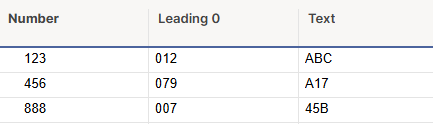
Here are the variations of COUNTIF formulas we can write for these:
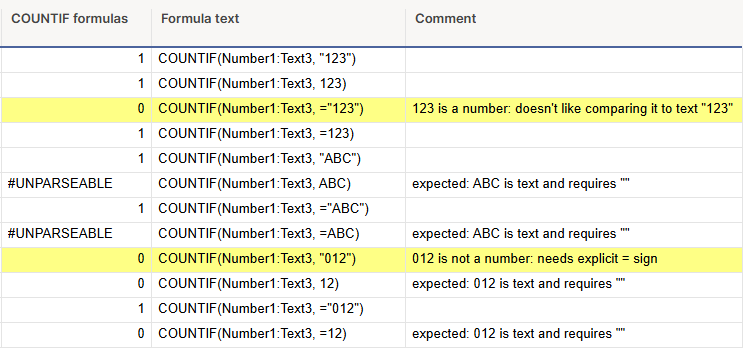
What we can learn from this:
- Numbers- which include only regular numbers with no leading 0s
- Works: "123", 123, or =123
- Does NOT work: ="123". Smartsheet thinks ="" means text and can't find the number 123.
- Leading 0s Numbers- all number digits with a 0 in front
- Works: ="012"
- Everything else does NOT work.
- Text- which includes letters, characters, and numbers with leading 0s
- Works: "ABC", ="ABC"
- Does NOT work: ABC, =ABC. Text requires ""
If you ever have a COUNTIF formula for a number column with a sneaky leading 0 in there, you'll end up with a miss count or no match. Make sure your columns contain all numbers or all text/leading 0s!
Hope this was helpful! It's a bit of a niche topic but I always love to understand as much as possible about formula functionality. 😉
 Janae G.