Warning! Long-ish post coming your way with multiple topics I wanted to share. Throughout, if I’m missing a functionality whereby I’m needlessly fretting, please, please let me know.
- Intro
- Hiding rows and columns administratively across 20 unique Sheets
- Porting in and out of MS-Word for large find / replace formulaic needs
- Using MS-Excel to capture formulas for paste / replication across multiple sheets
- Disaster report “dumps”
Hi all. My name is Dave Sidon. I’m a CPA, former bank CEO, banking consultant and educator. I own and manage The Banque Corporation, www.thebanque.net, which is devoted to teaching banking to bankers. Our tag line: “Preparing the next generation for the future of banking”.
- Introduction to the use case
Our foundational tool is a simulation model powered by Smartsheet that simulates up to 5 years of banking decisions across 20 competing teams. The file structure for a “school” is constrained by Smartsheet’s 100-item limit. As such, we have 20 banque team folders each with the Smartsheet model, a staffing model, a report set and a dashboard; and an admin folder with governing sheets and reports taking us over 100 such that the admin reports need to be reset during each event to move them forward a year. Did someone say enhancement request? Administratively, we need to have command and control over 20 unique folders/files to preserve the smooth-running / integrity of the exercise, which can be a one-day event, or in school settings, conducted over 3-4 days. Smartsheet was not built for how we use it, so we’ve needed to be creative as I’ll share here. Hoping I might have a chance to share this beast further at this year’s ENGAGE.
2. Hiding rows and columns administratively across 20 unique Sheets
Hiding rows administratively is easily achieved via sort definitions, as long as our students are actually in the sort they are supposed to be in (which we can’t control administratively). We have a moment during each year’s simulation that requires an adjustment to the sort definition to truncate access to some key rows. The teams set rates across five loan products and five deposit products, watching a rate board as competitors set their rates, and once the rate board is closed, product allocations are formulaically determined. Simple to this point. But once allocations are set, a team could disrupt the calculation across all teams by going back into the rate-setting cells. We have a “toggle” in the rate board that controls a “toggle” on each sheet that resets a sort indicator column that effectively hides the rows (as long as they are actually in the sort they are supposed to be in). Administratively, we then manually “kill” the link to the rate board which works, albeit not as timely or seamless as we’d like. I’d give this workaround a grade of B.
Columns are tougher still. Each of our 5 simulation years straddles 8 columns, laid out such that when we get to year 5, teams are working in columns 33 through 40. Even with freezing the primary column, each refresh sends everyone back to the far left, requiring scrolling across 32 now superfluous columns to get at year 5. Our solution is slow and inelegant. First, we have columns reacting to a conditional formatting logic statement that blacks out the columns, thus, despite our color coding, eliminating the confusion of “what year are we in?”. Then we have to manually go in to each of as many as 20 sheets to hide the columns. All done under a significant time constraint. This presents the risk of deleting a column versus hiding a column; see topic 5 for our disaster planning scheme. I’d give this workaround a grade of C-.
3. Porting in and out of MS-Word for large find / replace formulaic needs
Smartsheet can’t copy formulas over to Excel, as well as (enhancement request) Smartsheet to Smartsheet. So replicating formulas within a sheet is OK by fixing column names and then editing, clunky and time-consuming, in my case 5 annual-period instances, 20 times. What I’ve done is once the formula is set for one instance, I port to Word. Here’s an example:

Here I’m "iffing" a particular year and grabbing data from a particular row (970) to feed my dashboard. For this data point, I can copy this string over to the next sheet – copy in Word, paste in Smartsheet. But then, I want other data points to feed my dashboard, so I can replicate this string in the Word doc and easily do a find/replace to set up row 977 as a data point. And if I do this a number of times (let’s say I have 8 data points) I can “stack” in Word and create a single cut/paste (an example of 3 items follows)

4. Using MS-Excel to capture formulas for paste / replication across multiple sheets
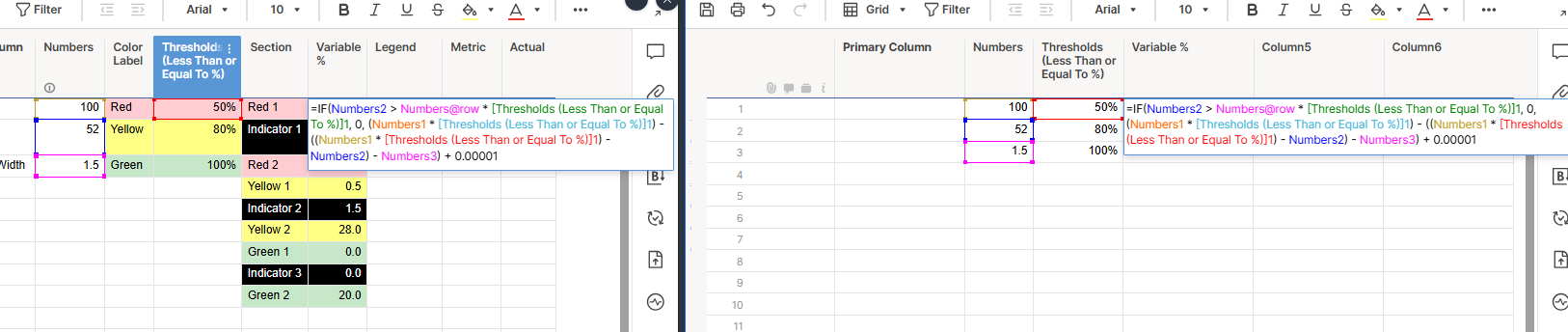
Further to topic 3, Excel serves the purpose for copying blocks of rows and columns with a little column/row alignment planning. Here’s a screenshot of the excel “copy” for us to paste into Smartsheet (sure beats doing this 20 times times 5 years):

Note: I use Excel as well when I validate my annual updates to the model. Of special focus each year is my bond re-pricing calculation, a simple function in Excel (enhancement request), that looks like this:
To achieve:


Yucch, huh?
5. Disaster report “dumps”
Hiding columns versus Deleting columns is a concern when working quickly, under time constraints, in front of 80 students anxiously awaiting the update. What could go wrong? In our simulation, in an annual decision period, the participants have 50+ decision cells that they have considered. If we delete the columns by mistake as we flip from year 2 to year 3 for example, and we hit “save”, we’ve killed them off.
Our disaster recovery scheme is to capture each decision elsewhere on each sheet that links to another Smartsheet and related report. Deleting the columns severs the links. Fortuitously, the “receiving” sheet still retains the value. Recovery would be clunky, but we could re-input all of a team’s decisions in a new “banque” and recover. We’re planning to build the reverse-engineering for this input, which currently would be manual.
Hope some of this is useful and remember:

Banquer Dave