Sign in to join the conversation:
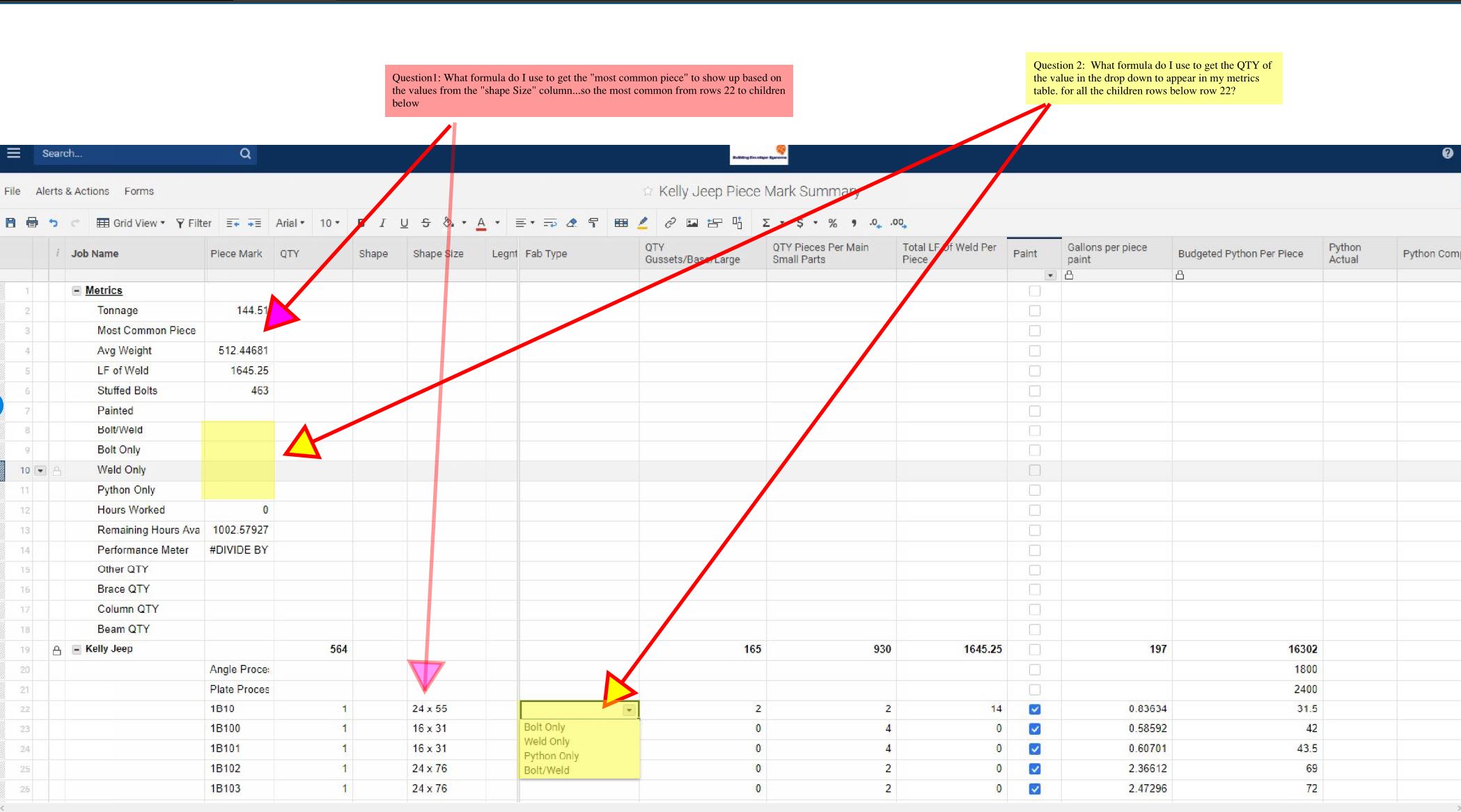
Good afternoon, Looking for some help on setting up formulas to capture the following metrics per attached. Any help would be greatly appreciated.
Thank you !
Not too sure about your Red question, but for the yellow question you could use the following formula:
=countifs([Fab Type]:[Fab Type], =[Job Name]@row
This will count all of the occasions of your job name in the Fab Type column.
For more on countifs:
https://help.smartsheet.com/function/countifs
OK thank you
There must me some formula that will give me the most common value entered in a column....... I will keep searching
Hello,
Based on the description of the questions provided you may be able to achieve these desired goals by combining some Smartsheet Functions. I've answered your questions in the order provided below.
1. To get the "most common piece" to show up based on the value from the "Shape Size" column you may be able to achieve this utilizing a IF function combined with a COUNTIF. The COUNTIF would find the exact count of each type and the IF will compare them against each other.
IF Function: https://help.smartsheet.com/function/if
COUNTIF: https://help.smartsheet.com/function/countif
The formula could look like this, note I haven't added all the potential values, only two of them.
=IF(COUNTIF([Shape Size]22:[Shape Size]26, "24x55") > COUNTIF([Shape Size]22:[Shape Size]26, "16x31"), "24x55", IF(COUNTIF([Shape Size]22:[Shape Size]26, "24x55") < COUNTIF([Shape Size]22:[Shape Size]26, "16x31"), "16x31"))
Note: You'll want to add all of the potential values to the end of the formula. You can achieve this by removing the )), replace them with a comma, then add the rest of the formula values.
2. To get the QTY of the value in the dropdown to appear in relation to the values displayed in the metrics table you can achieve this utilizing a VLOOKUP.
VLOOKUP: https://help.smartsheet.com/function/vlookup
The VLOOKUP can reference the value desired in the metrics table such as "Bolt Only" row 9 and display any desired value at the bottom table of row 22 such as 2 in the column small parts.
The formula could look like this.
=VLOOKUP([Job Name]@row, [Fab Type]22:[Total LF of Weld Per Piece]26, 3,false)
Have a wonderful day,
Eric - Smartsheet Technical Support
In my mind's eye, I was imagining creating a separate sheet to count all the various parts on the order forms and then using a combination of Vlookup and MAX formulas to pull the most ordered part. But I don't have time to think that one through thoroughly.
Thank you
I may have to wait until I get more knowledgeable for the question in red.
I can t seem to get it to work, thank you though!
I am currently in business trial version, but i was told it is supposed to allow for full functionality, however when I click Ctr+F my search menu is only a search bar that allows me to only find the string, and it doesn't allow for replacing. Is it me or the F&R functionality rather limited?
Hi all, I'm having some issues with an index-collect formula. I have (3) existing sheets that list a unique project name (text field), as well as a producer assigned to work that project. The producer column in all (3) sheets is set as a contact field. In a separate sheet, I'm trying to auto-populate the producer…
I looking to find unique values, in order, and separate them into columns. The "Client Update Date" column will contain dates, not in order and some dates may be duplicated. In the "1st Date Feedback I'm getting the correct date of 12/12/25 with the formula: =MIN([Client Update Date]:[Client Update Date]) In the "2nd Date…